Account, plans and billing
Your profile, plan limits, subscribing and switching plans, invoices, cancelling and refunds.
This chapter covers your Account page and your subscription: how to edit your profile, change your password and choose which emails you get, what each plan includes, how to subscribe, switch or cancel, and what happens when you reach a limit. Payments are handled by Paddle, our payment provider.
The Account page#
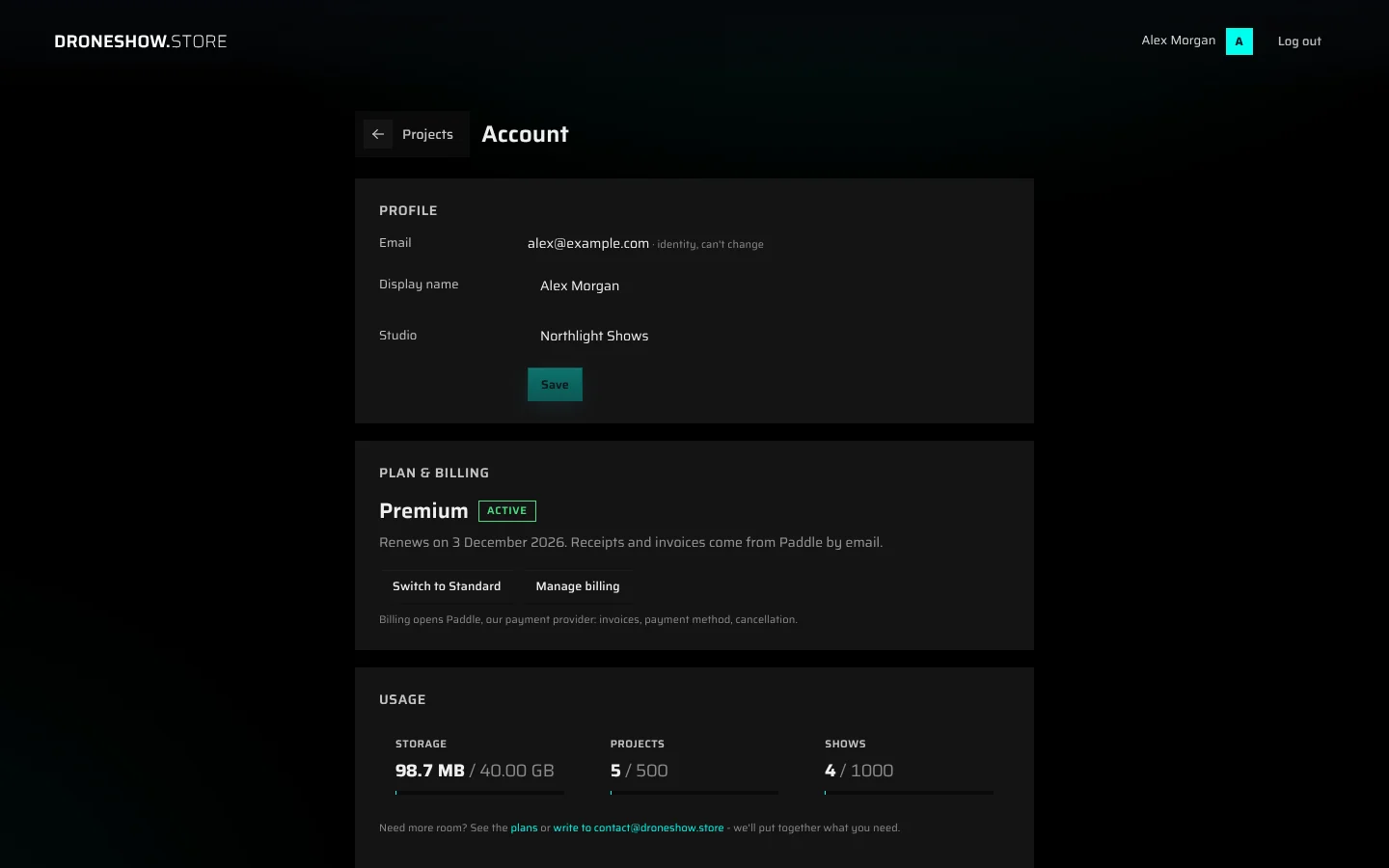
To open your Account page, click your name (or your initial, on a phone) in the top right corner of a workspace page, for example your Projects page. The page has these sections, from top to bottom:
| Section | What it's for |
|---|---|
| Profile | Your email, display name and studio name. |
| Plan & billing | Your plan and subscription, plan changes and access to invoices. See Your subscription. |
| Usage | How much of your storage, projects and shows you're using. |
| Email preferences | Whether you get product news, and client comments, by email. |
| Security | Password reset and logging out. |
| Delete account | How to have your account removed. |
To go back to your projects, click Projects at the top of the page.
Profile#
- Email is the address you sign in with. It identifies your account and can't be changed here.
- Display name is how you want to be addressed. It appears in the top bar and in your teams' member lists, and the invitation emails you send to teammates use it.
- Studio is your company or studio name. It's optional.
Change the fields and click Save. The button is active only when something has changed.
Usage#
Three cards show how much of your plan you're using: Storage, Projects and Shows. Each card shows the amount you use out of your limit, with a bar. The bar turns red when you're over a limit, for example after you move to a smaller plan.
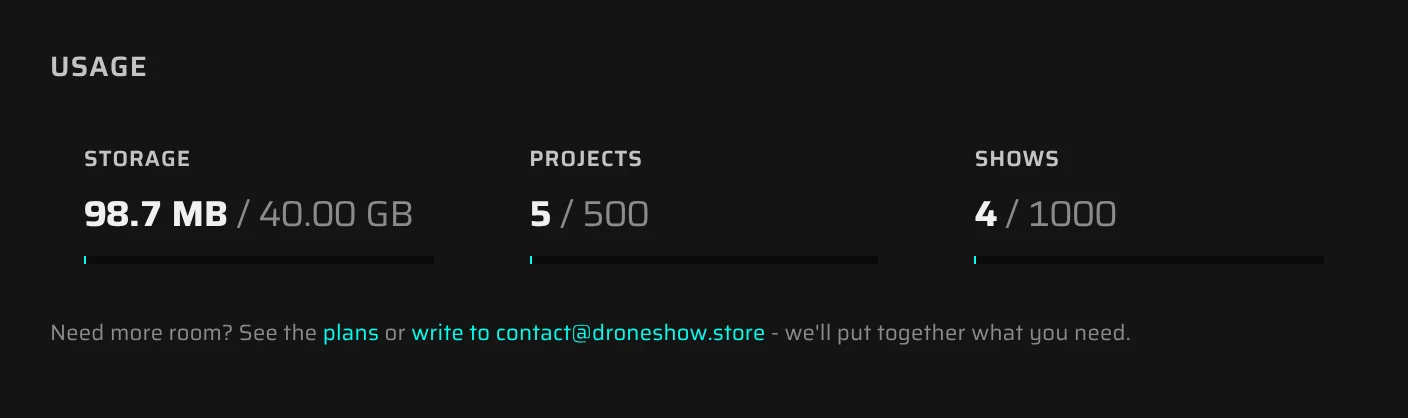
- Storage counts the files kept in the projects you own: converted show data, analysis reports, project music, site layers and preview images. Original show files count only while they're being converted, and are removed afterwards. A show that failed to convert keeps its uploaded file, so delete failed shows you don't need.
- Projects counts the projects you own, including the ones you've shared with a team.
- Shows counts all shows in your projects, including shows that are still converting or failed.
Need more room? Below the cards, the page links to the plans. You can also write to contact@droneshow.store and we'll put together what you need. Read When you reach a limit or your plan ends for what a limit means in practice.
Email preferences#
Tick Send me product updates to get occasional news about new features and drone show tips. Untick it to stop. Every marketing email also has an unsubscribe link at the bottom; when you click it, the page confirms You're unsubscribed.
Email me when a client comments (on by default) sends you the comments clients leave on your share links, collected into one email about ten minutes after the first one (see Client comments). Untick it to stop these emails; the comments still appear in your viewer.
We also send a few emails about your account when they matter:
- a day after you sign up, if you haven't started a show yet, one email with the quickest ways to start;
- when the AI assistant in the Show Builder has used 80% of its tokens, how many are left and when they renew;
- when a plan limit stops something (projects, shows or storage), what the limit is and which plan lifts it, at most once a month per limit.
With Send me product updates on, you may also get a short note on what's new after two weeks away; it has its own unsubscribe link.
Emails about your account, such as setup and password links and team invitations, are always sent, whatever you choose here. Receipts and invoices come from Paddle.
Security#
Change your password
- Under Security, click Send password-reset link.
- Open the email Reset your droneshow.store password and click the button. The link is valid for one hour and works once.
- Choose a new password (at least 8 characters, with letters and digits) and click Save & log in.
Setting a new password signs you out on all your other devices.
Log out
Log out of this device signs you out in this browser only. You can also use Log out in the top bar. Logging out also removes this browser's copy of your Show Builder work and its undo history. Your shows themselves are saved to your account and come back when you sign in again.
Delete your account#
You can't delete your account yourself. Email contact@droneshow.store from the address you sign in with (the link on the Account page fills in the subject for you). We remove your account and every project and show you own within 30 days.
Plans and limits#
Every account is on one of three plans, or on a custom plan arranged with us. New accounts start on Free.
| Free | Core | Premium | |
|---|---|---|---|
| Drones per show | 300 | 500 | 5000 |
| Projects | 5 | 30 | Unlimited |
| Shows | 10 | 120 | Unlimited |
| Storage | 1 GB | 15 GB | 40 GB |
| 3D viewer and client review links | ✓ | ✓ | ✓ |
| Show Builder | ✓ | ✓ | ✓ |
| Figure library | Starter figures | Whole library | Whole library |
| Exported shows | 3 | Unlimited | Unlimited |
| AI assistant tokens | Trial amount | Monthly | More, monthly |
What's included on each plan:
- Free: the 3D viewer in the browser, review links for your clients and the Show Builder, with free AI tokens to try the assistant. In the Builder you build with the library's starter figures and your own figures, and export up to 3 shows; downloading a show you've exported again is free (see Exports on the Free plan).
- Core: everything in Free, plus the whole figure library, any number of exports, bigger limits and AI tokens every month.
- Premium: everything in Core, plus shows of up to 5000 drones, more AI tokens every month and priority support on show days.
The drone limit applies to the shows you build in the Show Builder. Inside the Builder, it's called your account's limit.
On Premium, the usage cards show a technical ceiling of 500 projects and 1000 shows in place of "Unlimited".
The current prices are on the Pricing page. Open it from See plans on your Account page, or from the plans link under Usage.
Team and Custom plans#
At the top of the Pricing page, switch between Solo and Team:
- Solo: one person, one account. Core and Premium can be bought online with Subscribe.
- Team: a shared team workspace with shared projects, roles and version history, set up with you directly. The buttons read Talk to us and open an email to us.
Below the plans, the Custom section is for anything else: more drones, more storage, several teams, or paying by invoice instead of by card. Click Talk to us to tell us what you need.
Plans set up by droneshow.store#
If we've set up your plan for you, for example after a call, it shows on your Account page without a subscription. The card then reads "Core plan, set up for you by droneshow.store" (or "A custom plan arranged with droneshow.store" for a custom plan). For questions or changes, write to contact@droneshow.store. On the Pricing page, plans that your plan already covers are marked Your plan or Included in your plan.
Subscribe to Core or Premium#
- Open the Pricing page (on your Account page, click See plans).
- Make sure Solo is selected.
- On the plan you want, click Subscribe. The button reads Opening… while the payment form loads.
- Paddle's payment form opens over the page, with your account's email already filled in. Enter your payment details and confirm. Any sales tax or VAT is calculated in the form.
- After the payment, the Pricing page shows "Payment received - switching your plan on…" and then takes you to your Account page, which shows "Payment received - welcome to Core! Paddle emails the receipt." (or Premium).
If the Account page instead says "Payment received. Switching your plan on - this can take a minute.", stay on the page. It checks again by itself and updates as soon as your plan is active.
Good to know:
- Plans are billed monthly, in US dollars.
- Paddle.com is the Merchant of Record for all orders: Paddle processes the payment, issues the receipt and invoice, and handles sales tax, VAT and refunds.
- The receipt goes to your account's email address.
- If you close the payment form without paying, nothing changes.
- An account can have one subscription. If you already have one, the Pricing page shows Upgrade to Premium or Switch to Core in place of Subscribe.
Subscribing before you have an account
If you click Subscribe while signed out, the app remembers the plan you chose and takes you to Sign up. Once you've signed up and set your password, or signed in, you're brought back to the Pricing page and the payment form opens by itself. This works in the same browser for up to a day; after that, pick the plan again.
Your subscription#
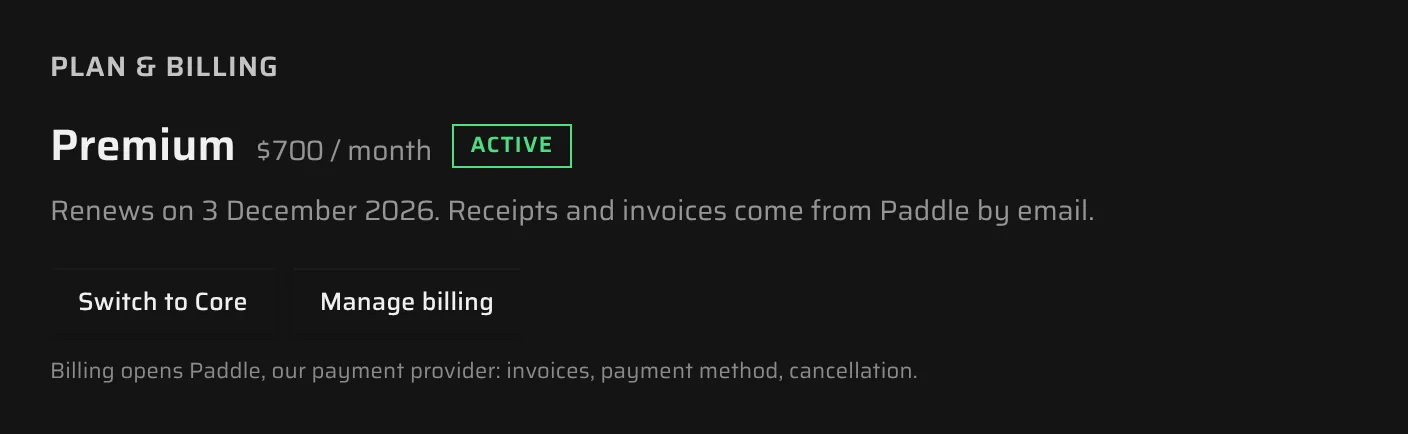
The Plan & billing section on your Account page shows your plan, its monthly price and a status label. A line underneath tells you what happens next.
| Status label | What the line says | What it means |
|---|---|---|
| Active | "Renews on date. Receipts and invoices come from Paddle by email." | Everything is in order. |
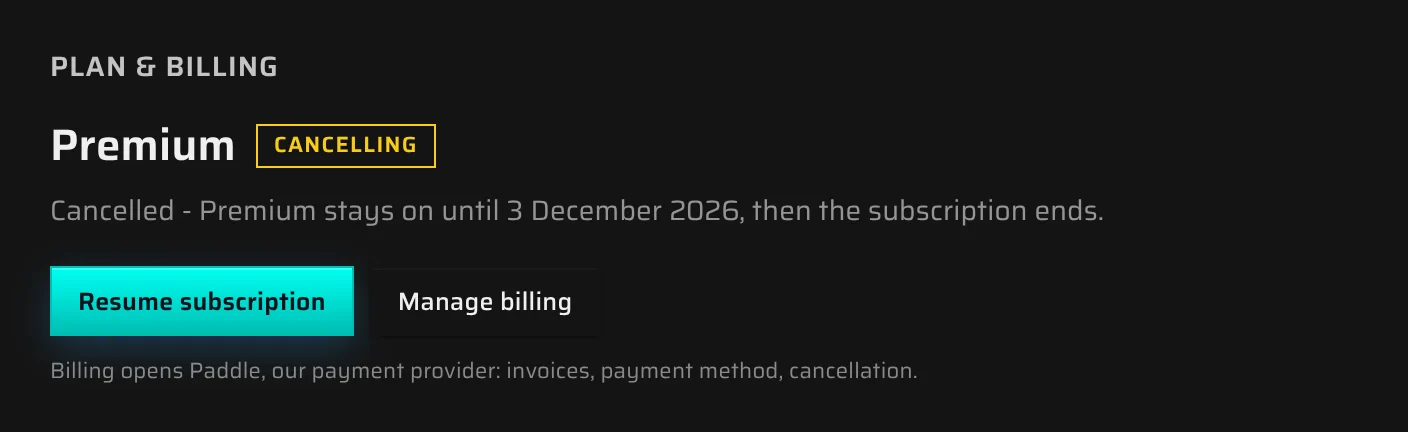
| Cancelling | "Cancelled - plan stays on until date, then the subscription ends." | You cancelled. Your plan stays until the end of the period you paid for. |
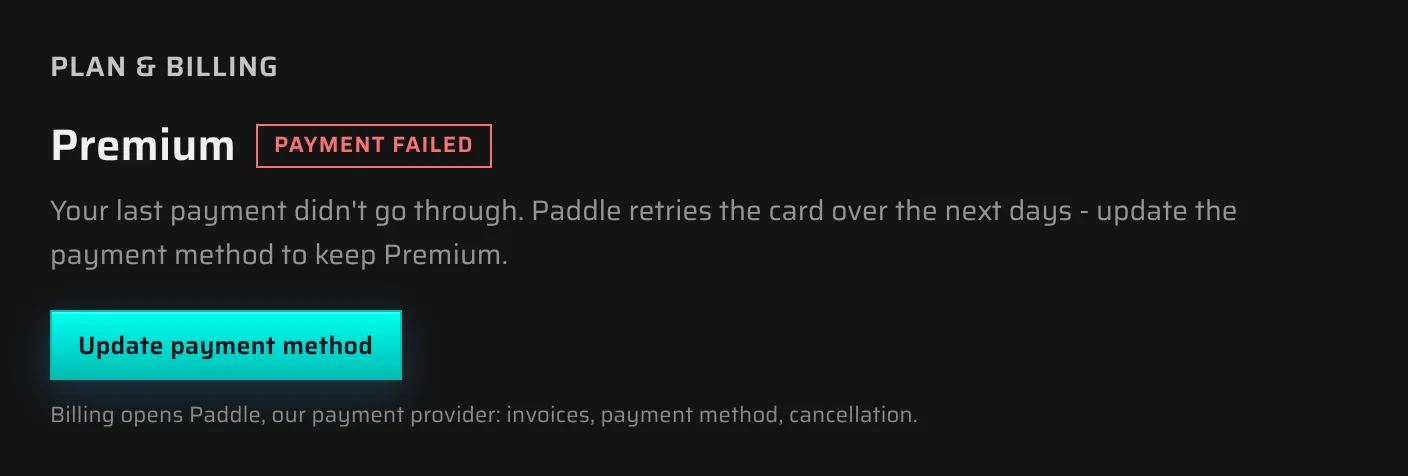
| Payment failed | "Your last payment didn't go through. Paddle retries the card over the next days - update the payment method to keep plan." | Your plan still works, but the card needs attention. See Failed payments. |
| Paused | "Your plan subscription is paused. Resume it in Manage billing to get the plan back." | Your paid plan is switched off until you resume. |
If a pause is scheduled, the line reads "The subscription pauses on date."
The buttons below change with your situation:
- See plans: you have no subscription and can subscribe.
- Upgrade to Premium or Switch to Core: change your plan.
- Resume subscription: undo a cancellation (or a scheduled pause) before it takes effect.
- Manage billing: open Paddle's customer portal. When a payment has failed, this button reads Update payment method.
Switch between Core and Premium#
- On your Account page, click Upgrade to Premium or Switch to Core. The same buttons appear on the plan cards on the Pricing page.
- Read the confirmation and confirm.
- Upgrading ("Upgrade to Premium?"): Premium starts immediately. Today you pay the prorated difference for the rest of the current billing period, then the Premium price at each renewal.
- Switching down ("Switch to Core?"): the Core limits apply immediately. The unused part of the current period is credited toward your next bills.
If your card is declined during an upgrade, nothing changes, and the message starts with "Changing the plan didn't go through:", followed by Paddle's reason.
You can't change plans while a payment has failed or while a cancellation is scheduled:
- "Your last payment didn't go through. Update the payment method in Manage billing first, then change the plan."
- "Your subscription is set to end at the close of this billing period. Resume it first, then change the plan."
Invoices, payment method and cancellation#
Click Manage billing to open Paddle's customer portal in a new tab (if your browser blocks the new tab, the portal opens in the current one). In the portal you can:
- see and download your invoices;
- change your card or other payment method;
- cancel your subscription.
Cancel your subscription#
- On your Account page, click Manage billing.
- Cancel the subscription in Paddle's portal.
- Back on the Account page (reload it if needed), the status reads Cancelling and shows the date your plan ends.
You keep your paid plan until the end of the period you've paid for. After that, your account returns to the Free plan, or to the plan you had before you subscribed. Nothing is deleted. See When you reach a limit or your plan ends.
Changed your mind? Click Resume subscription before the end date and the subscription continues as before.
Failed payments#
If a renewal payment fails, the label changes to Payment failed and the main button becomes Update payment method. Your plan keeps working while Paddle retries the card over the next days.
- Click Update payment method.
- Enter a new card or payment method in Paddle's portal.
Paddle may also email you a link to update your payment method. It opens the payment form on our Pricing page. When the payment goes through, the page shows "Payment received - thank you! Paddle emails the receipt."
If all retries fail, Paddle cancels or pauses the subscription, and your account returns to the Free plan, or to the plan you had before.
Receipts and refunds#
Paddle emails a receipt for every payment. Your invoices are under Manage billing.
Every paid plan has a 14-day money-back guarantee. You can ask for a full refund, including any taxes, within 14 days of:
- your first payment for a subscription;
- a renewal payment, counted from the renewal date;
- an upgrade to a higher plan (for the amount charged for the upgrade).
You don't need to give a reason. To ask for a refund, either:
- request it through Paddle at paddle.net with the email address you paid with, or
- email contact@droneshow.store with your account's email address and your order number (it starts with a letter and is on your receipt).
Paddle sends the refund to your original payment method. It usually appears within 5–10 business days. A refunded subscription is cancelled and your account returns to the Free plan, or to the plan you had before.
After 14 days, payments are generally not refundable, but your subscription keeps working until the end of the period you paid for. If something on our side stopped you from using the app, such as a long outage or a double charge, contact us and we'll make it right. The full terms are in the Refund Policy.
When you reach a limit or your plan ends#
Nothing is deleted when you reach a limit, move to a smaller plan or your subscription ends. Your limits are checked only when you add something:
| You try to… | Checked against |
|---|---|
| Create a project | Projects |
| Upload a show | Shows and Storage |
| Add a 3D scene or a KML file to a project | Storage |
If an addition would go over a limit, it's refused and you see where you stand, for example:
- "You're using 1.00 GB of 1.00 GB. Free up space by deleting an old project or show, or upgrade your plan for more."
- "You already have 5 of 5 projects. Delete an old one, or upgrade your plan for more."
- "You already have 10 of 10 shows. Delete an old one, or upgrade your plan for more."
On Free and Core the window has a See plans button that opens the Pricing page. On Premium and custom plans the message asks you to write to contact@droneshow.store instead, and we raise the limit.
Everything you already have keeps working, even above a limit. You can open and play your shows, your share links stay live and your clients can still comment.
To make room, do one of the following:
- Delete shows or projects you don't need. The space is freed immediately.
- Upgrade on the Pricing page.
- Write to contact@droneshow.store.
When your subscription ends
- Your account returns to the Free limits, or to the plan you had before.
- The Show Builder stays available, with the Free plan's drone limit. The AI assistant goes back to the Free tokens.
- Your projects, shows and share links stay as they are.
Something missing or unclear? Write to contact@droneshow.store.