Teams
Share projects and Builder shows with your colleagues, choose what each member can do, and edit together safely.
A team is a shared workspace. Everyone in the team sees the same projects and Builder shows, and each person's permissions are set individually. Use teams when several designers work on the same shows, or when a colleague only needs to watch and review. Any account can create teams and belong to several of them.
How teams work#
- Shared content. Projects and Builder shows you move into a team become visible to all its members. Each member gets a set of permissions: view, edit, invite and manage.
- Ownership stays. A team project or show still belongs to the person who created it. It counts toward the owner's limits (Plans and limits), and only the owner can move it into or out of the team.
- Your own work stays private. Anything you haven't shared with a team is visible only to you.
Create a team#
- In the menu on the left, under Teams, click New team.
- Enter a Team name, for example "Skylight Design". Names can be up to 80 characters.
- Click Create team.
The team page opens, and the team appears in the menu under Teams. As the creator, you have all four permissions.
The team page#
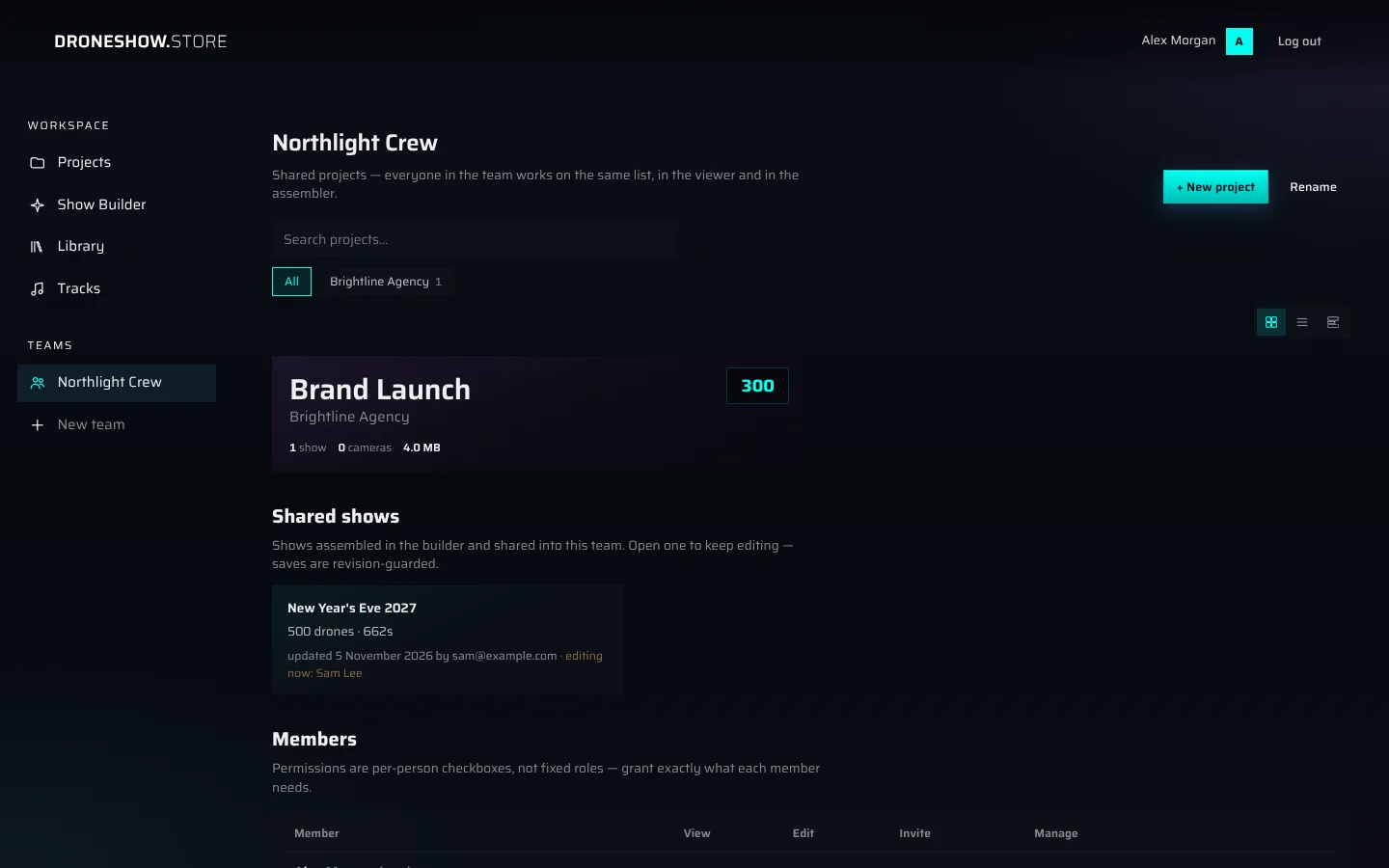
To open a team, click its name under Teams in the menu. The page has these parts, from top to bottom:
- Header. The team name and two buttons: + New project (if you have the edit permission) and Rename (if you have the manage permission).
- Shared projects. The team's projects, with the same search, filters and views as your Projects page. When there are none yet, the page says No shared projects yet.
- Shared shows. Shows built in the Show Builder and shared into this team. Each card shows the show's drone count and length, and who last updated it and when. "editing now: name" means a teammate has the show open for editing right now.
- Members. Everyone in the team and their permissions. Members who can invite also see the invite form here.
- Delete team… at the bottom, if you have the manage permission.
Team projects also appear on each member's own Projects page, with a violet tint and a chip showing the team name.
Permissions#
Each member has a set of four permissions. They aren't fixed roles: give each person exactly what they need.
| Permission | What it allows |
|---|---|
| view | Open team projects and shows. Every member has it, and it can't be removed. |
| edit | Change team projects and shows and upload new ones, create projects in the team, and edit shared Builder shows. |
| invite | Invite new members. |
| manage | Change members' permissions, remove members, rename or delete the team, and delete team projects owned by others. |
Two presets in the invite form fill in the checkboxes for you:
- Viewer: view only. Good for reviewers who only watch shows.
- Editor: view and edit. Good for designers who work on the shows.
Owners always keep full control over their own projects and shows, whatever their permissions in the team.
Change a member's permissions#
If you have the manage permission, tick or untick the checkboxes in a member's row of the Members table. Each change is saved immediately. Point at a column heading to see what that permission allows.
A team always needs at least one member with the manage permission. If you try to take it away from the last manager, you see "a team must keep at least one member with 'manage'". Give the manage permission to someone else first.
Invite people#
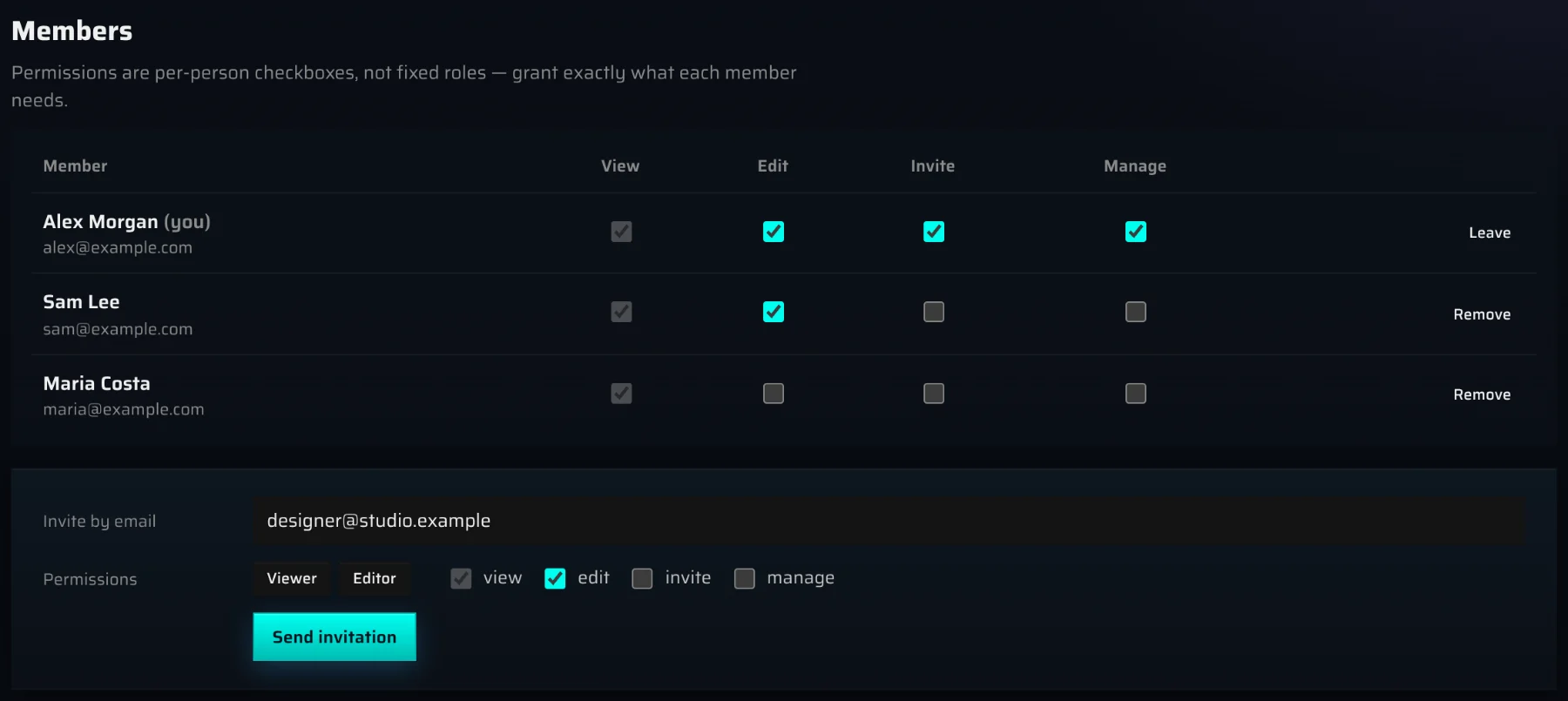
You need the invite permission.
- On the team page, under Members, enter the person's email address in Invite by email.
- Next to Permissions, click Viewer or Editor, or tick the boxes you want.
- Click Send invitation.
What happens next depends on whether the person already has an account:
- They have a droneshow.store account. They get an invitation they have to accept. The form says "Invitation sent. They join the team once they accept it.", and they appear in the Members table greyed out, marked "Invited — joins once they accept". They receive the email "Your name invited you to “Team” on droneshow.store", with a button that opens their workspace.
- They don't have an account yet. We create one for them and add them to the team. The form says "No account with this email yet — we sent them an invitation to join the team and set a password." Their email, "Your name invited you to “Team” on droneshow.store", contains a link to set a password. The link is valid for one hour and works once. As soon as they've set a password, the team is in their workspace.
Until they accept, they can't see the team's projects and shows. To withdraw an invitation, click Cancel invite in their row (requires the invite permission). Inviting the same person again sends the email again, with the permissions you've just ticked. Other messages you may see:
- "Already a member of this team."
- "That doesn't look like an email address."
The invitation emails show your display name, so set one on your Account page if you haven't.
Accept an invitation#
When a team invites you, a banner at the top of your Projects page says "Name invited you to the team «Team»". Click Accept to join: the team page opens and the team appears in the sidebar. Click Decline to turn it down: no email goes out, and the invitation just disappears from the team's member list.
Leave a team or remove a member#
To leave a team:
- In the Members table, click Leave in your own row (marked "(you)").
- Confirm with Leave team.
You lose access to the team's projects and shows until someone invites you back.
To remove someone (requires the manage permission):
- Click Remove in their row.
- Confirm with Remove member. They lose access to the team's projects and shows.
The last member with the manage permission can't leave or be removed: the message reads "cannot remove the last member with 'manage'". Give the manage permission to someone else first.
Rename or delete a team#
You need the manage permission.
- Rename. Click Rename in the header, enter the new team name and confirm.
- Delete. Click Delete team… at the bottom of the page, type
deleteand click Delete team. Nothing is deleted with the team: shared projects and shows go back to their owners' personal workspaces, and all memberships are removed.
Team projects#
Create a project in the team#
- On the team page, click + New project. You need the edit permission.
- Enter a Name and click Create in team.
The project belongs to you and counts toward your project limit, but everyone in the team can open it right away.
Move a project into a team#
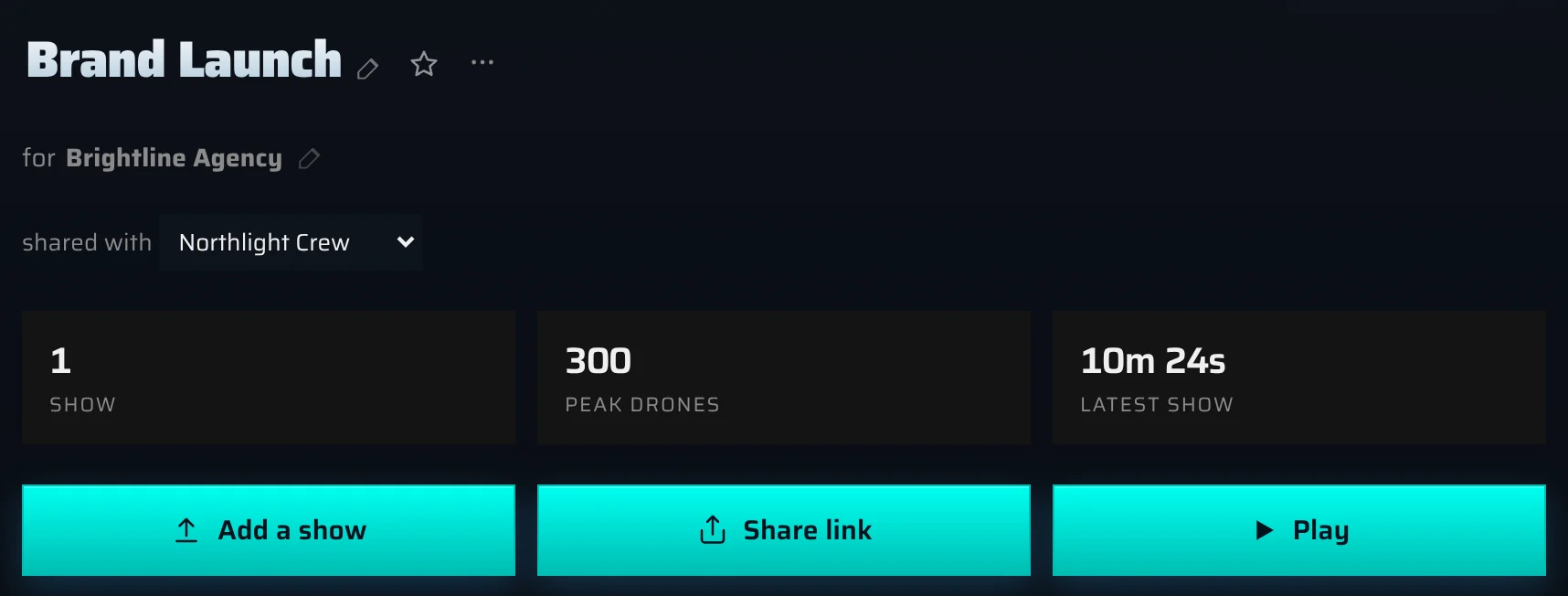
- Open one of your own projects.
- Below the project name and the customer, open the shared with list and choose the team.
To take the project back, choose nobody (personal). The project's share link for clients stays the same either way.
The shared with list appears only on projects you own, and only when you belong to at least one team.
What members can do in a team project#
| Action | Who can do it |
|---|---|
| Open the project and play its shows | All members |
| Upload shows, change shows and project settings | Members with edit, and the owner |
| Delete the project | Members with manage, and the owner |
| Move the project into or out of the team | Only the owner |
Deleting a team project removes it, with all its shows, cameras and uploads, for every member of the team. The confirmation asks you to type delete.
Shared Builder shows#
Shows you build in the Show Builder can be shared with a team too. Every member can see and open them in their own Show Builder.
To share a show, open Show Builder in the menu and, on the show's card, choose the team in the list that reads personal. Choose personal again to take it back. Only the show's owner sees this list. The details are in Sharing a show with a team.
Shows your teammates shared appear on your Show Builder page with a team chip, and on the team page under Shared shows. Click a card to open the show in the Builder. Members with only the view permission can open shared shows but can't save changes to them.
Figures you upload to the Library can be shared with a team as well. See Sharing figures with your team.
Editing a show together#
The Builder makes sure two people never overwrite each other's work by accident. Your work is saved to the team automatically as you go, and only one person edits a show at a time.
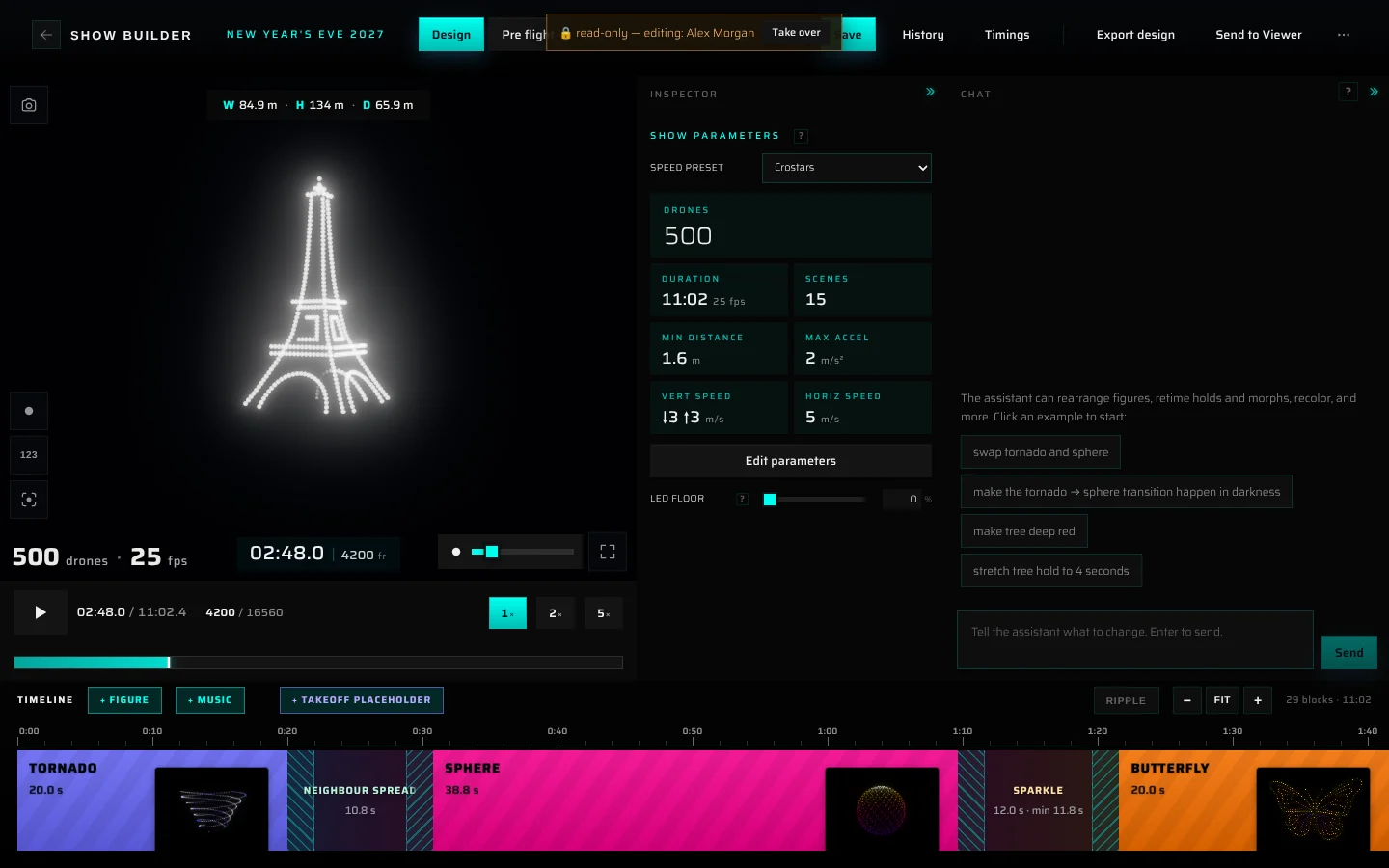
- Someone else is editing. When you open a team show that a teammate is editing, a bar at the top of the Builder reads "🔒 read-only — editing: name". You can look around, but your changes stay on your computer and aren't saved to the team. To edit anyway, click Take over: the editing moves to you and your teammate's Builder becomes read-only. Talk to each other first: taking over in the middle of someone's work is rarely what you want.
- A teammate saved a newer version. A bar reads "email saved a newer version", with Open theirs (load their version) and Publish mine (save yours as the newest version). Nothing is lost either way: after Open theirs, your own edits are still in the undo history (Ctrl+Z); after Publish mine, their version stays in History.
- The show was deleted. A bar reads "🗑 deleted from the team by email — not saving". Restore brings the show back under the same link; Save as new keeps your copy as a new show.
The show's saved versions are listed in History in the Builder, and you can restore any of them. See Working on a show with your team and Version history.
Something missing or unclear? Write to contact@droneshow.store.