The AI assistant
Ask the Builder's assistant to add figures, set transitions and effects, or retime the show in plain words.
The Chat pane in the Builder gives you an assistant that edits the open show for you. Describe a change in plain words, such as "make all transitions fade through white" or "fit the show to the beat", and the assistant makes it using the same settings you have in the timeline and the Inspector. It's useful for changes that would take many clicks, like restyling every transition at once, and for trying ideas quickly.
Open the chat#
The Chat pane sits on the right of the Design tab, next to the Inspector. The Pre flight tab has no chat.
- Click the pane's header to fold it to a slim strip; click the strip to open it again.
- Drag the pane's left edge to make it wider or narrower.
- Click ? in the header to open Chat assistant, a short help with examples of what you can ask. Click an example to put it in the input box.
- On a narrow screen, the chat sits below the timeline, next to the Inspector.
Ask for a change#
- Click in the box at the bottom of the pane (Tell the assistant what to change. Enter to send.) and describe what you want.
- Press Enter or click Send. Shift+Enter starts a new line.
- While the assistant works, the pane shows Thinking… and the box is locked.
- The assistant changes the show and replies with a short sentence about what it did. The viewport recalculates the show; you may briefly see Solving… N%.
When the chat is empty, it shows example requests built from the figures in your show, such as swap tornado and sphere or make the tornado → sphere transition happen in darkness. Clicking one only puts it in the box, so you can edit it before sending.
Some things to know:
- Use the names you see. Refer to figures by their names on the timeline, and to a transition by the figures it connects ("the heart to star transition"). The assistant uses the same names in its replies.
- Any language works. The assistant replies in the language you write in.
- It acts rather than asks. If a request is open to interpretation, the assistant picks the most natural reading and tells you what it did. If it guessed wrong, say "undo that" (or undo yourself) and say more precisely what you want.
- Colours and effects are separate. Asking for colours ("make this transition red", "use the Champagne palette") changes the colours of the effect the transition already has. The effect itself (Sparkle, Ripple, …) changes only when you ask for a different one.
- It remembers the conversation, so follow-ups like "a bit longer" or "now do the same for the next one" work.
- It always works on the current show, including the changes you made by hand since your last message.
Example requests#
| What you want | Try asking |
|---|---|
| Build a show | "make a show of a heart, a star and a butterfly" |
| Arrange figures | "add a heart figure after the sphere", "swap the helix and the cube", "replace the star with a butterfly", "delete the last figure" |
| Timing | "stretch the sphere hold to 4 seconds", "make all morphs 3 seconds long", "give the finale more time", "make the show exactly 6 minutes" |
| Transitions | "make the helix transition happen in darkness", "fade every transition through white instead of black", "use Colour wave on every transition", "dissolve the sphere into the star" |
| Colour | "use the Champagne palette on all transitions", "give the heart a slow hue drift and a rim light", "make the heart to star transition sparkle in the heart's colours" |
| Drone numbers | "light every second drone, stepping along", "run a light along the drone numbers" |
| Music | "fit the show to the beat", "fit to the beat but don't move any hold by more than 2 seconds" |
| Figures | "make the heart deep red", "let the heart twinkle while it stands", "let the heart beat", "make the logo glow like neon", "turn off the leopard's motion", "make the bird's motion weaker", "draw the butterfly point by point, from two places at once", "make the logo brighter", "play the butterfly's animation twice as fast", "make the star twice as big", "turn the logo to face the other way", "move the heart 10 m up", "centre the logo" |
| Undo | "undo that", "put the effect back, keep the colours" |
| Show settings | "lower the horizontal speed limit to 5 m/s", "set the LED gamma to 1.3", "reserve 40 seconds for takeoff" |
| Questions | "what's the shortest the heart to star transition can be?", "what are the main colours of the logo?" |
Work on one block: Hard focus#
To work on a single figure or transition, select its block on the timeline. The chat then focuses on that block only:
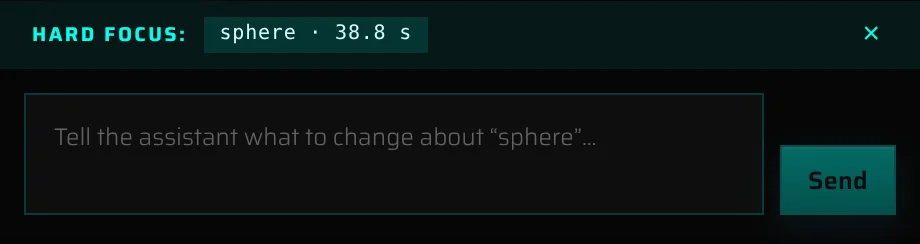
- A Hard focus bar in the viewport, just above the playback time, names the block: for a figure its name, its effect if it has one, and its hold length (sphere · Twinkle · 38.8 s), for a transition the figures it connects, its colour effect and its length (sphere → butterFly · Sparkle · 12.0 s). The same line appears in a strip above the chat's input box.
- The box reads Tell the assistant what to change about "sphere"… or …about this transition….
- Words like "this", "it" or "here" mean the focused block.
While the chat is focused, the assistant can change only:
- for a figure block: its hold length, its effect, and the figure itself (size, rotation, position and living colour);
- for a transition: everything about that transition (colour effect, palette, fades, mask, motion and length), and the two figures it connects.
If you ask for something that affects the rest of the show, such as reordering, adding figures, changing every transition, the flight limits, the drone count, the show length or fitting to the beat, the assistant says the chat is focused and asks you to clear the focus first. One exception: if a change to the focused transition leaves another transition too short, the assistant may lengthen that one too.
To talk about the whole show again, click × on the Hard focus bar in the viewport or on the strip under the chat, click Clear (×) in the timeline header, or press Esc when you're not typing.
While a block is focused, Play loops over it with a few seconds on each side. If you move the playhead outside that stretch (by clicking the timeline ruler) and press Play, the focus is cleared and the show plays on from the playhead.
What the assistant can do#
| Area | The assistant can… |
|---|---|
| Build and arrange | Add figures from the library, at the end or right after a given figure. Each new figure gets a 20-second hold and an automatic transition into it. It finds figures by their titles and tags, in any language, and prefers figures that fit any drone count; other figures must match the show's drone count. Put a different figure into a hold, as Change figure does. Delete a figure together with its transition, as the × on the block does. Swap two figures, or two transitions; it won't put two figures next to each other. After a swap or a deletion, transitions whose length or colours are automatic adapt to their new neighbours. |
| Timing | Set the length of any hold or transition; a length it sets stays put when you later add or change figures, like one you type yourself. Set the whole show to an exact length by scaling the figure holds: transitions keep their length, and no hold goes below 0.5 s. Tell you the shortest time a transition can take, and warn you when a length is below it. |
| Transitions | Choose any effect from the effect library and set any of its settings, including Layered combos. Set palettes: your own colours, a gamut by name or mood, or a figure's main colours. Set Fade through…, including white, a colour or desaturation and pauses at the through point. Set masks, including which part of a figure decides who is lit ("only the drones lit in the first 7 seconds"). Change motion: stagger, departure order, start point, matching, easing and length. Change one transition, or many or all at once; when it changes several at once, transitions that become too short for the drones are lengthened automatically. |
| Figures | Put a colour effect on a figure block, change it or take it off, as the Color effect section does. Paint a figure in one colour (Recolour: each drone keeps its brightness, so the figure's light pattern stays), or give it back its own colours. Change Boost and Auto levels. Add living colour (gradient tint, hue drift, shimmer, rim light). Change the Speed and Start at of a figure's animation. Switch a figure's living motion off or on and change its Strength and Tempo (setting up a new motion is done in the Inspector, with Bring to life with AI). Scale and rotate a figure; a figure that gets bigger may be slowed down automatically to stay within the speed limits. Move a figure, or centre it. |
| Colour across the show | Plan palettes by time range, for example "Ice for the first minute, Ember from 1:00 to 2:30". Transitions whose colours you haven't edited take the palette of the range they fall in; ask it to "repaint everything" to include the ones you have edited. |
| Music | Fit the show to the beat; transitions it lengthens keep that length. It knows the track's tempo and where its sections change, so it can plan colours or overlay effects by section. Add and remove overlay effects. |
| Show settings | Change the flight limits: frame rate, minimum distance, vertical and horizontal speed, acceleration. Transitions that become too short are lengthened automatically. Set the LED gamma, a brightness curve for LEDs that fall off fast. Change the drone count, up to your plan's limit, when no figure in the show has a fixed drone count. Add, change or remove the takeoff placeholder. |
| Undo | Take back its own last changes exactly ("undo that", "put it back"): only what it changed goes back, so your own edits elsewhere stay. It can also put back just one part, such as the effect, and keep the rest. |
What the assistant can't do#
- Make new figures. It can only add figures from the library and your own figures. When nothing there fits (a client's logo, a particular character), it says so and points you to From a picture (see Making a figure from a picture) or Order a figure: our designers can make it (see Order a figure the library doesn't have).
- Delete a single transition. A transition always sits between two figures; delete one of the figures instead.
- Repaint a figure drone by drone. It paints a whole figure in one colour, keeping each drone's brightness.
- Add, change or remove music, or change its Offset. It doesn't hear the music either: it knows the tempo and the times where sections change, but not which section is the chorus. Give times when you mean a part of the song ("from 1:20 to 1:45").
- See the viewport. It works from a text description of the show: figure names, the order and timing of blocks, and each transition's settings.
- Change Pre flight settings, apart from the takeoff placeholder.
- Export, send to the viewer, save versions, rename the show or use Timings and History.
- Hide individual drones in a transition. Do this in the Inspector.
Review and undo changes#
- The assistant's changes apply as soon as it makes them. There's no confirmation step.
- The quickest way back is to tell the assistant: "undo that" takes back everything it changed for your last message, and "undo your last step" just the last single change. It reverts exactly what it changed, so edits you made yourself in the meantime stay. You can also keep part of a change: "put the effect back, keep the colours". It remembers its changes until you reload the page.
- Each change is also a separate step in the undo history, so a request that changes three things takes three undos. Click the undo arrow in the Builder header, or press Ctrl+Z (⌘+Z on a Mac). Redo with Ctrl+Shift+Z or Ctrl+Y.
- The shortcuts don't reach the show while your cursor is in the chat box; there they undo your typing. Click outside the box first, or use the undo arrow.
- The changes are saved like any other edit. To go back further, use History in the Builder header (see Version history).
- If a transition ends up shorter than the drones need, its block turns orange on the timeline, just as when you edit by hand. Right-click the block and choose Set to minimum time, or drag it longer.
Tips for good results#
- Say which block. "Make the heart to star transition slower" works better than "make it slower".
- Split big jobs. One message can take several steps, but the assistant stops after eight. Ask for a long list of changes in a few messages.
- Use Hard focus for detail work on one transition. The assistant can't touch anything else by mistake.
- Name gamuts and effects as they appear in the Builder, such as "Champagne", "Chain" or "Reveal". The assistant uses the same names in its replies. You can also describe a mood ("warm and elegant colours") and let the assistant choose.
- Mind the clock when building from scratch. New figures get 20-second holds; follow up with "make the show exactly 5 minutes" or "fit the show to the beat".
The conversation belongs to the show you have open. It's kept when you reload the page and on your other devices, and starts empty when you open or create a different show.
Usage allowance#
The assistant is part of the Builder, so it's available on every plan. Its use is measured in tokens (pieces of text the assistant reads and writes), against an allowance that depends on your plan:
- Free: a one-off amount of tokens to try the assistant. It doesn't renew.
- Core and Premium: tokens every month, more on Premium. They renew on the 1st of each month (UTC).
- On every plan there is also a daily number of requests, which resets at midnight UTC. Every step the assistant takes counts as a request, so one message can use several.
- The other AI features in the Builder (below) use the same allowance.
The line under the chat box shows the tokens you've used and your allowance, for example 120 / 1,000; hover it to see when it renews and how many requests you have left today. It turns yellow when you're close to the limit and red when it's used up.
When you reach the allowance, the assistant stops answering until it renews; on Free, until you move to Core or Premium. If you need more, write to contact@droneshow.store.
Messages you may see#
| Message | What it means |
|---|---|
| Thinking… | The assistant is working on your request. |
| Stopped after 8 turns to prevent a loop. | The request needed too many steps. Check what was already changed, then ask for the rest in a new message. |
| Too many requests at once. Wait a few seconds and try again. | The assistant is busy, or you've used up your allowance. If it keeps happening after a wait, you've probably reached the allowance (see above). |
| The server is busy or restarting. Give it a few seconds and try again. | The assistant is temporarily unavailable. |
| Session expired. | Your sign-in has run out. Sign in again, then resend the message. |
| The assistant says the chat is focused on one part of the show | A block is selected. Clear the Hard focus to work on the whole show. |
Errors appear in red in the chat. The show stays as it was before the failed step; changes from earlier steps of the same request stay applied.
Privacy#
When you send a message, the Builder sends your text, the recent conversation and a compact text description of the open show to the AI service that powers the assistant. The description covers the drone count, flight limits, figure names and settings, the order, timing and transition settings of the blocks, overlay effects, and the music's name, tempo and the times its sections change. The requests go through droneshow.store's servers; your browser never contacts the AI service directly. When the assistant looks for figures to add, it also receives the names of figures in the library. Your music and figure files are not sent.
droneshow.store records how much you use the assistant (the number of requests and the amount of text), which is what the allowance is measured against.
Other places the Builder uses AI#
- New-show flow: on the Figures step, Let AI suggest a set picks figures that fit your occasion, mood and length, and Re-suggest with AI tries again. See Tell us about your show.
- Figure cards: Generate description looks at a figure and writes its description and tags. The result is saved straight away and stays editable. To do that, it sends pictures of the figure. See Viewing a figure and its description.
Both use the same allowance as the chat, and so does the automatic sorting of new figure uploads into library themes.
Something missing or unclear? Write to contact@droneshow.store.