Sharing and client review
Send a client one link to the project's shows, choose what they can see, and collect their comments on the timeline.
Every project has a share link. Your client opens it in a browser — no account, no installation — and watches the project's shows in the same 3D viewer you use, with the music, cameras and site layers you set up. This chapter explains how to send the link, how to choose what your client can do on the page, and how to collect their feedback as comments pinned to moments of the show.
How sharing works#
- One link per project. The link exists from the moment you create the project and shows all of the project's public shows.
- No account needed. Visitors open the link directly.
- Visitors can't change your project. Anything they adjust — camera, drone size, toggles — only affects their own screen. The one thing they can add is comments, and only when you turn comments on.
- Visitors see your project's look: the default camera, background, glow, drone size, music and sync offset, cameras and site layers.
- Your original files stay with you. Visitors watch the show streamed into the viewer; the files you uploaded are never offered for download.
- Anyone with the link can open it. The link contains a random code, so nobody can guess it from your project name. Treat it like a link to a private document and send it only to people who should see the show.
- New shows appear automatically. A show you add to the project is public by default and shows up on the link as soon as it's ready. Hide work in progress with the eye button — see Hide a show from the link.
- From the Show Builder in one step. Client link in the Builder sends the show when needed, sets the page to Client preview with comments on and gives you the link — see A link for your client.
Copy the share link#

- Open the project page.
- Click Share link. The button changes to Copied to clipboard.
- Paste the link into an email or a chat message.
- To see the link before you copy it, hover over the button.
- On a phone, Share link opens your phone's share menu, so you can send the link straight to a messenger.
- If your browser doesn't allow copying, a Copy this link window shows the link so you can select and copy it yourself.
- You can also copy the link from your projects list: click ⋯ on the project card, then Copy share link.
The link looks like https://app.droneshow.store/p/riga-2026-3f9a1c2e: the project name followed by a random code. If you rename the project, new copies of the link show the new name, and the links you've already sent keep working.
Choose what visitors see#
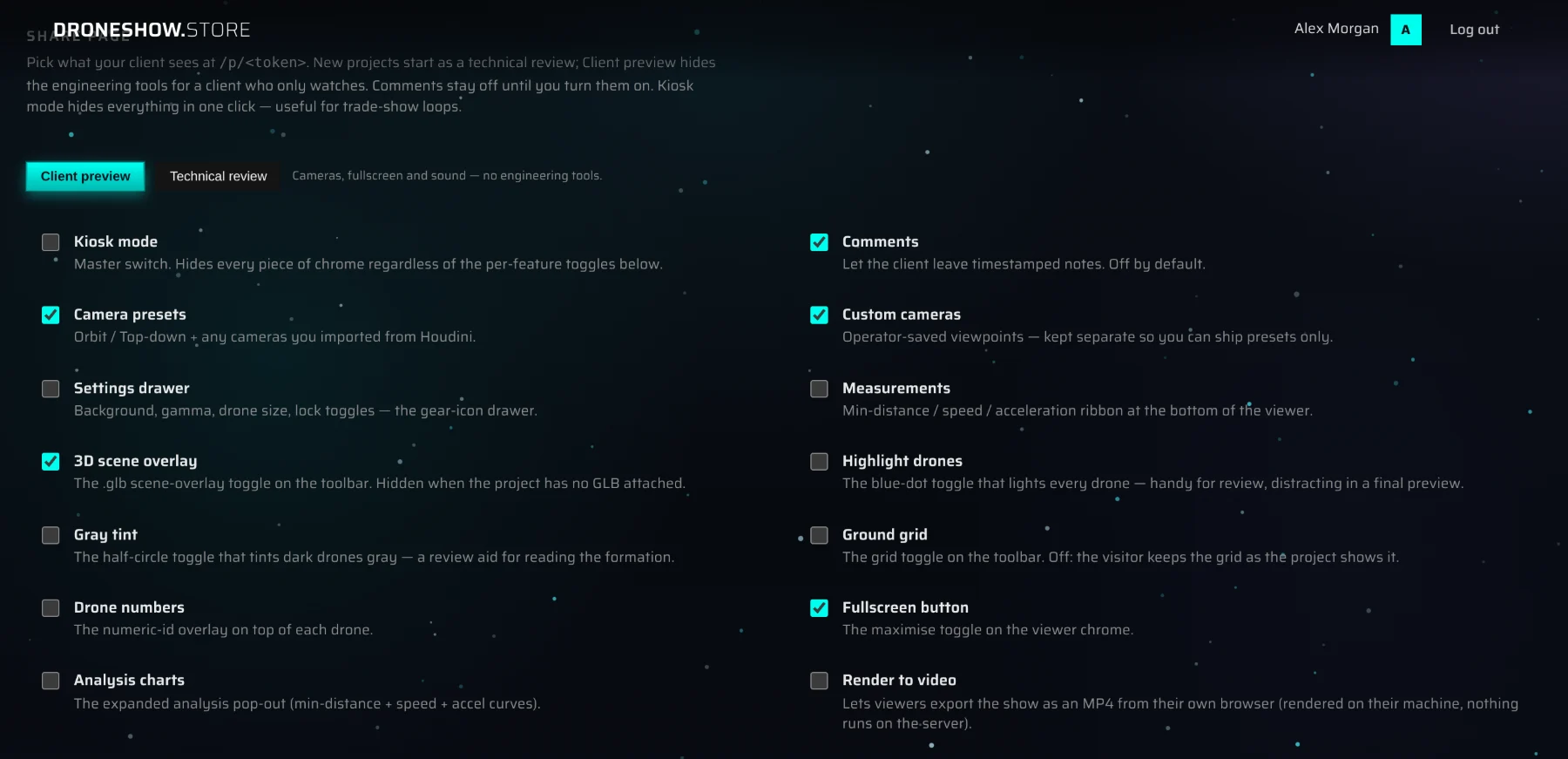
On the project page, scroll down to Share page. Each change saves as soon as you click it. Visitors get the new settings the next time they open or reload the link.
Client preview and Technical review#
Two presets set most toggles in one click:
| Preset | What visitors get |
|---|---|
| Client preview | Cameras, fullscreen and sound — no engineering tools. For a client who just wants to watch. |
| Technical review | Everything from Client preview, plus the settings drawer, analysis, measurements, drone numbers, highlight, gray tint, ground grid and video export. For engineers, safety officers and your own team. |
New projects start as Technical review. The active preset is highlighted; once you change toggles by hand, neither preset is highlighted and the section reads "Your own mix of the toggles below."
Neither preset changes Comments, Kiosk mode or 3D scene overlay — set those yourself.
The individual toggles#
| Toggle | When it's on, visitors can… | Client preview | Technical review |
|---|---|---|---|
| Kiosk mode | Nothing extra: this master switch hides every tool button, the camera chips and the comments, whatever the other toggles say. See Kiosk mode. | Not changed | Not changed |
| Comments | Read the project's comments and add their own. Off by default. See Client comments. | Not changed | Not changed |
| Camera presets | Switch between Orbit, Side, Top-down and the cameras you imported from a file. | On | On |
| Custom cameras | Use the views you saved in the viewer. | On | On |
| Settings drawer | Open the gear drawer: the list of shows, their own music track and drone size. See Visitor settings drawer. | Off | On |
| Measurements | Use the ruler and the show volume, and switch the KML lines, the satellite map and the 3D scene on and off. | Off | On |
| 3D scene overlay | Switch the 3D site model on and off. The button sits with the measurement tools, so Measurements must be on too. When this toggle is off, the model is always shown. Only matters when the project has a 3D scene. | Not changed | Not changed |
| Highlight drones | Paint all drones in one flat colour. | Off | On |
| Gray tint | Show dark drones in gray. | Off | On |
| Ground grid | Turn the ground grid on and off. When this toggle is off, visitors see the grid as the project shows it. | Off | On |
| Drone numbers | Show each drone's number. | Off | On |
| Fullscreen button | Use the fullscreen button. | On | On |
| Analysis charts | Open the safety analysis and download its PDF. | Off | On |
| Render to video | Export MP4 videos and PNG frames, exactly as described in Render a video or a still frame. The video is made on the visitor's own computer, not on our servers. | Off | On |
The play controls, the timeline and the volume are always available — no toggle hides them.
Kiosk mode#
Turn on Kiosk mode for a screen that plays the show without anyone at the controls — a trade-show stand, a lobby display, a projector. It hides every tool button, the camera chips and the comments in one click, so only the show, the project name and the playback bar remain. The show loops by itself. In kiosk mode the comments aren't sent to the page at all.
Kiosk mode also loads the 3D site model on phones and tablets, because there's no button to switch it on.
Hide a show from the link#
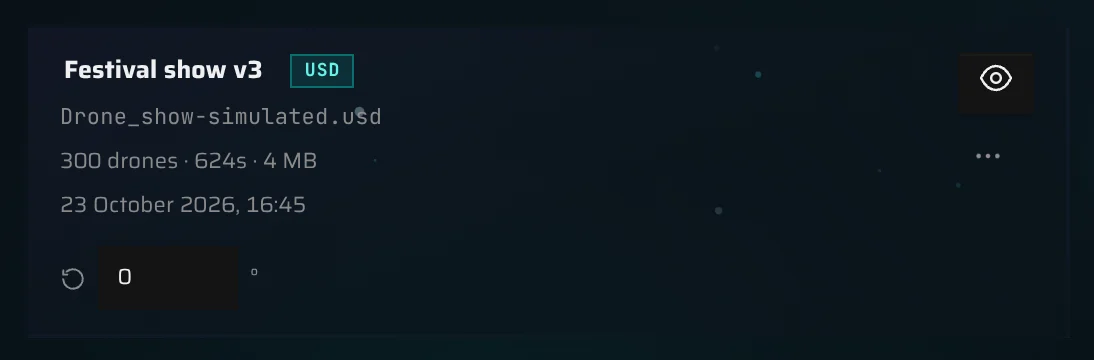
Each show card on the project page has an eye button:
- Open eye — Public - visible on the share link. Click to hide.
- Crossed-out eye — Hidden - not visible on the share link. Click to make public.
A hidden show disappears from the share page but stays in your project. In your own viewer, hidden shows are marked (hidden) in the show picker. Use this for drafts and internal versions.
What your client sees#
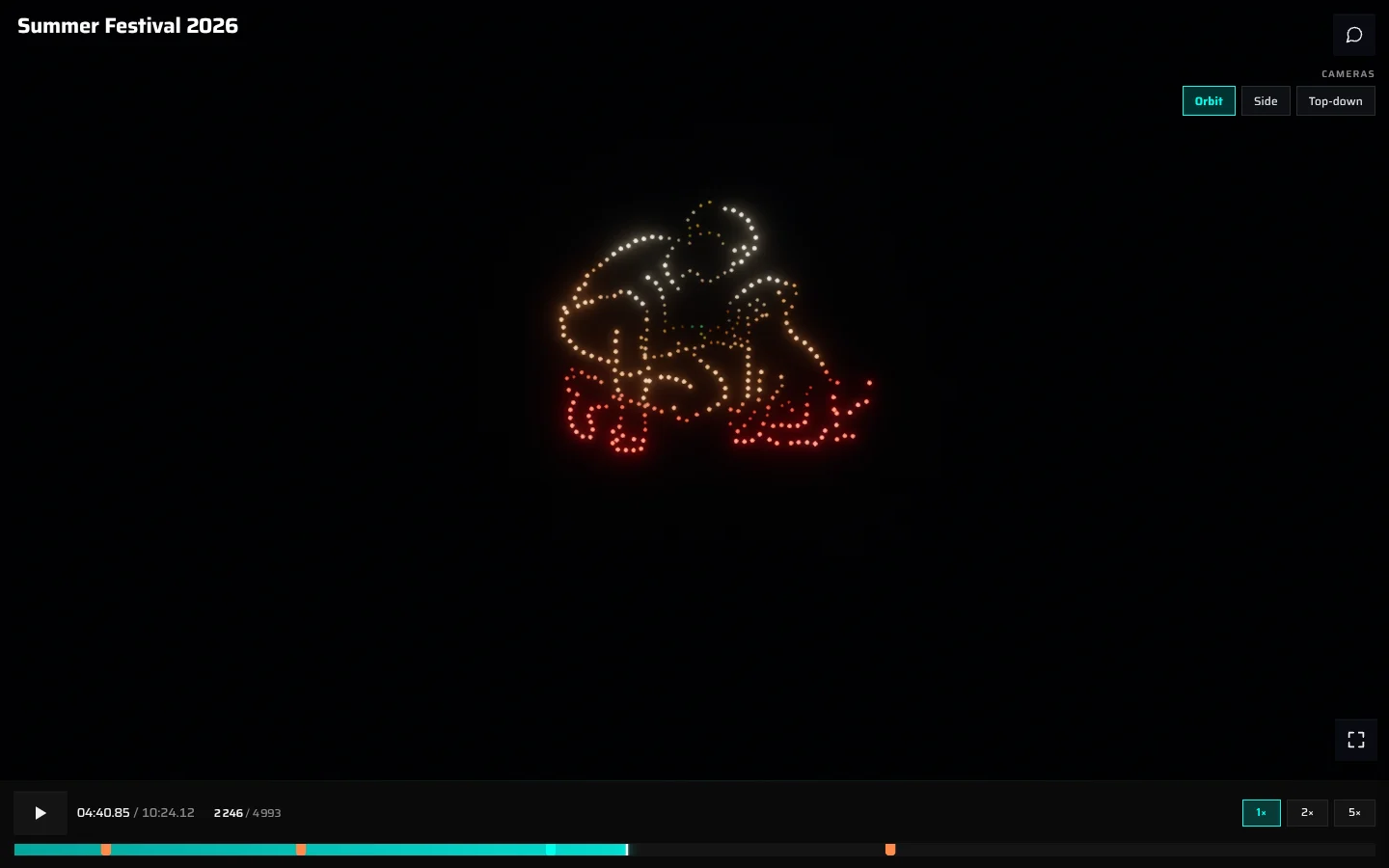
When your client opens the link:
- A Preparing your show screen appears while the page loads.
- The newest public show starts playing, with the sound muted until they turn it on.
- If the project has more than one public show, a dropdown next to the project name lets them switch shows.
At the top left, your client sees the project name — the back arrow and the customer line of your own viewer aren't there. On the Free plan a small Made with droneshow.store link sits under the name; on Core and Premium it isn't shown (see Plans). The playback bar, the camera chips and the tools you allowed are in the same places as in your viewer. The keyboard shortcuts and touch gestures work just like in your viewer. The page remembers where they stopped in each show, in that browser, and continues from there next time.
Some controls are only ever shown to you, never to visitors: the preview capture button, saving and removing cameras, the project settings, the music offset control and the status bar.
On a phone, the page uses the touch layout: controls hide after a few seconds and come back with a tap. See On a phone or tablet.
Visitor settings drawer#
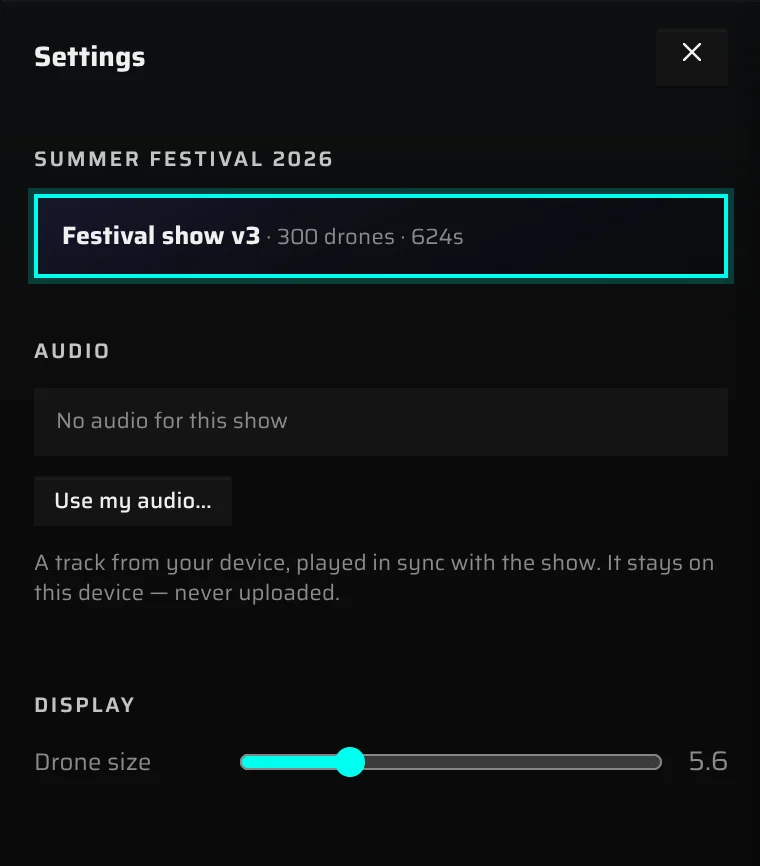
When Settings drawer is on, the gear opens a drawer with:
- The project name and its shows, with drone count and length in seconds. Visitors click a show to play it. Shows that are still processing appear with a progress bar and the note "still processing — this page will update automatically when ready."
- Audio — the track that's playing and the option to play their own. See Music on the share page.
- Display — a Drone size slider (1–20) that changes the drone dots on their screen only.
When there's nothing to show yet#
If the project has no public shows, the page shows Drone Show Viewer with a note to open the settings or wait, and nothing plays. The settings drawer (when it's on) reads No shows yet — "The studio hasn't published anything to this link yet." If a show is still processing, the page checks again by itself and starts the show when it's ready.
If the link doesn't open#
| Your client sees | What it means |
|---|---|
| Show not found — "The share link may have expired or been deleted. Ask the studio for a fresh one." | The link is incomplete or wrong, the project was deleted, or the link was replaced. |
| The show didn't load, with a reason and Try again | A temporary problem: no connection, a short service interruption, or many people opening the link from the same network within one minute. The page tries again by itself after a few seconds (or after a minute in the last case). |
Music on the share page#
- Visitors hear the project's music, with the sync offset you saved for each show.
- The page starts muted, because browsers block sound until the visitor interacts with the page. When the music is ready, a Sound is off - tap to enable pill appears; tapping it, or the speaker button, turns the sound on.
- Music plays only at normal speed (1×).
- Visitors can change the volume but not the sync offset.
In the visitor's settings drawer, the Audio section shows the track that's playing, marked from studio, or No audio for this show when there's none. Visitors can also play a track from their own device:
- Click Use my audio… and pick an audio file.
- The track plays in sync with the show, with the same offset as yours, and is marked your file. It stays on their device — it's never uploaded.
- Click Replace… to pick another file, or Restore default to go back to your music.
This is handy when a client wants to hear the show with a different edit of the soundtrack. It needs Settings drawer to be on.
Client comments#
Comments let your client react to a precise moment of the show — "the heart at 1:42 looks squashed" — instead of describing it in an email.
Turn comments on#
- On the project page, go to Share page.
- Tick Comments.
Comments are off for new projects. The presets don't change this toggle, and Kiosk mode turns comments off.
How your client leaves a comment#
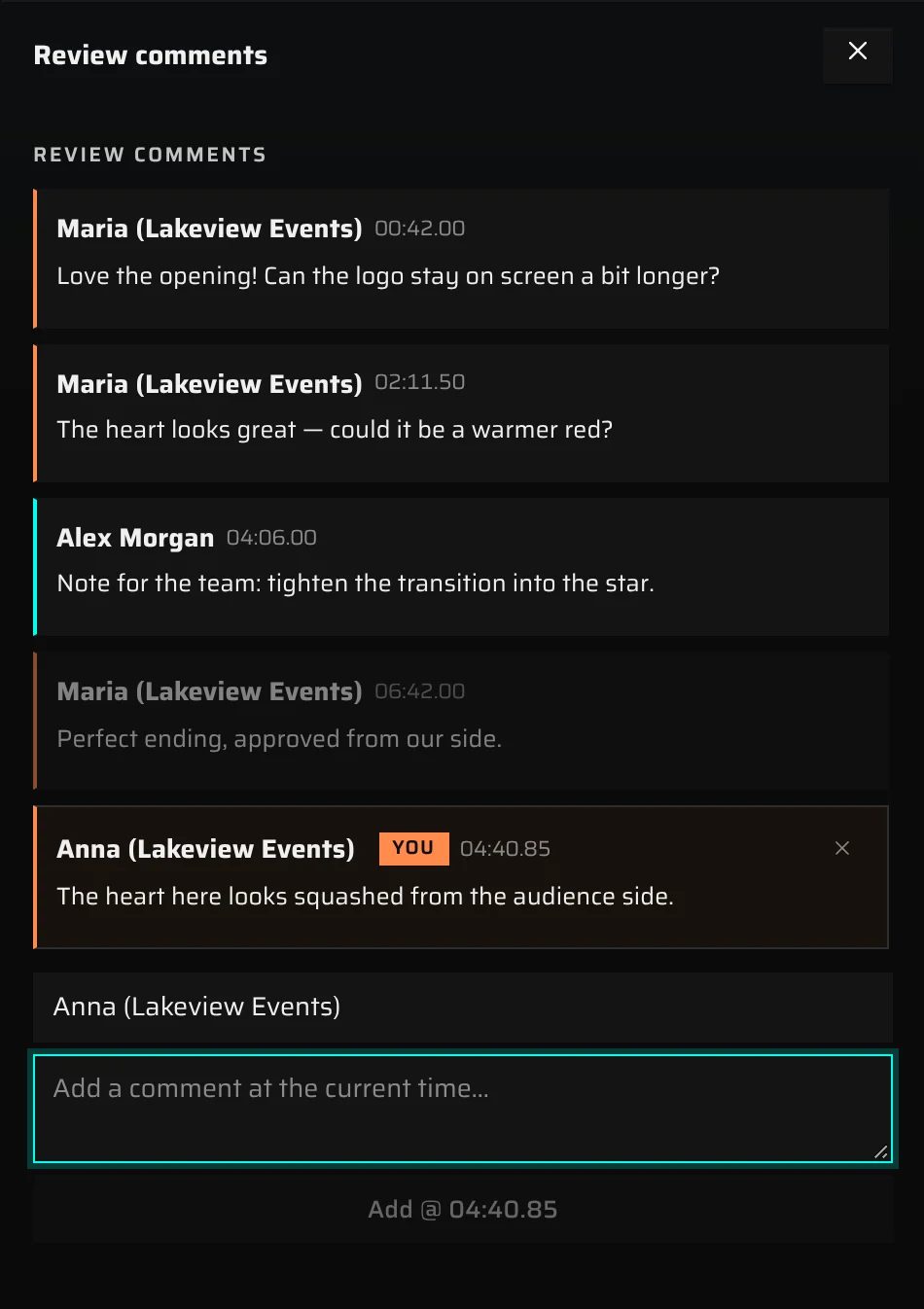
- Pause the show at the moment they want to comment on.
- Open the comments with the speech-bubble button.
- Type their name in Your name (it starts as "Client") and their note in Add a comment at the current time….
- Press Enter or click Add @ with the time (for example Add @ 01:42.10).
The comment is pinned to that moment and appears as a marker on the timeline. Visitors' own comments carry a you badge. They can delete them — hover over the comment and click its ✕ — from the same browser and device only. They can't delete other people's comments or resolve anything.
If a lot of comments are sent from the same network in a short time, the page asks for a quick check before the next one ("Quick check that you're not a bot:").
Read and resolve client comments#
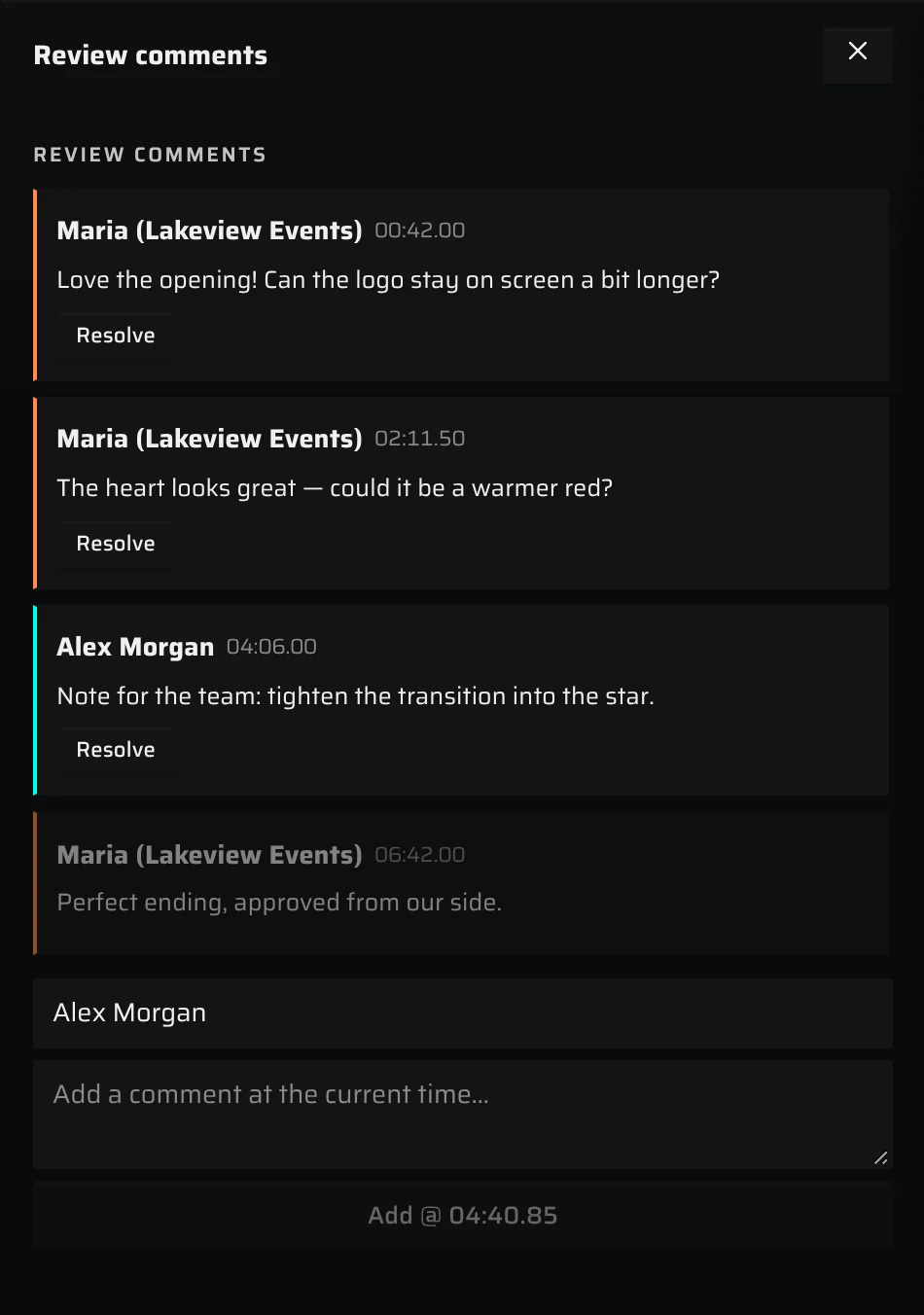
- Open the show in your viewer and click the speech-bubble button (Review comments).
- Client comments are marked in orange, in the list and on the timeline. Comments from you and your team are cyan.
- Click a comment to jump to its moment in the show.
- Click Resolve when you've dealt with it, or hover over it and click ✕ to delete it.
- New client comments arrive by email too: about ten minutes after the first one, you get one message "N new comments on “project”" with every comment since the last email, each with its show and moment. Open the show in it opens that show in your viewer. Turn these emails off with Email me when a client comments on your account page. Your own and your team's comments are never emailed.
- The viewer itself doesn't refresh on its own: reload it to see the latest feedback.
- Resolved comments stay visible to your client, dimmed, so they can see what's been handled.
- Turning Comments off hides all comments from visitors. You keep them.
- You can reply by adding your own comment at the same moment — your client sees it when they reload the page.
The social preview card#
When you paste the share link into a messenger or a social network, it shows a preview card:
- Title: the project name.
- Description: the customer name, the number of drones and the length of the newest show — for example "Acme Events - 500 drones - 4:32".
- Picture: the preview you captured in the viewer.
To set the picture, open a show in the viewer, frame a good view and click the camera button at the top left — see Capture the social-card preview. There is one picture per project.
The current picture is shown on the project page, captioned Social-share preview. To remove your capture, click ✕ on it and confirm with Reset preview.
Embedding a show on another website#
Share pages can't be embedded in other websites: browsers block the page when it's placed in a frame on another site. Send the link instead. If you need to embed shows on your own website, write to contact@droneshow.store.
Stop sharing a link#
There's no switch that turns a share link off. To stop people from seeing a project:
- Hide the shows. Click the eye button on each show card. The link still opens and shows the project name, but there's nothing to play.
- Replace the link. Email contact@droneshow.store and ask for a new share link for the project. The old link stops working (it shows Show not found); send the new one to the people who should still have access.
- Delete the project. This removes the link together with the project, its shows and files, and can't be undone.
To stop new feedback without hiding the show, turn Comments off.
Something missing or unclear? Write to contact@droneshow.store.