Getting started
Create an account, find your way around the workspace and get your first show on screen in a few minutes.
droneshow.store is a web app for drone show operators and designers. You upload shows, watch them in a 3D viewer in your browser and send your clients a review link. With the Show Builder you put shows together from a library of figures. This chapter covers signing up, the layout of your workspace and your first shared show.
What you can do with droneshow.store#
The app has two parts:
- The viewer. Upload a show file into a project. Watch it in 3D, check it with the analysis tools, add music, cameras and site layers, and share a review link with your client. Your client doesn't need an account to open the link. Available on every plan.
- The Show Builder. Build a show from library figures, morph transitions and colour effects, sync it to music, set up takeoff and landing, run the checks and export flight files for your drones. Available on every plan; the AI assistant comes with free tokens to try it, and tokens every month on Core and Premium.
You can also create teams to share projects and Builder shows with your colleagues.
| To learn about… | Read |
|---|---|
| Creating projects and uploading shows | Projects and uploads |
| Watching and checking a show in 3D | The 3D viewer |
| Review links and client comments | Sharing and client review |
| Building shows | Show Builder basics |
| Working with colleagues | Teams |
| Your profile, plan and payments | Account, plans and billing |
| Error messages and common problems | Troubleshooting |
Create an account#
You can sign up with your email address or with your Google account. New accounts start on the Free plan, and you can upgrade at any time (see Plans and limits).
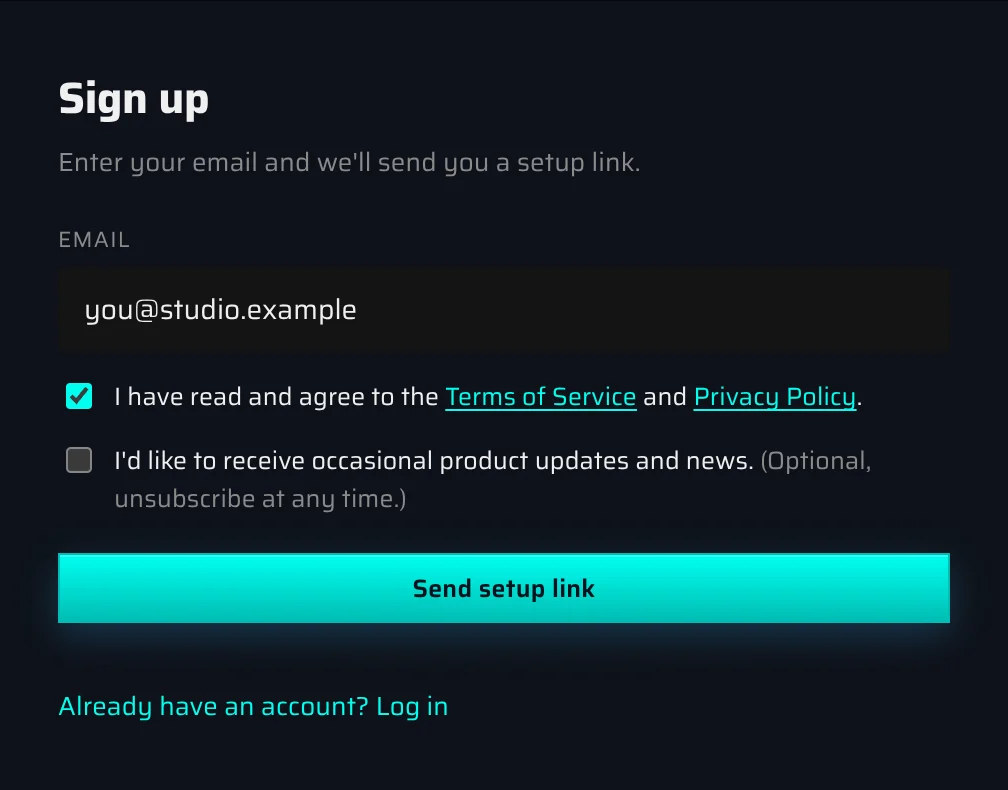
Sign up with your email#
- Open the app and click Sign up in the top right corner.
- Enter your Email.
- Tick I have read and agree to the Terms of Service and Privacy Policy. You can't create an account without accepting them.
- If you'd like occasional product news, also tick I'd like to receive occasional product updates and news. This is optional, and you can change it later on your Account page.
- If the page shows Quick check that you're not a bot:, complete the check (see The bot check).
- Click Send setup link. A Thanks! page confirms that the link is on its way.
- Open the email Set your droneshow.store password and click the button in it. The link is valid for one hour and works only once.
- On the Set your password page, your email appears under Account. Enter a password in New password and type it again in Confirm. Use at least 8 characters, with both letters and digits. The eye icon shows or hides what you type.
- Click Save & log in.
You're now signed in and taken to your workspace, or straight into the Show Builder if you signed up to open a formation from Image to Formation (see Open a formation from Image to Formation). We also send you a Welcome to droneshow.store email that lists the limits of your plan.
Sign up with Google#
- On the Sign up page, if you want product news, tick the product-updates checkbox above the Google button first.
- Click Sign up with Google and choose your Google account. By continuing with Google, you accept the Terms of Service and Privacy Policy.
Your account is created right away and you land in your workspace. There's no password to set: next time, click Sign in with Google on the Log in page.
- Your Google account's email address must be verified with Google. If it isn't, you see "Your Google account's email isn't verified, so we can't sign you in with it."
- If you already have a droneshow.store account with the same email address, Google sign-in connects to that account. From then on you can sign in either way.
- The button reads Connecting to Google… while it loads. If Google can't be reached (for example, because a browser extension blocks it), the button doesn't appear. The email form still works.
The bot check#
To keep automated sign-ups out, a short check can appear above the button, labelled Quick check that you're not a bot:. It usually needs a single click or passes on its own.
- On Sign up, the check can appear for every new account.
- On Log in, it appears after several failed attempts from your network in a short time. On Reset password, it appears after several requests from your network in a short time.
The button stays disabled until the check is complete. If the check doesn't load, an ad blocker or privacy extension may be blocking it: turn the extension off for this page and reload.
Sign in#
- Click Log in in the top right corner.
- Enter your Email and Password and click Log in. Or click Sign in with Google.
After signing in you go to your projects. If you were opening a specific page, for example a project link a colleague sent you, you return to that page instead.
- "Invalid email or password." means the email and password don't match an active account. The message deliberately doesn't say which of the two is wrong.
- After several failed attempts, the bot check appears. If you try too often within a minute, you see "Too many login attempts. Try again in a minute."
- If you're inactive for a while, your session ends and the app asks you to sign in again. While you're working, your session stays open. See You were signed out.
Forgot your password#
- On the Log in page, click Forgot password?
- Enter your Email and click Send reset link.
- The page confirms: "If that email is registered, a reset link is on its way."
- Open the email Reset your droneshow.store password and click the button. The link is valid for one hour and works once.
- Choose a new password and click Save & log in.
Setting a new password signs you out on all your other devices. If you're already signed in, you can also request the link from your Account page (see Security).
Your workspace at a glance#
After you sign in, you see your Projects page. It has a top bar, a menu on the left, the page content and a footer.
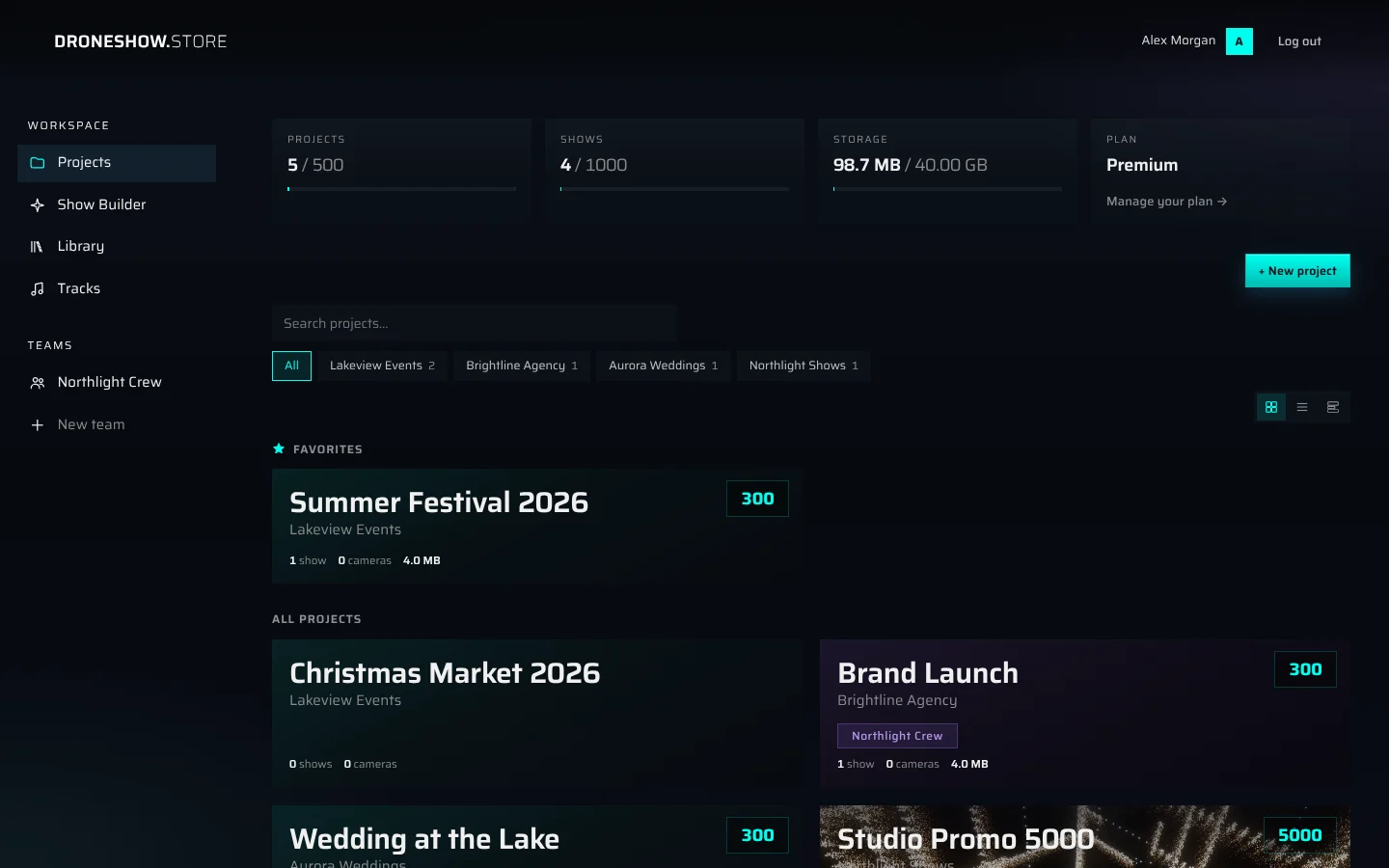
Top bar
- The droneshow.store logo takes you back to your projects.
- Upgrade (Free and Core plans) opens the Pricing page.
- Your name (or email) and initial open your Account page.
- Log out signs you out of this browser.
Menu on the left
| Group | Item | What it opens |
|---|---|---|
| Workspace | Projects | All your projects, including the team projects you can open. |
| Workspace | Show Builder | Your shows: start a new one or open one you built. |
| Workspace | Library | The Builder's figure library. |
| Workspace | Tracks | Music tracks you uploaded in the Builder. |
| Teams | your team names | Each team's shared projects, shows and members. |
| Teams | New team | Creates a team. See Teams. |
The Projects page
- Three usage cards show how much of your plan you're using: Projects, Shows and Storage, each as the amount used out of your limit. The Plan card next to them names your plan. See Limits and quotas.
- + New project creates a project.
- Above the project cards, you can search projects, filter them by customer and switch between card, list and by-customer views. See The Projects page.
- Projects shared with a team have a violet tint and a chip with the team name.
Footer
The footer links to Docs (this manual), Help, FAQ, Report a problem, Privacy, Terms, Refunds and our email address. See Getting help.
On a phone#
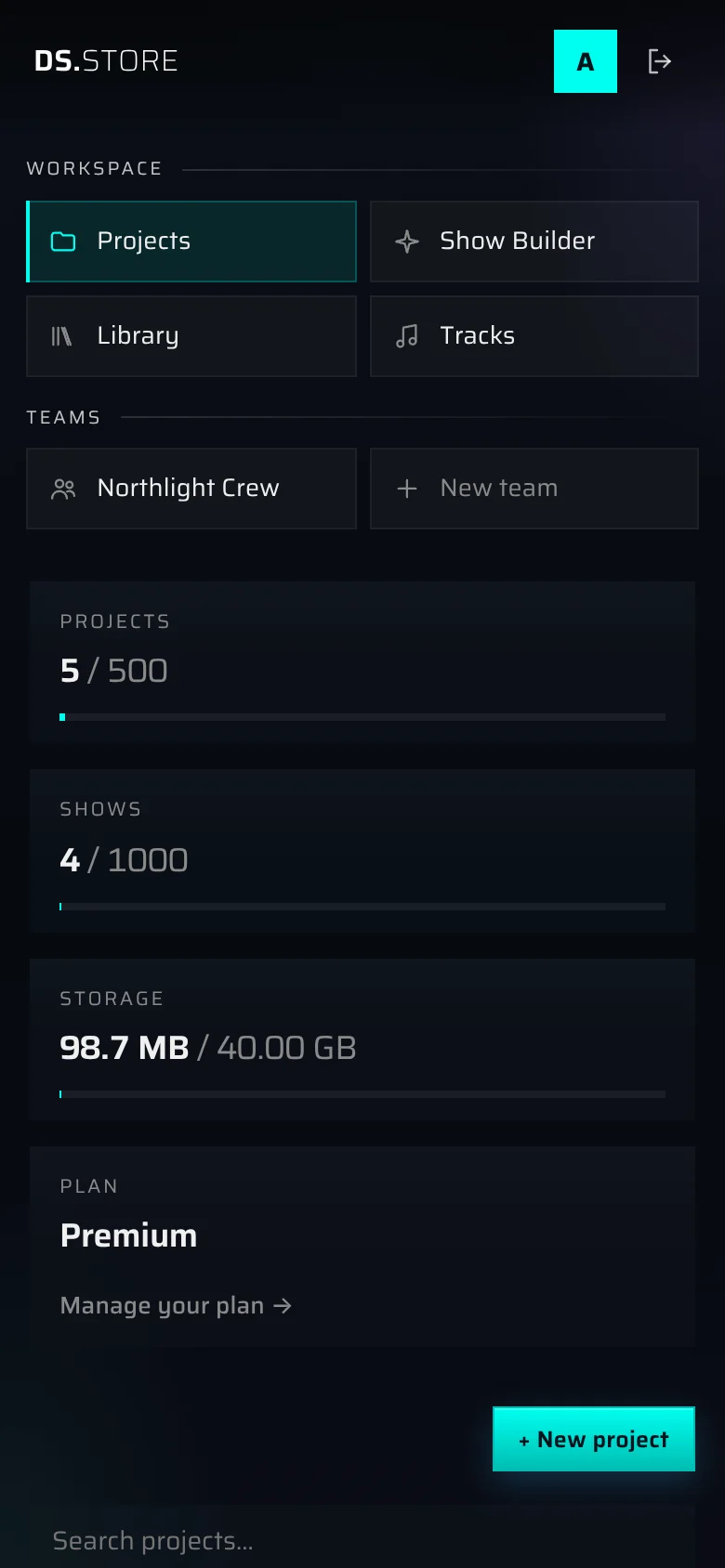
The app works in a phone browser. On a narrow screen the menu moves to the top of the page as tiles under Workspace and Teams, and the top bar shows only your initial and a log-out icon.
The welcome demo project#
The first time you sign in, your workspace already contains a demo project with a converted show. Use it to try things out before you upload your own files: play the show, look around in 3D, copy the share link and open it in a private window to see what your client sees.
The demo project is an ordinary project. It counts towards your project, show and storage limits, and you can rename, change or delete it at any time. You get it once, and only if your workspace is empty when you first sign in.
Your Show Builder list starts with an example show, Example: …, when droneshow.store has picked one: open it to see a finished show in the Builder. See The example show.
When you have no projects, the Projects page shows Start your first show with three ways in: Build a show opens the Show Builder, Upload a show you have creates a project for your file, and Watch an example opens a finished show in the 3D viewer.
Your first show in five minutes#
You need a show file exported from your design software. The viewer reads USD (.usd, .usda, .usdc, .usdz), Alembic (.abc), Blender (.blend), PATH3 (.path3), Skybrush and Crostars CSV (.csv), MATLAB (.mat) and DAMODA (.jsdm) files. Per-drone PATH3 and CSV files, a .blend or a .jsdm can also be packed into a .zip, .tar, .tar.gz or .tgz archive. A single upload can be up to 8 GB.
1. Create a project#
- On the Projects page, click + New project.
- Enter a Name, for example "Riga 2026". You can also enter a Customer: it helps you filter and group your projects later.
- Click Create project, then click the new project's card to open it.
2. Upload the show#
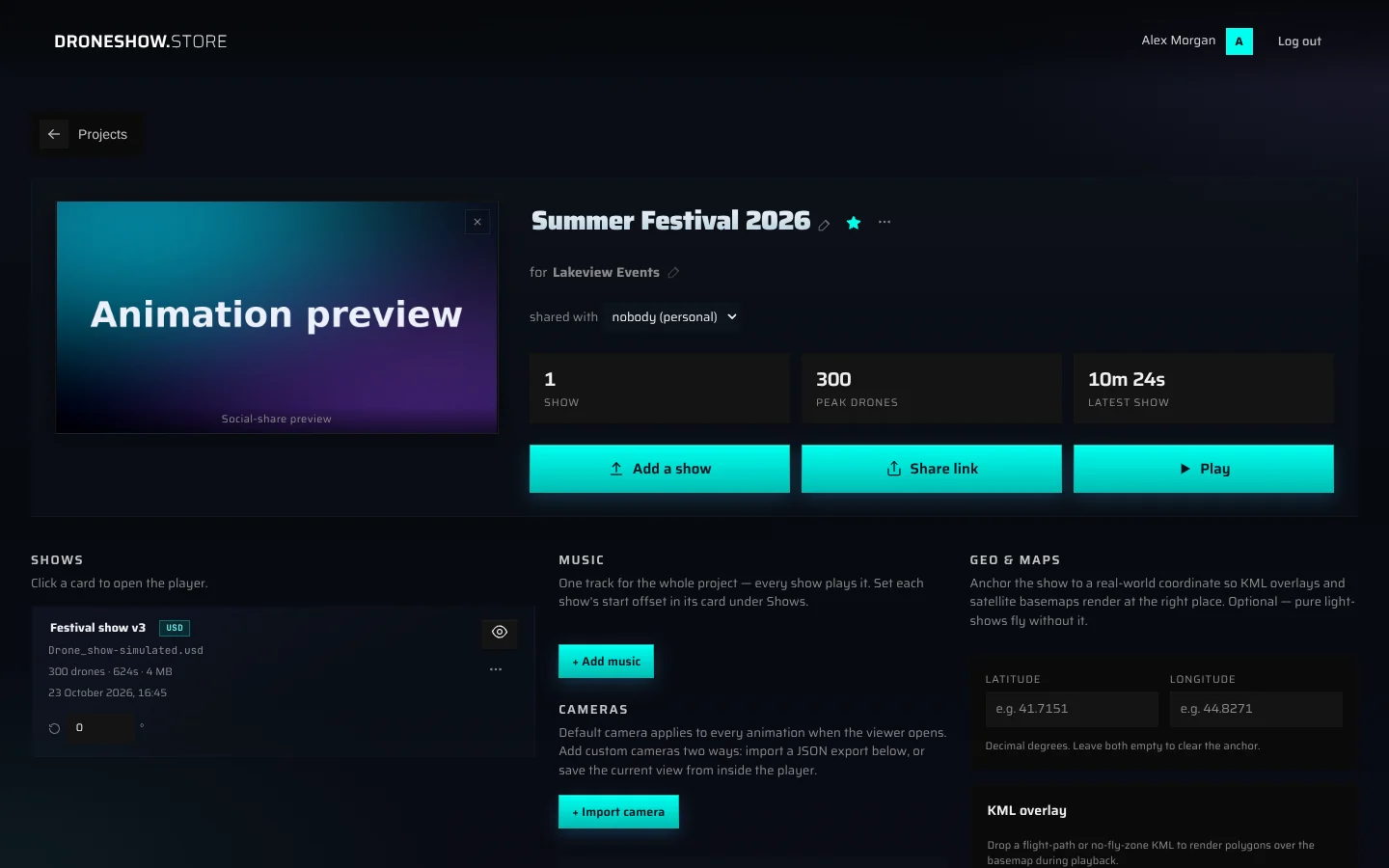
- Click Add a show.
- Drop your file into the window, or click to pick it. You can choose one file, several per-drone files at once (PATH3 or CSV), or an archive.
- Keep the window open while it shows "Uploading…". When the upload finishes, the window closes on its own.
- The new show appears under Shows with a progress bar that fills up while the show is converted. You can keep working, or close the tab: the conversion continues on our side.
Small shows are usually ready within a minute. Large .blend files take longer. If something goes wrong, the show card turns red and shows the reason and a Try again button. See A show failed to convert.
3. Watch it#
- When the show is ready, click its card, or click Play at the top of the project page.
- The 3D viewer opens. Press Space to play or pause, and drag to orbit around the show.
- Sound starts muted, because browsers block audio until you interact with the page. If the project has music, click the Sound is off - tap to enable pill or the speaker button.
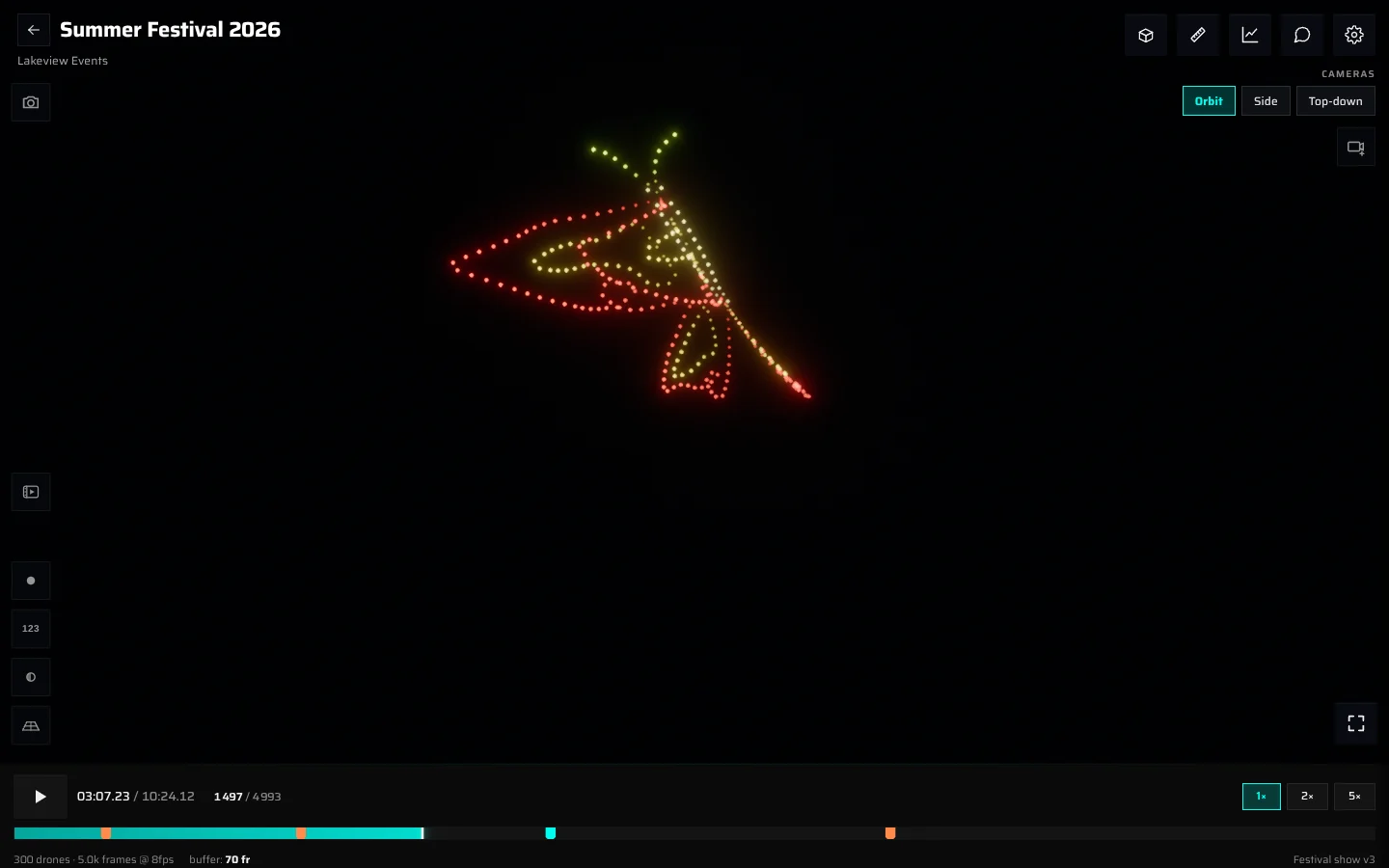
See The 3D viewer for all the controls.
4. Share it#
- Go back to the project page and click Share link. The link is copied to your clipboard and the button briefly reads Copied to clipboard. On a phone, your phone's share menu opens instead.
- Paste the link into an email or a chat with your client.
Your client opens the link in their browser, without an account. Every show in the project appears on the link unless you hide it with the eye button on its card. To choose which tools your client sees and to turn on client comments, see Sharing and client review.
Getting help#
- This manual. Click Docs in the footer of the Projects page and most other pages. Use the search or the chapter list. Troubleshooting collects common problems and error messages.
- Help and FAQ. A short guide and quick answers, also linked in the footer.
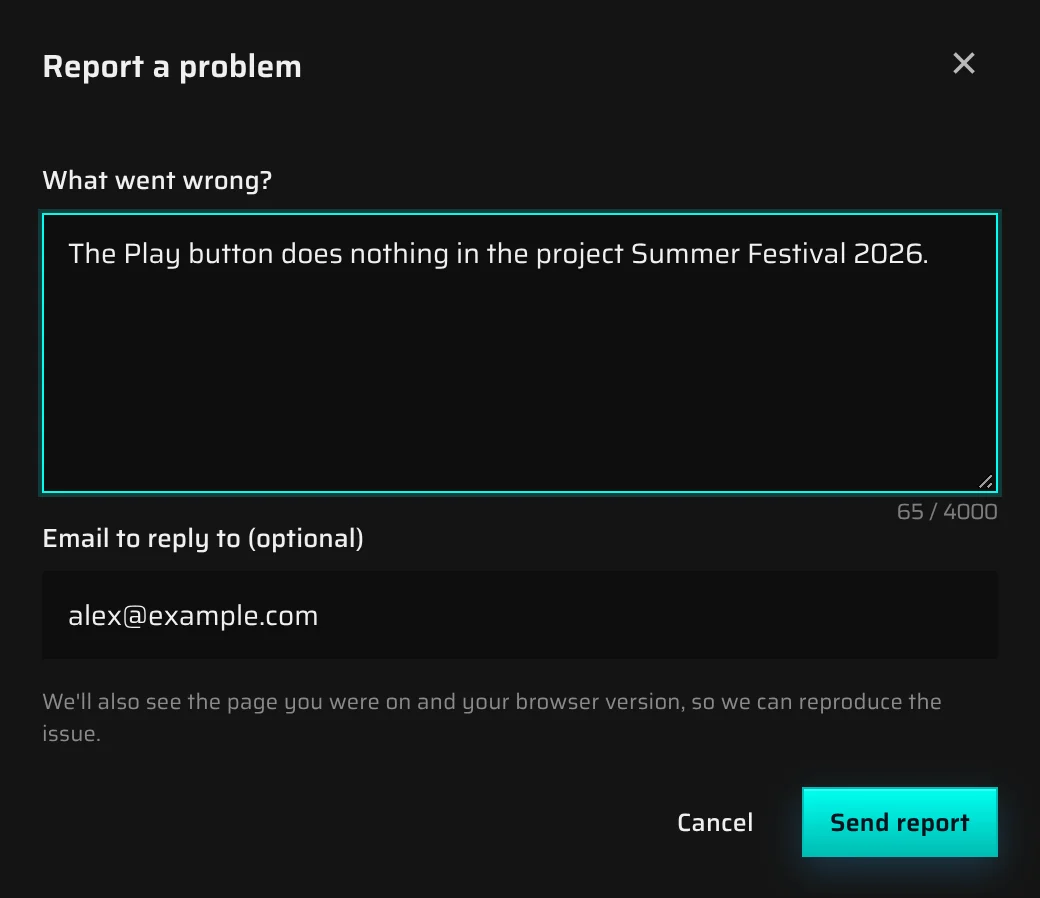
- Report a problem. Click Report a problem in the footer. Describe what you were doing and what happened under What went wrong? (up to 4,000 characters). Under Email to reply to (optional), enter where we should answer; if you're signed in, your account email is already filled in. Click Send report. With your message we receive the address of the page you were on, your browser version and, if you're signed in, your account, so we can reproduce the issue. If you send several reports in a short time, the app asks you to wait a few minutes or email us directly.
- Email. Write to contact@droneshow.store. We answer within one business day. Include what you were trying to do, the project or show address from your browser's address bar, and a screenshot if you can.
Something missing or unclear? Write to contact@droneshow.store.