Figures and transitions
Add figures from the library, place and time them, shape the transitions between them, and upload your own.
A show in the Builder is a sequence of figures (the formations the drones hold) joined by transitions (the flights from one figure to the next). This chapter explains where figures come from, how to add and edit them, how to tune transitions, and how to manage the figure library and the figure constructor. For the Builder screen and the timeline itself, see Show Builder basics.
Figures in a show#
Every figure in a show uses exactly the show's number of drones. There are two kinds of figures:
| Library figures | Your own figures | |
|---|---|---|
| What they are | Vector figures: a line drawing (curves or dots) that the Builder fills with as many drones as the show has. | A formation recorded for one drone count. It can stand still or move. |
| Drone count | Any. The card shows any or any count. | Fixed. The card shows it, for example 300. Only usable in shows with exactly that many drones. |
| Where they come from | The figure library, made by the droneshow.store studio and shared by everyone who uses the Builder. | Your uploads, figures you make from a picture, figures our designers make for you, and figures teammates share with you. |
| What you can change in a show | Position, rotation, scale, speed of its movement and colour, plus Distribution…: which parts of the drawing get how many drones. | Position, rotation, scale, speed of its movement and colour. |
Library figures are the flexible choice: they fit a show of any size, and you can decide which details survive in a small show. When the library doesn't have the figure you need, make it from a picture or order it from our designers (see Order a figure the library doesn't have).
Adding figures#
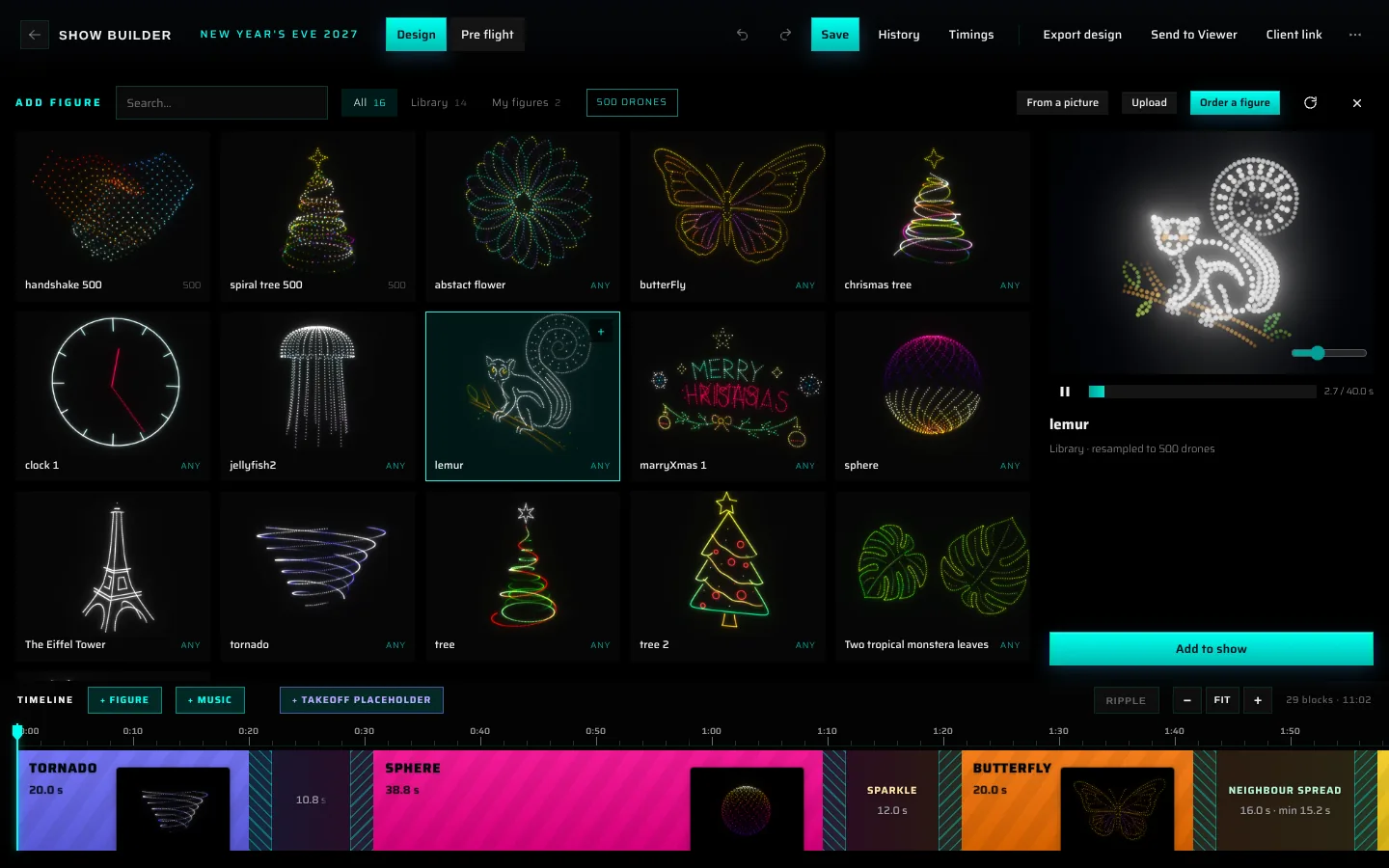
Click + Figure in the timeline header. The figure browser (Add figure) opens over the top half of the screen; the timeline stays visible and usable below it.
Finding a figure#
The toolbar at the top of the browser:
- Search… filters the cards by name.
- The tabs, each with the number of figures in it:
- All (opens first): everything below together, your own figures first;
- Library: the figure library. Library figures fit any show;
- My figures: your own figures (your uploads, figures made from a picture) and figures teammates shared with you. The ones you uploaded while working on this show come first.
- The drone-count button. 500 drones (on by default, showing your show's drone count) hides your figures that don't fit this show; library figures always fit. Click it to switch to All counts and see everything.
- From a picture makes a figure from a logo or an image (see Making a figure from a picture); Upload adds figure files of your own (see Uploading figures from the browser); Order a figure asks our designers to make the figure you need (see Order a figure the library doesn't have).
If nothing matches, the browser says so (for example "Nothing matches with 500 drones “tree”.") and offers Reset filters. When you searched for something, it also offers Make it from a picture and Order this figure.
Previewing a figure#
Click a card to preview it in the column on the right. A small 3D player plays the figure: drag to orbit, use the play / pause button and drag the bar to move through it, and the slider in the corner to change the dot size. Below the player you see the figure's name, its drone count (for a library figure: "Library · resampled to 500 drones", the count of your show), "· uploaded to this show" for figures you uploaded while working on this show, and the figure's description, if it has one.
Adding a figure to the show#
Use any of these:
- Add to show under the preview (on the Free plan, a figure outside the starter set shows Use it with Core; see Starter figures on the Free plan);
- the + button on a card;
- a double-click on a card;
- drag a card onto the timeline. An insert here marker shows where it will land: after the figure under the pointer (over a transition, after the figure before it), or at the end of the show when you drop it past the last block.
Where a figure lands depends on how you opened the browser:
- with + Figure, at the end of the show;
- with Add figure after (right-click a figure block on the timeline), right after that figure. While the browser stays open, every further figure goes after the one you just added, so you can build a sequence in order;
- by dragging, where you drop it.
The browser stays open while you add. Close it with the × at the top right or Esc.
What happens when you add a figure#
- The figure gets a 20-second hold. If it isn't the first figure, a transition from the previous figure is created, and its length is set to the time the drones need (see Transitions).
- The figure is centred on the same point as every other figure, so the show stays in one place. You set the flight altitude and the site on the Pre flight tab (see Place the show).
- A library figure is first sized so that neighbouring drones keep the show's minimum distance. Its block appears on the timeline at once, and its drones light up as soon as the Builder has prepared them; resampling… shows under the viewport in the meantime. You can keep adding figures while you wait.
- If a moving figure is too fast for the show's speed limits, the Builder slows it down automatically (see Movement and speed).
If a figure can't be added, you see why, for example "Figure has 300 drones, show has 500. …" (one of your figures, made for another drone count) or Couldn't add the figure when a library figure couldn't be prepared.
Uploading figures from the browser#
Upload in the toolbar lets you pick one or more files from your computer. Each file is added to your figures. If its drone count matches the show, it is also added to the show straight away; otherwise you see, for example, "logo-300.usd: 300 drones ≠ show's 500 — saved to library, not added." Figures you upload here appear first on the My figures tab. See Uploading figures for the accepted formats.
Reloading figures#
The circular-arrow button reloads the list and downloads every figure in your show again ("Reloading figures from disk…", then "Figures reloaded."). Use it when a figure you replaced, by uploading a new file under the same name, still shows its old version.
Making a figure from a picture#
From a picture in the toolbar of the figure browser turns a logo, an illustration or a photo into a figure for the open show, with as many drones as the show has. Drones are spread over the shape and take the colours of the picture; a plain background works best, because it is removed.
- Click From a picture, then Choose a picture (or drop one on the box): JPEG, PNG, GIF or WebP, up to 10 MB.
- Pick the Quality: Fast (about 10 s), Balanced (about 20 s) or Best (up to a minute).
- Click Make the figure. A bar shows the progress.
Use AI: name the figure and bring it to life (on by default, remembered for next time) lets the AI assistant look at the picture: it names the figure after what it shows, for example Leopard, and brings it to life (see below). This uses your AI allowance. With the tick off, the figure is named after the file (for example Heart for heart.png); a file name that says nothing, such as a phone's IMG_20240518_131204.jpg or a long code from a messenger, gives Picture with its last four characters, for example Picture 1204. A long name is shortened.
The figure is added at the end of the show and to your figures, so you can use it in other shows too. If a search finds nothing, the browser offers Make it from a picture as well. The show needs at least 50 drones.
The picture's unused drones are dark. So that they don't make the figure look bigger than it is, the Builder paints them pure black and moves them into a neat grid 4 m behind the figure, and switches the mask on for the transitions around it, so they stay dark in flight too. This also happens for any still figure you upload.
With Use AI on, right after the figure is added the AI assistant brings it to life: it adds a gentle motion that suits what the picture shows (a head that nods, wings that beat, a sway) and a light effect that keeps the picture's colours. This takes a few seconds ("The AI is bringing it to life…"); the figure browser then says how it went. You can switch the motion off or change it in the Inspector, see Living motion.
Open a formation from Image to Formation#
Image to Formation on droneshow.store turns a picture (a logo, an illustration, a photo) into a formation. When it's ready, an email "Your drone formation is ready" arrives with the files and Open it in the Show Builder; the result page on the site has Open in the Show Builder too. Both lead to a page with the formation, its files and:
- Open in the Show Builder, when you are signed in;
- Create a free account and open it, or Sign in, when you aren't. After signing up you land straight in the Builder.
The Builder starts a new show with the formation as its first figure, named after your picture, for example "Heart · 300 drones". The formation is also added to your figures: My figures in the figure browser and in the figure library, where it is under From image.
Formations are kept for 24 hours; after that the page says "This formation is no longer available" and you make it again. A formation with more drones than your plan allows in one show isn't opened: the page and the Builder say so and offer See plans.
Order a figure the library doesn't have#
Our studio's designers make figures to order: your client's logo, names and initials, a character, any shape. (For a logo you have as a picture, try Making a figure from a picture first.) You find the order button in several places:
- Order a figure in the toolbar of the figure browser, and Order this figure next to "No “…” in the library?" when a search finds nothing;
- Order this figure in step 3 of the new-show flow, when search library to add… finds nothing;
- in the chat, before your first message;
- in the figure library: Order a figure at the top of the page, and Order this figure under an empty search.
The Order a custom figure window opens with what you searched for and your show's drone count already filled in. Describe the figure in What should the figure show?, check Drones, add a Show date if you have one and click Send request. You see "Request sent", and we reply to your account's email with a price and timing; nothing is charged until you agree. To send a logo, a sketch or other references, reply to that email.
Editing a figure block#
Select a figure block on the timeline. The Inspector shows Figure and the figure's name at the top, then the sections below.
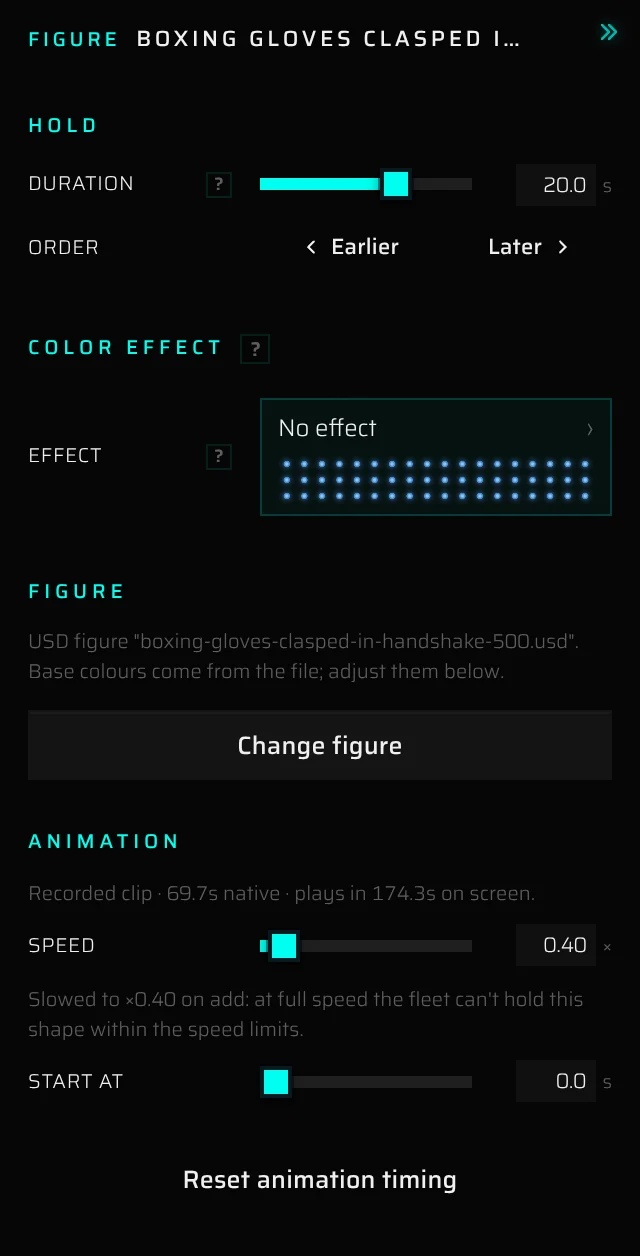
Every slider has a number next to it. Click the number to type an exact value (Enter applies, Esc cancels). The sliders under Rotate and Transform update the viewport live while you drag, and each drag is one undo step. The ? next to a setting explains it when you hover over it.
Hold#
- Duration: how long the figure stays on screen. The slider goes from 0.2 to 30 s; type a value for longer holds, up to 40 minutes. A change here moves the rest of the show later or earlier. On the timeline you can instead drag the block's edge (see Changing durations).
- Order: Earlier and Later swap the figure with the previous or next figure.
Color effect#
Color effect plays a colour effect on this block of the figure, on top of its own colours: twinkling stars, a colour wave, the figure drawing itself point by point, and more. The tile reads No effect until you pick one; Remove takes it off again. See Effect on a figure.
Figure#
A note says what kind of figure this is: for a library figure, for example, Library figure "butterFly" — fits any drone count, resampled from "butterFly".; for one of your own figures, the file it comes from.
- Distribution… (library figures only) opens the constructor for this figure; see Editing the distribution of a library figure.
- Change figure replaces the figure in this block; see Changing a figure.
Living motion#
A still figure (one made from a picture, or a still figure you uploaded) has a Motion section: gentle motion while it stands.
- Bring to life with AI: the AI assistant looks at the figure and sets up a motion that suits it: parts that swing (a head nods, a tail lifts, wings beat), parts that fold toward the audience (butterfly wings, a flag), or the whole figure swaying, floating, breathing, rippling or turning a little. It also puts a light effect on the figure's blocks that have none (Glint, Twinkle, Breathing, Heartbeat or Spotlights): these keep the picture's own colours and only add light to them. Figures made from a picture get this automatically.
- A moving part is the whole piece beyond its joint: the AI outlines it roughly, and every drone connected to it on that side of the joint moves with it (all the feathers of a wing, the whole tail), while the body stays put.
- The note says what the AI sees and what moves, for example The AI sees leopard: head swings, tail swings.
- on / off next to the title switches the motion off and on; off plays the figure still and keeps the set-up.
- Strength (0–150 %): how far the parts move, as a share of the strongest motion that is still safe. Above 100 % the motion is faster than the show's speed limits allow, and the final simulation in Pre flight trims it; drones still never come closer than the minimum distance.
- Tempo (50–150 %): faster or slower. Faster motion has to be smaller to stay safe.
- Try again asks the AI for a new motion; Remove takes it off. Tick Whole figure only before Try again (or Bring to life with AI) to have the figure move as one piece (sway, float, breathe, ripple or turn) instead of in parts.
The motion is also kept with the figure itself: when you add the figure to another show, it comes with its motion, and its card in the figure library and the figure player play it as a seamless loop.
The motion always stays within the show's limits: the Builder slows it down and makes it smaller until the drones keep to the speed and acceleration limits and don't come closer than the minimum distance. When it had to, a note says so, for example "Kept to 58 % of the motion the AI asked for and 2.5× slower, so the drones stay within the show's limits." The motion fades in after a transition, so the drones arrive at the still figure, and it keeps going as long as the figure stands.
The colour effect is a normal effect on the figure: change or remove it under Color effect.
Movement and speed#
The Animation section shows for a figure recorded with movement (a rotating logo, a beating heart):
- The note shows the clip's own length and how long it plays on screen, for example "Recorded clip · 12.0s native · plays in 16.0s on screen."
- Speed (0.25× to 4×) plays the movement slower or faster.
- Start at skips the beginning of the clip.
- Reset animation timing (shown once the speed or start differ from the original) goes back to the original speed and start.
If the hold is longer than the clip, the figure stays on its last frame for the rest of the hold. After a transition, the movement eases in from standstill so the drones can follow it.
When a figure's movement is too fast for the show's speed limits, the Builder slows it down when you add it, and the Inspector says, for example, "Slowed to ×0.40 on add: at full speed the fleet can't hold this shape within the speed limits." The Builder checks again when you rotate or scale the figure, swap it or change the show's limits, until you set Speed yourself.
Color adjust and Living colour#
Color adjust makes a figure's own colours stronger (Boost, Auto levels), and Living colour adds a subtle colour layer while it holds: a tint gradient, a slow hue drift, a shimmer and a rim light. Both are described in Figure colours.
Rotate and Transform#
- Tilt X, Rotate Y and Tilt Z turn the figure around its own centre (−180° to 180°).
- Scale (0.25× to 3×) makes the figure smaller or larger.
- Move X, Move Y (up) and Move Z shift the figure, up to 100 m in each direction in 0.5 m steps.
- Reset rotate & transform sets the rotation back to 0°, the scale to 1× and all three Move values to 0 m.
Changing a figure#
Change figure in the figure Inspector opens a dialog: "Upload a .usd to swap this hold instantly, or pick from the library. Only figures matching this show's drone count are valid; the bracketing transitions re-fit automatically."
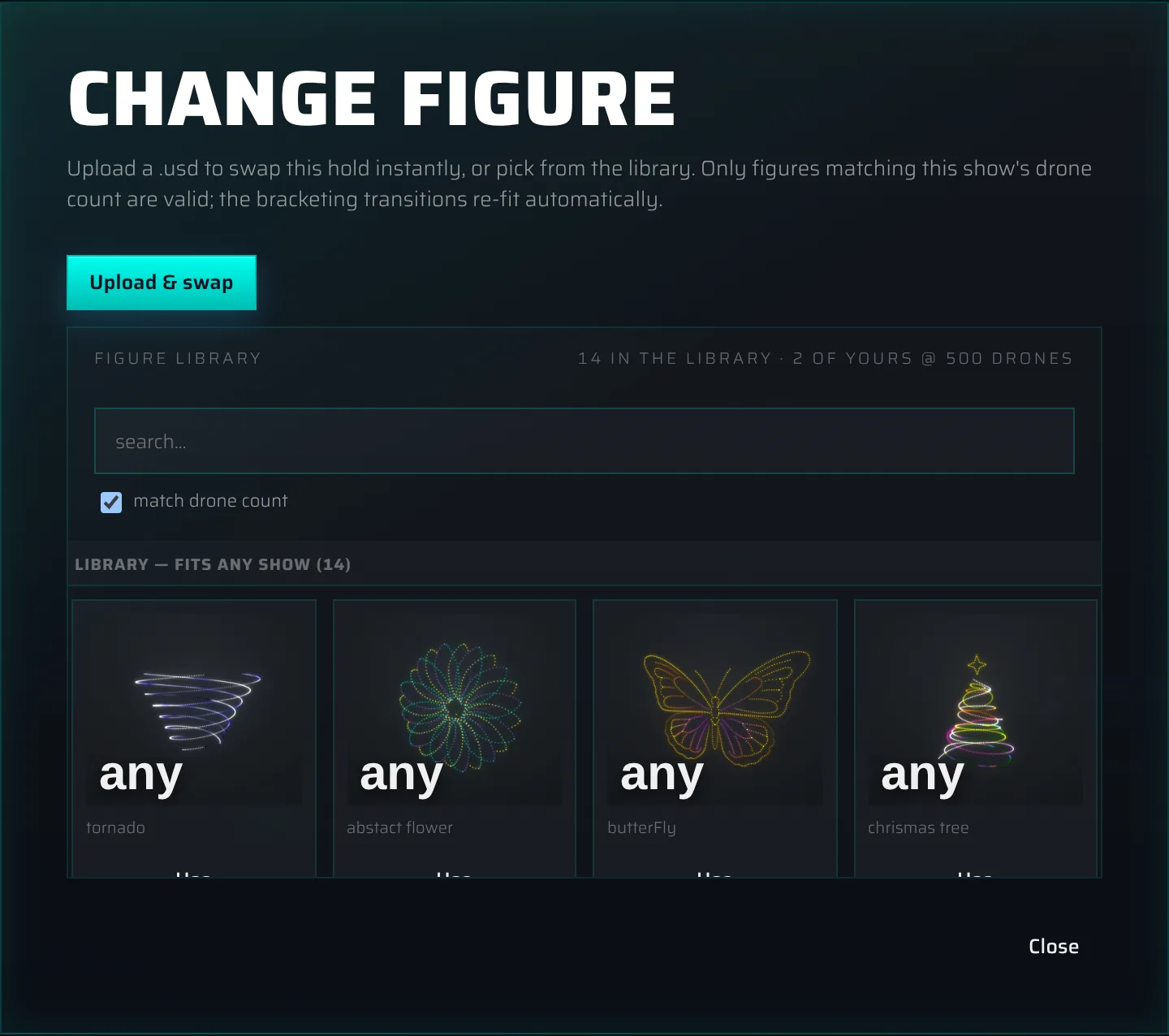
- Upload & swap uploads a file from your computer, adds it to your library and puts it in this block at once. Any figure format the library accepts works (see Uploading figures).
- The Figure library below lists figures you can use. The line at the top counts them, for example "14 in the library · 2 of yours @ 500 drones". Type in the search field, or untick match drone count to see your figures for other drone counts too. The list is grouped into Library — fits any show, Uploaded to this show and Your figures (Your other figures when you uploaded figures to this show). Click a card or its Use button to swap.
- The bin icon on a card deletes that figure from the library, after you confirm (Delete figure?). You can delete only figures you uploaded.
- Close closes the dialog.
The new figure keeps the place you gave the old one: its position, rotation, scale, Start at setting and colour adjustments, and the speed if you set it yourself. An automatic speed is checked again for the new figure. Living colour settings are not carried over. The transitions on both sides are re-timed for the new figure, and the ones whose colours you haven't changed take on the new figure's colours. Only this block changes; the same figure elsewhere in the show stays as it is. If the new figure is already used elsewhere in the show, this block shares that figure's settings instead.
Editing the distribution of a library figure#
A library figure is made of groups, for example the wings, body and pattern of a butterfly. Distribution… in the figure Inspector opens the figure constructor for this figure in the show, so you can decide how many drones each group gets: densify one part, thin out another, switch off a detail that doesn't read at your drone count.
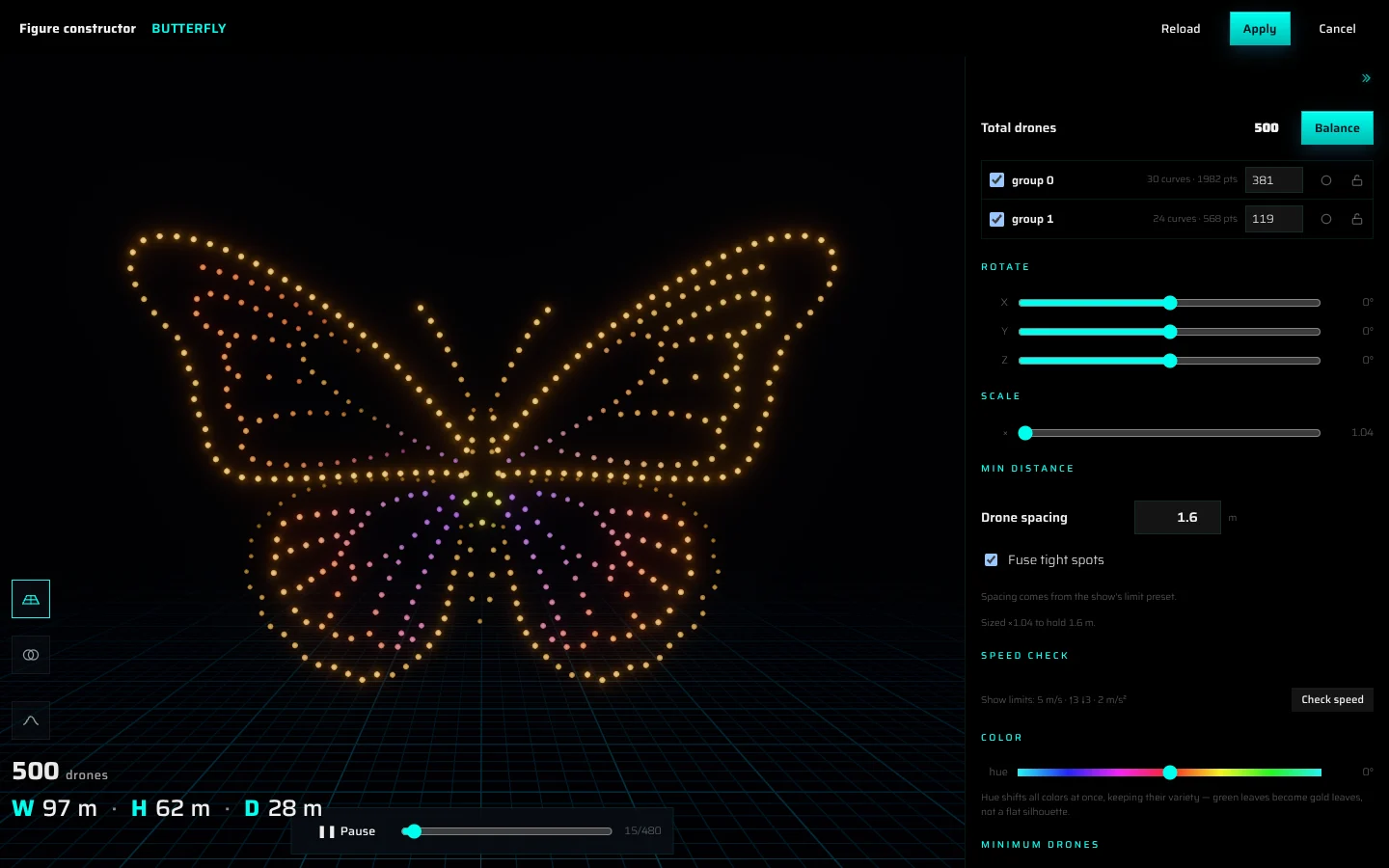
It works like the figure constructor in the Library, with a few differences:
- Total drones is fixed to your show's drone count.
- Balance spreads that total across the ticked groups at equal density.
- Drone spacing is locked to the show's minimum distance ("Spacing comes from the show's limit preset.").
- Check speed uses the show's own limits, and Slow to ×… slows the figure down to a speed that keeps its shape.
- Rotation, scale and hue you set here are applied to the figure in the show.
Click Apply to use the new distribution. Apply works only when the groups add up to exactly the show's drone count; otherwise a line such as "496 / needs 500" shows the difference, and Balance fixes it. Cancel closes without changes. After Apply, the figure keeps its place, and its transitions are re-timed.
Transitions#
A transition (morph) is the flight from one figure to the next. The Builder creates one automatically between neighbouring figures; you never add transitions by hand.
How a new transition is set up#
- Length: the shortest time the drones need under the show's speed and acceleration limits, with a small safety margin. While you haven't changed the length yourself, the Builder re-times the transition when you swap a figure next to it (Change figure or Distribution…).
- Motion: the drones leave and arrive in waves along a branching path from a randomly chosen starting point, spread over 2 seconds at each end.
- Light: a calm Colour wave in the colours of the two figures, travelling the same way the drones leave (a Ripple from the centre when they leave from the front, back or centre), with about a third of the drones dark at any moment and a 1-second fade through dark at each end.
- Mask: off, except next to a library figure, where it is switched on so the spare drones parked behind the figure stay dark.
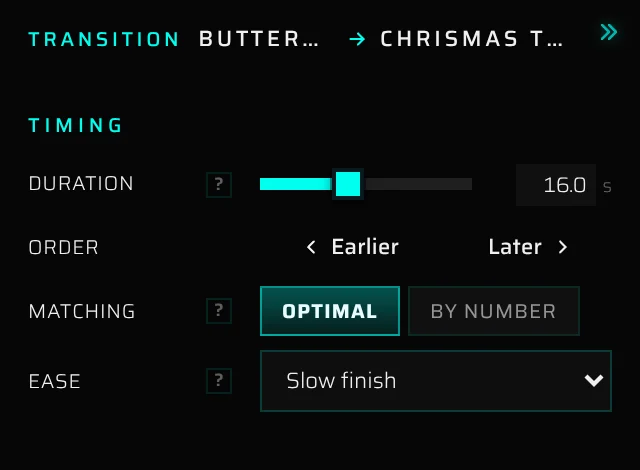
Change any of this in the Inspector. Select a transition block: the Inspector header shows Transition and the route, for example "butterFly → chrismas tree".
Timing#
- Duration (0.2–40 s): how long the flight takes. Setting it by hand stops the automatic re-timing for this transition; from then on the Builder only lengthens it, when you add or swap a figure and the transition is too short to fly.
- Order: Earlier and Later swap it with the previous or next transition.
- Matching: how each drone picks its spot in the next figure. Optimal: the swarm flies the shortest total distance. By number: drone 7 always goes to spot 7; predictable, but the flights get longer.
- Ease: how speed changes during the flight: Even (one speed all the way), Smooth (gentle start and stop), Slow start or Slow finish.
Color effect#
The Effect tile opens the effect library with live previews; Remove replaces the effect with a plain crossfade. See Transition lighting.
Motion (stagger)#
Style decides whether the drones fly Together (all at the same time) or Staged (they leave in waves, one after another). For Staged:
- Sort rule: the order the drones leave in: Left → right (X), Bottom → top (Y), Front → back (Z), From the centre, Around the circle, By brightness, By colour, Random order, By drone number, Branching path, Spiral sweep, Sweeping plane, Ripple ring, Layer by layer, Neighbour spread, Wave bands, By clusters, Organic noise, Wandering lights or By density. Try a few: the viewport updates at once.
- Seed: where the wave starts (bottom, top, left, right, front, back or center). Shown for Branching path, Ripple ring, Neighbour spread, By clusters and Wandering lights.
- Stagger (0–30 s): how long the departures are spread over. 0 means everyone leaves at once.
- End stagger (0–30 s): the same for the arrivals in the new figure.
- Reverse: flips the order, so the last drone goes first.
- Some rules have one more setting: Spiral twist, Layers, Neighbours, Ring λ, Clusters, Patch size or Density r.
Under Exit ordering (defaults to entry), End sort rule, End seed and End reverse let the arrivals follow a different order than the departures, for example leave left to right and arrive from the centre outward.
On the timeline, the wedges at both ends of a transition block show the Stagger and End stagger times.
Fade through… and Mask#
The last two sections of the transition Inspector control its light: Fade through… takes the drones down to dark (or white, a colour, or a pale version of the figure) between the two figures, and Mask keeps drones that aren't part of a figure dark while they fly. Hidden drones in the Mask section keeps drones you pick in the viewport dark for the whole transition. All three are described in Colour, effects and music.
Transitions that are too short#
If a transition is shorter than the drones need under the show's limits (because you shortened it, or because you tightened the limits), its block turns orange and says how much it needs, for example "Not enough time · needs 11.8 s" (or a shorter form on a narrow block). Its tooltip warns that it is below the feasible minimum and exceeds the motion limits.

To fix it:
- right-click the block and choose Set to minimum time. The figure before it gives up the time, so everything after keeps its timing;
- or drag its edge on the timeline;
- or type a longer Duration in the Inspector.
Placeholder blocks#
Takeoff placeholder#
If the show's agreed timings count from takeoff, + Takeoff placeholder in the timeline header reserves 40 seconds at the start of the timeline for the takeoff, so your figures sit at their agreed times from the start.
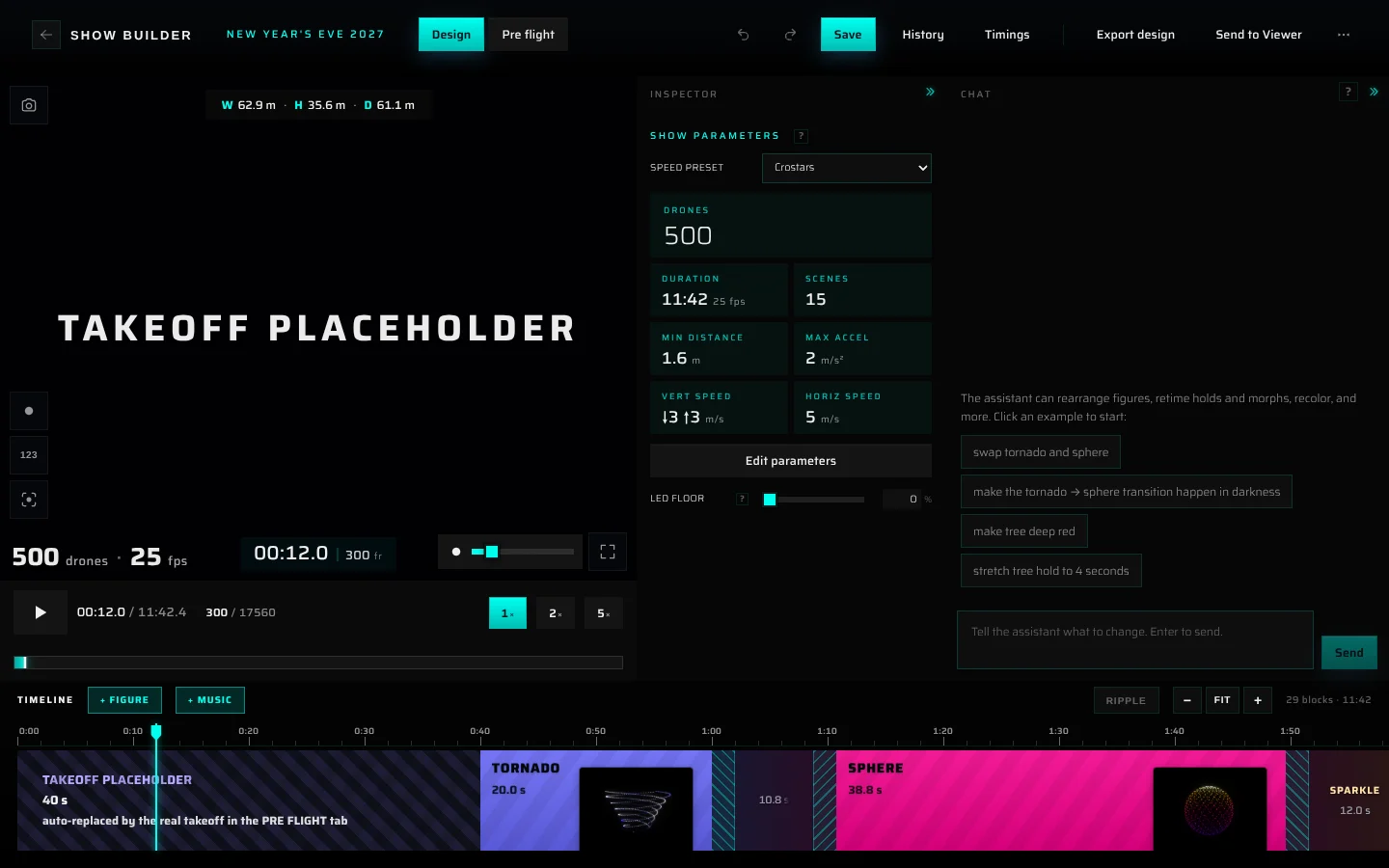
- The placeholder is the striped violet block at the start: Takeoff placeholder, its length and "auto-replaced by the real takeoff in the PRE FLIGHT tab".
- While the playhead is inside it, the drones are dark and the viewport shows "Takeoff placeholder".
- Click the block to change Reserved seconds (0–120 s) in the Inspector. Remove placeholder, or the × on the block, removes it.
- The music doesn't move: adding a placeholder moves the figures later against the music.
- In Show timings it appears as the first row, "Takeoff (placeholder)".
- On the Pre flight tab, the real takeoff takes its place and is fitted to the time you reserved; see Reserve the takeoff time.
Changing the placeholder is not an undo step.
Missing figures#
If a figure used in a show is no longer in the library (for example it was deleted), the Builder can't load it. Under the viewport you then see, for example, The figure "logo-300" is missing on the server — it may have been deleted from the library. (or The vector source "…" is missing on the server). Select the block and use Change figure to put another figure in its place. Until you do, that figure can't be shown: the show either doesn't play at all or shows it as dark drones.
The figure library#
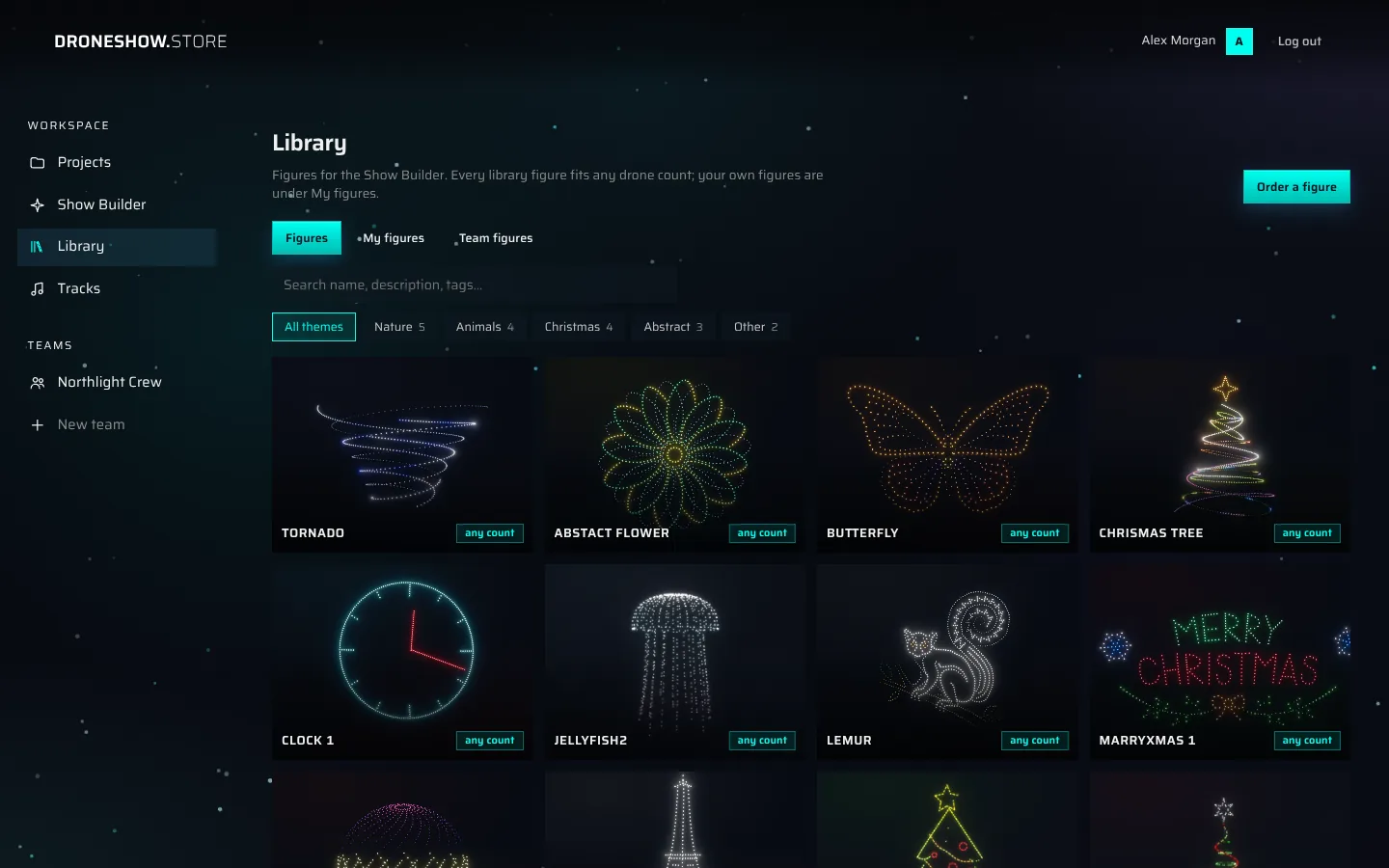
Library in the menu on the left opens the figure library: "Figures for the Show Builder. Every library figure fits any drone count; your own figures are under My figures."
Tabs#
- Figures (opens first): the library. Its figures are made by the droneshow.store studio, and every one fits any drone count: the cards say any count. Click one to open it in the figure constructor.
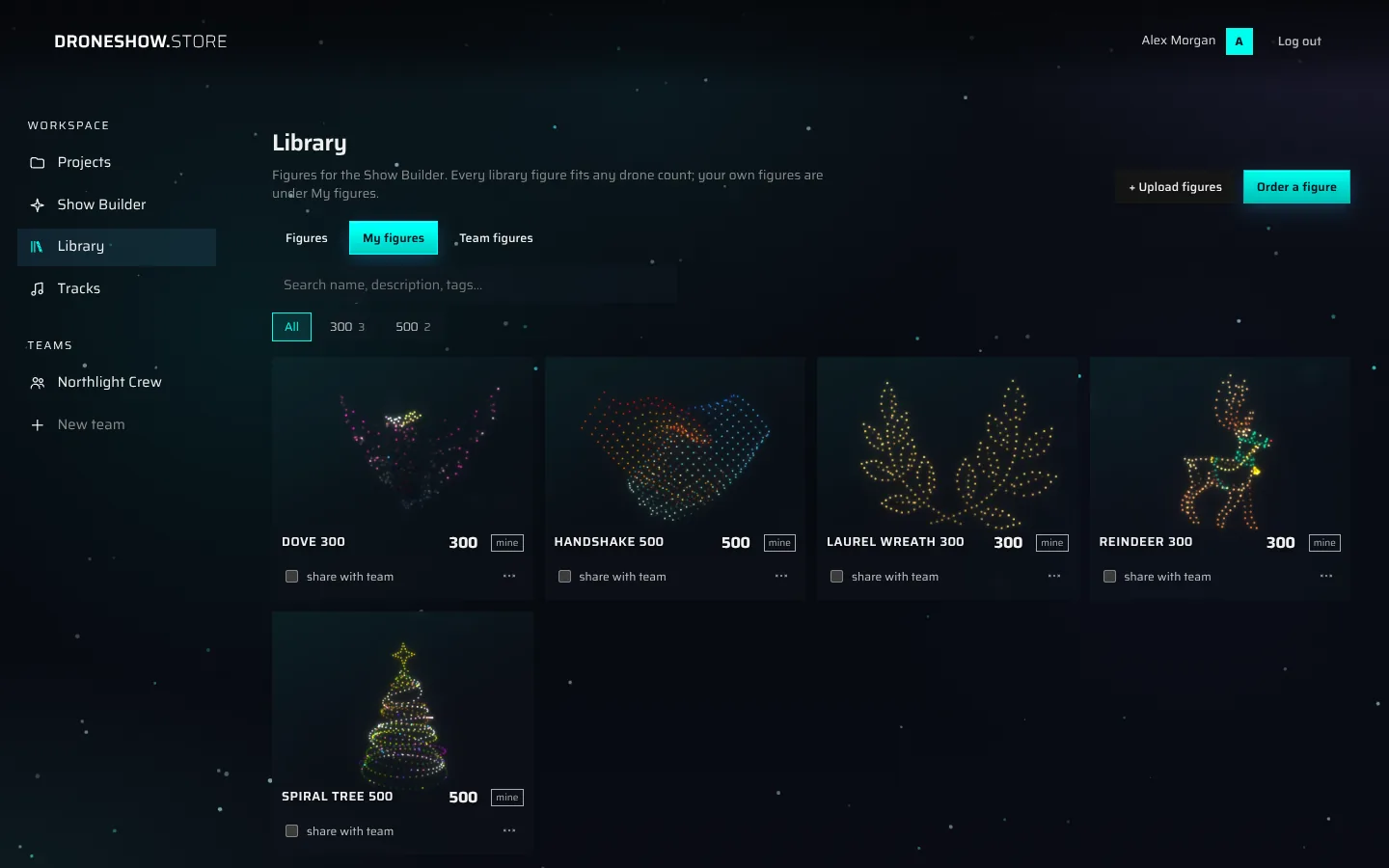
- My figures: your own figures: the ones you uploaded, here or inside the Builder, and the ones our designers made for you. Figures made from a picture (with From a picture in the Builder or opened from Image to Formation) come last, in their own chapter, From image.
- Team figures (only if you are in a team): figures shared into your teams, yours and your teammates'.
Order a figure at the top of every tab asks our designers for a figure the library doesn't have (see Order a figure the library doesn't have).
Starter figures on the Free plan#
On the Free plan you build shows with the library's starter figures and your own figures. The rest of the library is there to look at: its cards carry a lock and Core, and you can open any of them in the figure constructor. Starter figures above the cards shows only the starter figures. Core and Premium use the whole library.
In the Builder, locked figures sit after the starter figures in the figure browser and in Change figure. Adding one (with +, a double-click, Use it with Core or Use) opens a dialog with See plans instead. The AI assistant and the new-show flow build from the starter figures too.
Searching and filtering#
- Search name, description, tags… finds figures by name, description, tags and themes. With several words, a figure must match all of them.
- The drone-count chips (on My figures and Team figures) show each drone count with the number of figures for it. Click one to show only those; click it again, or All, to go back.
- The theme chips sort figures into shelves such as Christmas or Nature: All themes, one chip per theme with at least two figures, and Other for figures on no shared theme. New uploads are sorted into themes automatically.
If nothing matches, the page says "Nothing matches …" and offers a button to clear the search or the filter. When you searched for something, Order this figure below it sends the search to our designers (see Order a figure the library doesn't have); Order a figure at the top of the page does the same at any time.
Each figure opens at its own web address, so you can open it in a new tab or send the link to a teammate.
Figure cards#
A library card shows a preview, the name and any count. A card on My figures or Team figures shows a preview, the name and the drone count; your own uploads carry a mine label, a ⋯ menu with Delete figure… and, if you are in a team, a sharing control.
Viewing a figure and its description#
Click a card on My figures or Team figures to open it in the 3D player. Drag to orbit, set Point size, and use ❚❚ Pause / ▶ Play and the bar to move through the figure. Close returns to the library.
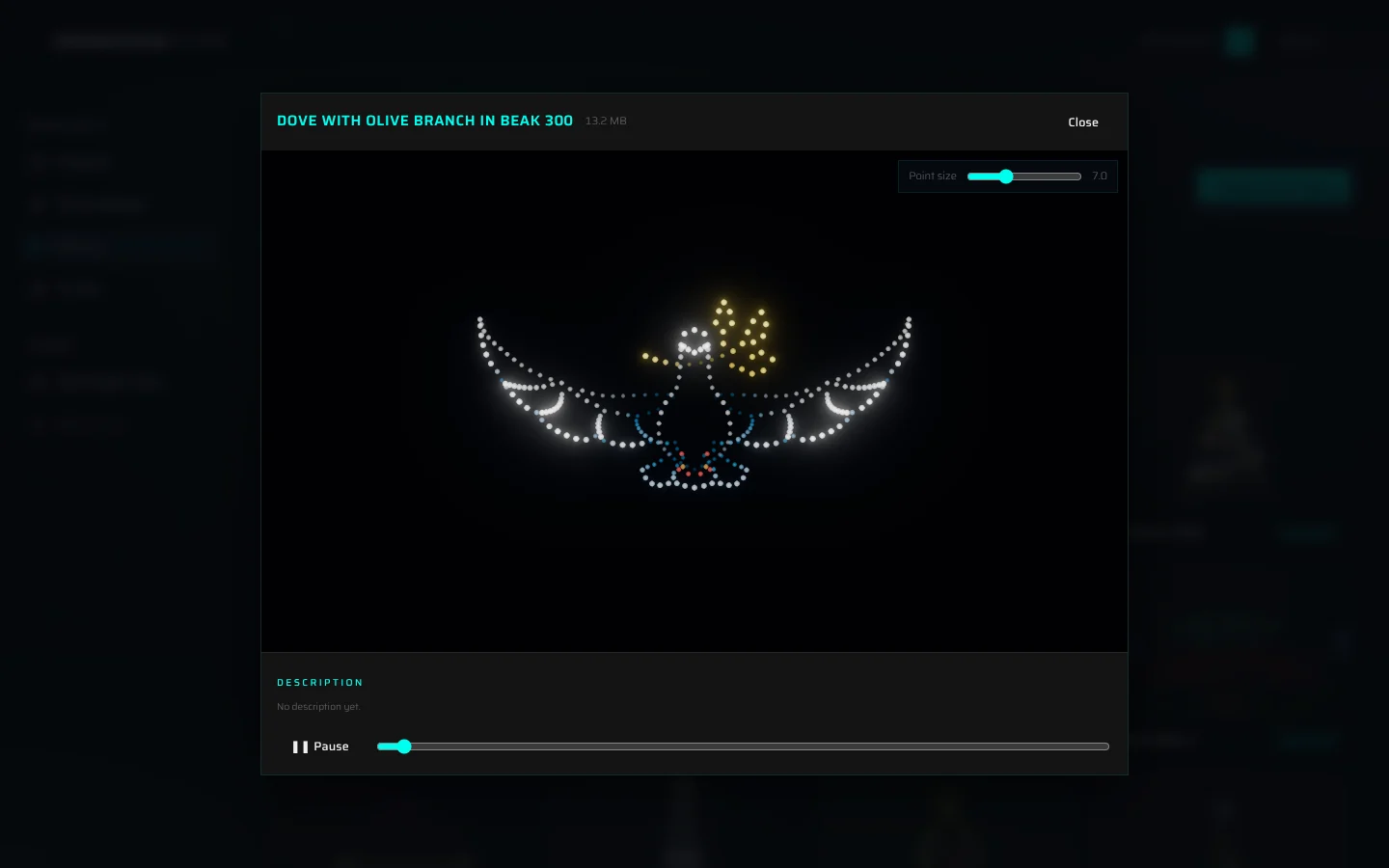
If you uploaded the figure, you can describe it:
- Click the name at the top to rename the figure. Only the displayed name changes; the file keeps its name, and shows that use the figure show the new name.
- Description: what the figure depicts, its shape and what it suits.
- The tags field (tags, comma separated) and the themes field (library themes, e.g. christmas, food (auto when empty); up to four themes). New uploads get their themes automatically; themes you type yourself are kept as they are.
- Generate description lets the AI look at the figure from three angles and write the description and tags. The result is saved at once and stays editable; Undo generate puts the previous text back. An AI label marks descriptions the AI wrote. It uses the same allowance as the AI assistant.
- Save saves your edits, Revert discards them.
Everyone who can see the figure can read its description. Write plainly: the AI reads descriptions when it picks figures for a show, so plain, honest wording works better than clever wording.
Sharing figures with your team#
The figures you upload are private: only you see them. To let your teammates use one, tick share with team on its card (or, if you are in several teams, pick the team in the selector; personal takes it back). The figure then appears for your teammates on Team figures and in their figure browser.
Library figures are different: they belong to the library, and everyone who uses the Builder sees them. Your client's logo, uploaded to My figures or made from a picture, stays yours.
Deleting figures#
- Open the card's ⋯ menu and choose Delete figure….
- Confirm with Delete.
To delete several figures at once, on My figures:
- Tick the square in the corner of a card. While anything is ticked, a click on a card ticks it instead of opening it, and a bar appears at the bottom of the screen.
- In the bar, Select all ticks every card shown with the current search and filters, Select From image only the figures made from a picture, Clear unticks everything.
- Click Delete N… and confirm. The figures are deleted one by one; any that can't be deleted are listed in red.
You can delete only figures you uploaded. Deleting can't be undone. Shows that still use a deleted figure can no longer load it (see Missing figures).
Uploading figures#
On My figures or Team figures, click + Upload figures and choose one or more files. When all files have uploaded, the page switches to My figures.
Accepted files, up to 512 MB each:
- USD (.usd, .usda, .usdc, .usdz);
- Alembic (.abc), Houdini .mat, Blender .blend and DAMODA .jsdm;
- PATH3 and Skybrush CSV shows as an archive (.zip, .tar, .tar.gz or .tgz) of the folder with one file per drone. A single .path3 or .csv file is one drone, so it is refused: zip the folder and upload the archive.
What to know:
- Every upload is converted to USD. Its drone count must be within your account's limit; otherwise the upload is refused ("Your account allows 500 drones per show. Premium allows 5,000 drones per show.").
- The drone count is added to the figure's name, so heart.usd with 300 drones becomes "heart-300". The library uses this number for its drone-count filters.
- Uploading a file with the same name as one of your figures replaces that figure. If the name is already taken by a library figure or someone else's figure, rename your file and upload again.
- Very long clips are thinned to 5,000 frames; their length stays the same.
Figures in the library#
The library's figures are made by the droneshow.store studio, so the Figures tab has no upload button. To use a figure of your own, upload it to My figures, make it from a picture, or order it from our designers.
The figure constructor#
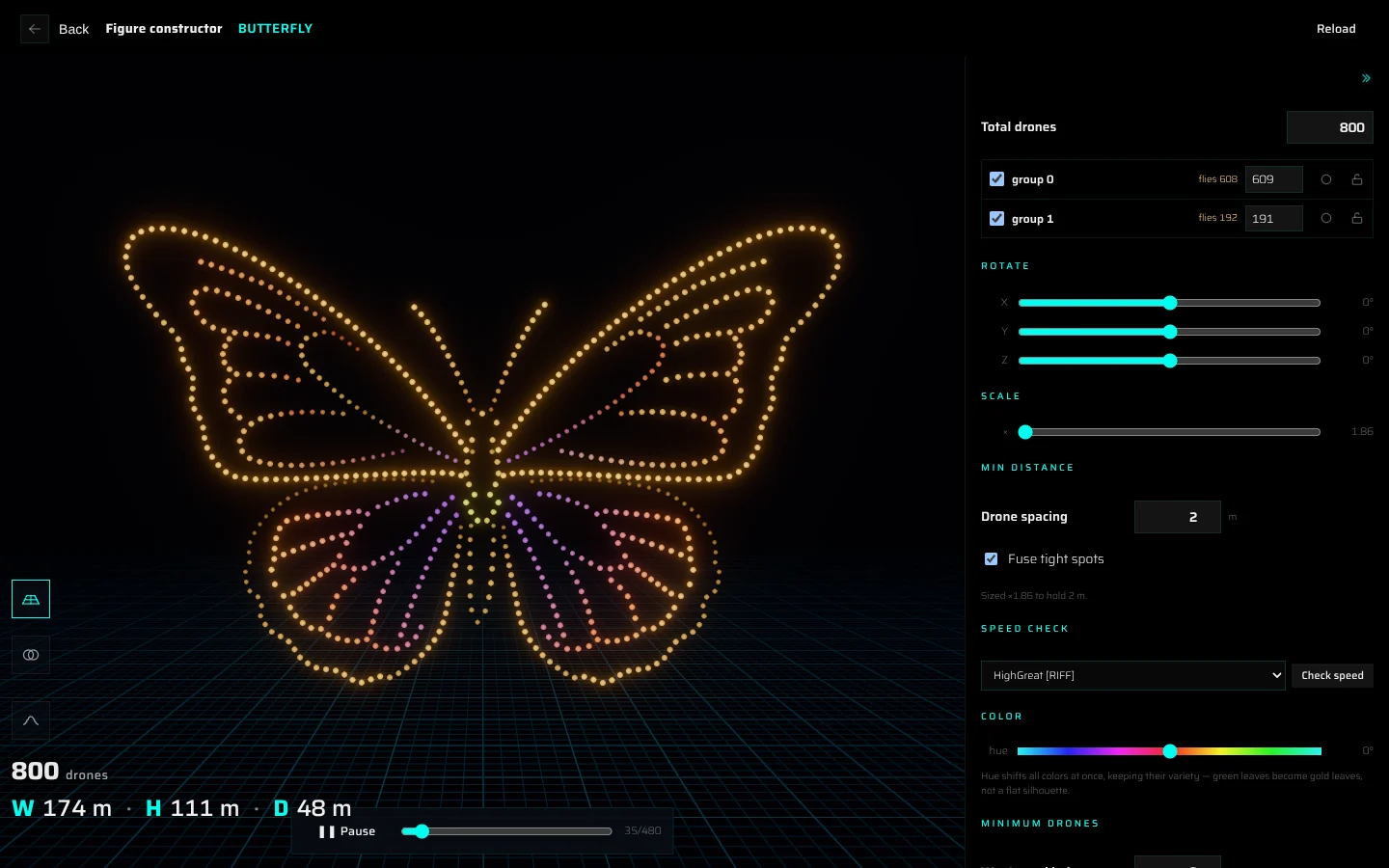
Click a figure on the Figures tab of the Library to open it in the Figure constructor. The constructor turns the drawing into a drone formation for a given number of drones: it spreads the drones along the lines of each group, sizes the figure so neighbouring drones keep the spacing you set, and lets you check and tune the result before you use it in a show.
The header and the stage#
- Back returns to the library. The figure's name follows; on figures you added to the library, click it to rename the figure. Reload reads the figure again.
- The stage shows the formation. Drag to orbit, right-drag to pan, use the wheel to zoom. ❚❚ Pause / ▶ Play, the slider and the frame counter move through a moving figure.
- Bottom left: the number of drones actually placed, and the figure's width, height and depth in metres. Above them, three toggles: the ground grid; the collision check, which draws a sphere around every drone (red where two drones are closer than the spacing) and shows the smallest distance between any two drones; and the source lines of all groups.
- Top left, on figures you added to the library: use the current view as the figure's card image in the library, or replace the figure's file with a new version. Replacing keeps the group names, filler marks and minimum drone count.
Total drones and groups#
- Total drones: type a number and press Enter (or click elsewhere), and you see the figure the way a show of that size flies it (its saved arrangement nearest to that count). On a phone, use the Balance button.
- When the figure was set up for more drones than your account flies in a show, it opens at your account's limit, for example "Opened at 300 drones, the most your account flies in a show."
- You can preview any figure at up to 1,500 drones, whatever your plan. Past your account's limit the preview is read-only: the groups and settings are locked, and a note says "Preview at 1,000 drones, read only.", what your account and the bigger plans fly, and See plans. Type your limit or less to edit again. A number over 1,500 is set to 1,500.
- Each group row has:
- a checkbox to switch the group on or off;
- its name. Double-click to rename it; group names are saved for everyone;
- what it is made of (for example "3 curves · 1200 pts", or "24 dots"). A warning in yellow appears instead when the group flies a different number than you typed ("flies 46"), or has fewer drones than curves ("needs 12");
- its drone count. Typing a count, or turning the mouse wheel over it, locks the group at that count, and the other groups share the rest;
- the colour swatch: paint the group with one colour, or two that ramp along its line (Ice, Amber, Magenta, Lime, Indigo, White, Dusk, Sunset, Reef, Ember, or your own colours). source goes back to the file's colours. Brightness stays as in the file, so blinking and dim parts survive;
- the lock: a locked count stays put when the total is spread again.
- Groups made only of dots always get one drone per dot.
- Hover over a row to light the group up on the stage.
- With every group switched off: "No groups selected — nothing to draw. Tick a group to bring the figure back."
On figures you added to the library, you also get:
- the filler mark: a group marked as filler absorbs the drones left over when the total is spread;
- drag-to-reorder (the grip at the left of a row). The order is the priority: when a show has fewer drones than the figure was drawn for, the groups at the top are the ones that survive. Reset order returns to the file's order.
Saved arrangements#
A figure doesn't have one right set of groups: at 100 drones a cathedral is its silhouette, at 500 it can afford its windows. On figures you added to the library, you can save an arrangement per drone count:
- Set the total, switch groups on or off and adjust counts, locks and filler marks.
- Click Save for 300 drones (the button shows the current count).
Saved counts appear as chips: click one to load it, × to forget it. A show takes the nearest saved arrangement and scales it: with 100 and 500 saved, a 120-drone show gets the 100 arrangement and a 450-drone show gets the 500. With none saved, every group flies.
Rotate, Scale and Min distance#
- Rotate: X, Y and Z, from −180° to 180° in 5° steps; reset straightens it again.
- Scale: the slider starts at the fitted size, the smallest size at which the drones keep the spacing, and goes up to 12×. fitted returns to the fitted size. The note below says the current size, for example "Sized ×1.40 to hold 2 m."
- Min distance → Drone spacing (0.5–10 m, 2 m by default): the smallest distance the fit guarantees between drones.
- Fuse tight spots (on by default): where lines cross or meet, up to about 4 % of the drones can be merged in pairs; each spare drone is parked dark behind the figure. The figure can then be smaller. Switch it off to keep every drone lit at the minimum distance; the figure gets bigger.
If two lines of the figure pass closer than the spacing, a note explains that no uniform size fixes that and the few drones there are eased apart locally.
Speed check#
For a moving figure: choose the speed limits of a drone system in the selector and click Check speed. The constructor flies the figure through a quick check against those limits and reports either Holds its shape, or how bent it gets ("Bent: 12% of drones >0.35 m off (worst at 0:14)"), together with the speeds and acceleration the figure needs against the limits. It also warns when a drone jumps in a single frame (a glitch in the source that no fleet can fly). If slowing down helps, it says at which speed the figure stays clean ("Clean at ×0.80 speed or slower."); otherwise it suggests fewer drones or another figure. The result greys out ("(stale)") as soon as you change the figure.
Color and Minimum drones#
- Color → hue (−180° to 180°) turns every colour of the figure around the colour wheel at once, keeping their variety: green leaves become gold leaves, not a flat silhouette.
- Minimum drones → Won't read below: the fewest drones the figure still looks good at. It is saved for everyone, and the AI won't build the figure into a show below it. If the current total is lower, a warning says the figure will look too sparse. Leave it empty for no minimum.
Description#
Below the settings is the same description panel as in the figure player: editable on figures you added to the library, read-only on the others.
What the constructor saves#
In the Library, the constructor is mainly for looking and checking: rotation, scale, group colours and hue are a preview and are not saved with the figure. What is saved, for everyone: group names and the minimum drone count; on figures you added to the library, also the saved arrangements, filler marks, group order, name, description and card image. To apply rotation, scale or hue in a show, open the figure's Distribution… from the show and click Apply.
On a phone#
On a narrow screen the settings panel covers the whole screen and starts folded: tap the Settings strip to open it, and the fold button to close it again.
File formats and limits#
Your own figures:
| Upload from | + Upload figures in the Library, Upload in the figure browser, Upload & swap in Change figure |
| Formats | .usd, .usda, .usdc, .usdz, .abc, .mat, .blend, .jsdm; .path3 and Skybrush .csv folders as .zip, .tar, .tar.gz or .tgz |
| Largest file | 512 MB |
| Drone count | Fixed by the file, up to your account's limit |
| Clip length | Up to 5,000 frames are kept; longer clips are thinned |
| Who sees it | You, plus your teams if you share it |
| Same name again | Replaces your earlier upload |
Library figures fit any drone count up to your account's limit per show, and everyone who uses the Builder sees them; they come from the droneshow.store studio, so there's nothing to upload for them.
Something missing or unclear? Write to contact@droneshow.store.