Colour, effects and music
Light your figures, pick effects from the effect library, and build the show around a music track.
The Builder controls the light of every moment of your show. Figures hold their own colours (and can play a colour effect while they stand), and transitions play a colour effect while the drones fly. This chapter covers all of that, then shows how to add music and line the show up with it. If you are new to the Builder, start with Show Builder basics.
How colour works in the Builder#
Colour comes from three places:
| Where | What it controls | Where you edit it |
|---|---|---|
| Figures | The colours stored in each figure, shown while it holds on stage, and an optional effect on top | Select a figure block, then Color effect, Color adjust and Living colour in the Inspector |
| Transitions | What the drones show while they fly from one figure to the next | Select a transition block, then Color effect, Fade through… and Mask in the Inspector |
| Takeoff and landing | Lights during the climb and the descent | Pre flight tab, then Takeoff & Landing lights |
None of these settings change the figure files themselves. Every change you make on the Design tab is a normal step in the undo history, so Ctrl+Z takes it back.
On the timeline, each figure block is tinted with the figure's main colour and shows the name of its effect, if it has one. Transition blocks blend the colours of the figures on either side and show the name of their colour effect, so you can read the lighting of the whole show at a glance.
Figure colours#
Figures from the library and figures you upload keep the colours stored in their files. You can't repaint a figure drone by drone in the Builder, but you can play a colour effect on it while it holds, paint the whole figure in one colour while keeping its light pattern, make it brighter and more saturated, and add a "living colour" layer.
Select a figure block on the timeline to see these sections in the Inspector.
Effect on a figure#
A figure block shows the figure's own colours until you give it an effect. The effect plays for the whole block, on top of the figure's colours:
- Select the figure block.
- In the Color effect section, click the tile (it reads No effect). The effect library opens with the effects that work on a standing figure.
- Click a card. The settings of the effect appear under the tile.
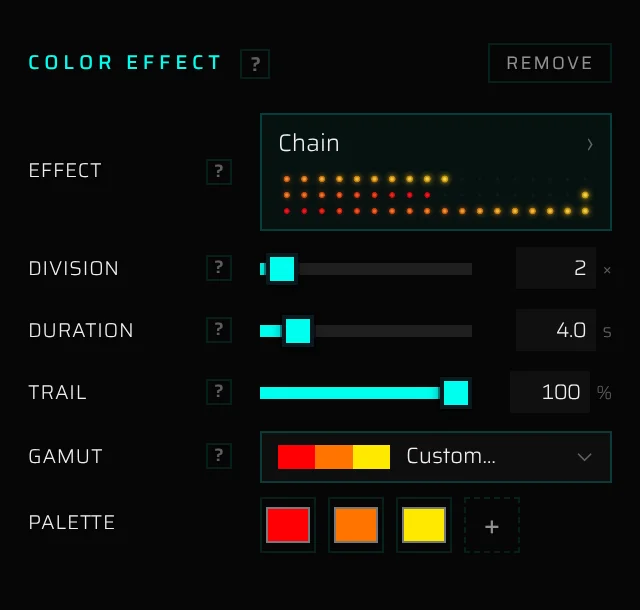
Good effects for a standing figure:
- Chain draws the figure point by point, in the order its points were drawn, so an outline figure draws itself along its lines, pass after pass. Division 2 draws it from two places at once, 4 from four, and so on.
- Flow streams the palette along the figure's lines, and Neon turns them into neon tubes that strike on one by one.
- Twinkle, Breathing, Heartbeat, Glint and Spotlights keep the figure's own colours and bring them to life.
- Colour wave, Colour cycle, Shimmer, Aurora, Spiral and Radar recolour the figure in moving colours.
- Sparkle turns the figure into confetti and Candles into a field of small flames; Fireworks, Lightning, Fire, Rain and Equalizer are for big moments.
How an effect on a figure behaves:
- Drones that are dark in the figure stay dark; the effect only plays on the figure's lit drones.
- Effects that use the figure's colours (Twinkle, Breathing, Heartbeat, Glint, Spotlights, Lightning) play over its colour animation and its living colour.
- The effect eases in over the first half second of the block and out over the last, so the transitions on either side don't jump. Reveal, Neon and a Chain with Trail at 100 % start from dark instead: they build the figure up.
- A palette effect starts in the figure's own colours. Change them with the palette controls.
- Remove, at the top right of the section, takes the effect off. Each figure block has its own effect, so the same figure can sparkle in one block and stand still in the next.
Color adjust#
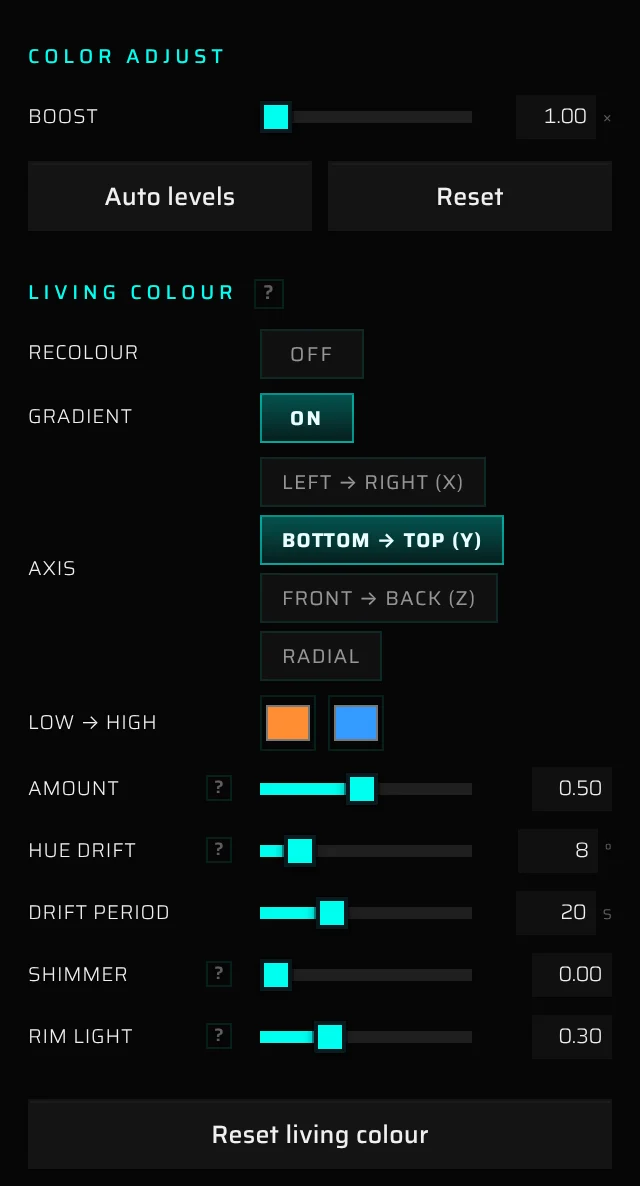
- Boost (1–2.5×) raises saturation and brightness together. Use it when a figure looks dull on the drones.
- Auto levels stretches the brightness so the darkest drones go to black and the brightest to full, like Levels in a photo editor. It shows a ✓ while it's on; click it again to turn it off.
- Reset sets Boost back to 1× and turns Auto levels off.
Living colour#
Living colour is a subtle layer on top of the figure's own colours. It plays on every frame while the figure holds, so a figure that stands still still looks alive. Drones that are off stay off, and the transitions into and out of the figure start from the treated colours, so there's no jump.
| Setting | What it does |
|---|---|
| Recolour | Switch on to paint the figure in one Colour. Each drone keeps its own brightness from the file, so dark drones stay dark and the figure's light pattern is unchanged; only the colour is new. Amount (0.05–1) blends between the figure's own colours and the new one. The transitions into and out of the figure pick up the new colour while their colours are automatic. |
| Gradient | Switch on to tint the figure across one direction. Then choose the Axis (Left → right (X), Bottom → top (Y), Front → back (Z) or radial, from the centre to the rim), the two colours under Low → high, and the Amount (0.05–1): how much of the figure's own hue the tint replaces. Brightness is never changed. A new gradient starts warm orange at the bottom and blue at the top. |
| Hue drift | A slow back-and-forth hue rotation, 0–60°. Around 5–10° reads as living colour rather than a colour change. Drift period (2–60 s) appears once Hue drift is above 0. |
| Shimmer | A per-drone brightness ripple, 0–1. Around 0.05–0.15 keeps a still figure alive; more starts to read as sparkle. Shimmer speed (0.05–4 Hz) appears once Shimmer is above 0. |
| Rim light | Makes the outer drones brighter and the inner ones dimmer (0–1), which gives a flat outline figure a lit edge. |
Reset living colour clears all of them.
Transition lighting#
A transition is the block between two figures, where the drones fly from one figure to the next. Select it on the timeline, and the Inspector header shows Transition with the route, for example chrismas tree → The Eiffel Tower. The lighting lives in three sections: Color effect, Fade through… and Mask. The Timing and Motion (stagger) sections are covered in Figures and transitions.
What a new transition looks like#
When you add a figure, the Builder creates the transition into it with a ready-made look:
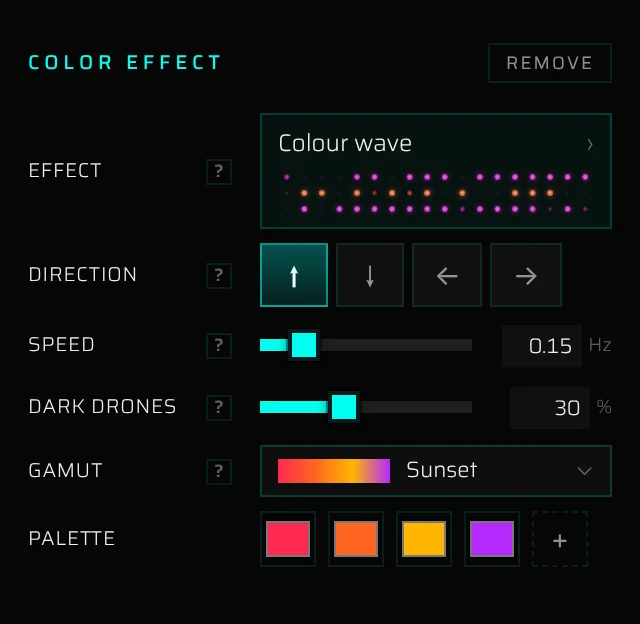
- A calm Colour wave that travels the same way the drones leave the figure (up when they start from the bottom, and so on), or a Ripple from the centre when they start from the front, back or centre.
- A palette built from the figures on either side: their main colours as an LED shows them, saturated and at full strength. A figure with one main colour gets its two neighbouring hues as well, so the wave has a gradient to run through.
- About a third of the drones resting in the dark at any moment (Dark drones 30 %), so the formation in flight doesn't read as one solid cloud.
- Fade through… switched on, so the old figure fades out before the drones fly and the new one lights up once it has formed.
Until you edit it, the transition's palette keeps following its figures. If you swap a figure, the colours update to match. As soon as you change anything in the Color effect section, the palette is yours and stays as you set it.
Color effect#
- Effect shows a live preview and the name of the current effect. Click it to open the effect library.
- Under the tile are the settings of the current effect. The effect reference lists them all.
- Dark drones (0–80 %, 30 % by default) is the share of the drones that rest in the dark at any moment of the move. Each drone fades out, stays dark for a moment and fades back in on its own slow cycle of 3.5–6.5 seconds, so the dark ones keep changing and the formation in flight reads lighter and deeper. Set 0 % to keep every drone lit. Every effect has it except Sparkle, whose Dark share does the same job, and Lights off. It stays when you switch effects. Figures don't use it: a standing figure shows all its drones.
- Remove, at the top right of the section, replaces the effect with Smooth blend, a plain fade between the two figures' colours. Your Fade through… settings stay as they are.
- Without Fade through…, each drone eases out of its figure's colour into the effect as it takes off, and back into the next figure's colour as it lands.
Effects that use colours also show the palette controls described in the next section.
How the settings work:
- Drag a slider and release it to apply the value, or click the number next to it and type one. Press Enter to apply or Esc to cancel. A few boxes accept larger values than the slider shows.
- Hover the ? next to a setting for a short explanation.
- The change applies to this transition only. To change every transition at once, ask the AI assistant, for example "use Colour wave on every transition".
Palettes and gamuts#
- Gamut opens a list of 24 curated palettes, each shown as a colour strip. They are tuned for LED drones at night: saturated hues that keep their colour in the glow. White appears only where it is the look, as in Ice, Gold & white or Pure white. Hover a gamut to see its mood tags. Picking one fills the swatches. The Gamut button reads Custom… when your swatches don't match any gamut.
- Palette shows up to 7 colour swatches. Click a swatch to open your system's colour picker; the new colour applies when you close the picker. + adds a swatch (a copy of the last one), which you then click to choose its colour. × on a swatch removes it; the last swatch can't be removed.
Palette colours play at the brightness of the figures around them, so a transition doesn't flare brighter than the figures it joins. Effects that run through the palette as a gradient (Colour wave, Ripple, Chain, Flow, Colour cycle, Radar, Equalizer, Shimmer, Fire, Aurora) turn from one colour to the next the way an LED fades: the hue turns and the colour stays saturated, so pink to orange passes through red, not through pale salmon. Effects that use one swatch at a time, for a drone, a burst or a tube (Sparkle, Spiral, Groups, Rain, Fireworks, Neon, Candles, Dissolve), use the swatches as they are.
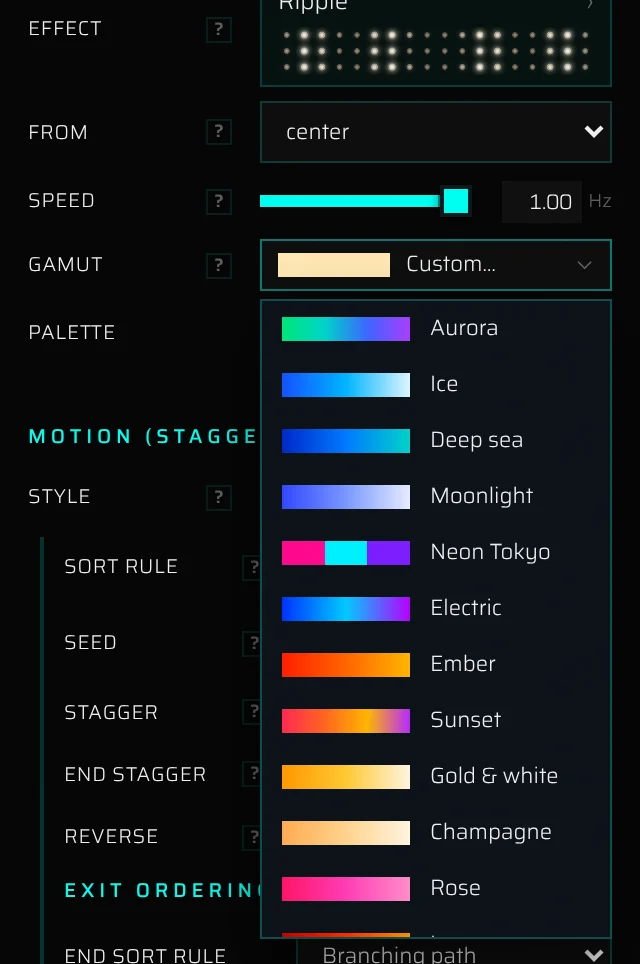
The gamuts, in the order the list shows them, with the mood tags you see when you hover them:
| Gamut | Mood tags | Gamut | Mood tags |
|---|---|---|---|
| Aurora | cold, nature, calm | Festival | festive, energetic |
| Ice | cold, clean, winter | Christmas | festive, winter |
| Deep sea | cold, calm, dark | Carnival | festive, warm |
| Moonlight | cold, calm, elegant | Blue & yellow | festive, national |
| Neon Tokyo | cold, energetic, night | Cyan + white | mono, clean, tech |
| Electric | cold, energetic | Amber + white | mono, warm, clean |
| Ember | warm, dramatic | Pure white | mono, clean |
| Sunset | warm, romantic | Violet | mono, night, elegant |
| Gold & white | warm, elegant, luxury | Forest | nature, calm |
| Champagne | warm, elegant, wedding | Ocean | nature, cold, calm |
| Rose | warm, romantic, wedding | Spring | nature, warm, soft |
| Lava | warm, dramatic, dark | Rainbow | festive, energetic |
Some effects have colours of their own and start on them when you pick them: Fire burns in embers, Candles in warm flame colours, Aurora runs from green to violet, Equalizer from green through yellow to red, Lightning strikes white-blue, Rain falls in blues, and Twinkle, Glint and Dissolve shine warm white. Change the swatches to recolour them. Other palette effects start in the block's colours.
When a palette has no swatches, the row reads Auto · figure colours. The effect then plays in its own colours (as above), or in a set of strong LED colours. Pick a gamut or add a swatch to set the colours yourself.
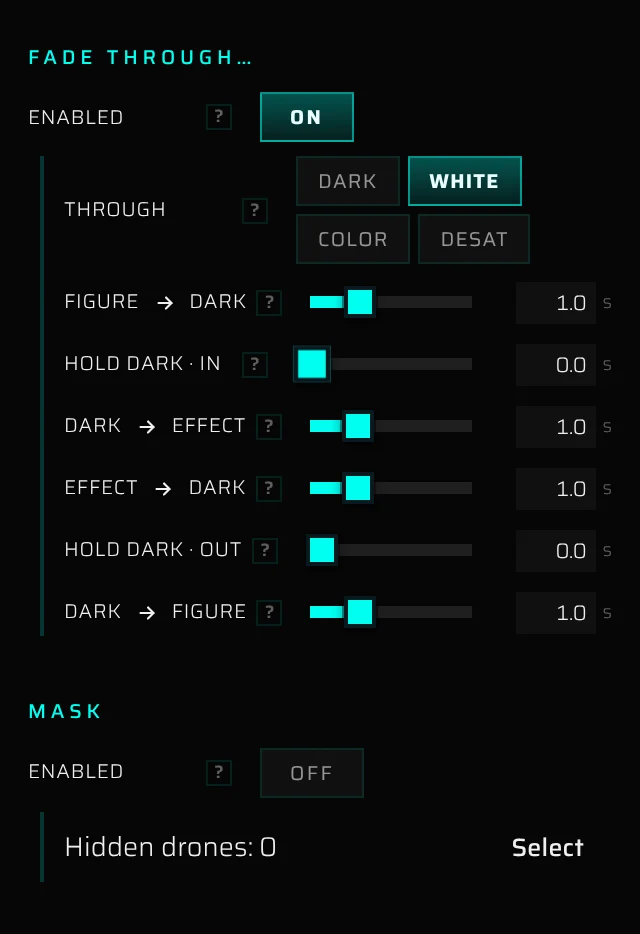
Fade through…#
Fade through takes the drones down to a "through point" between the two figures, so the old figure fades out before the flight and the new one fades in after it has formed. The colour effect plays in between.
- Enabled turns the fade on or off. Switching it on sets every fade to 1 second.
- Through sets what the figure passes through:
- dark: classic black.
- white: a white-out. The effect comes out of white.
- color: the figure sinks into a colour you choose under Colour. The figure's accent colour works well here.
- desat: only the saturation drains. The figure pales to white-grey and the next one blooms back into colour; nothing goes dark.
- The timing, in the order it plays:
| Setting | Range | What it does |
|---|---|---|
| Figure → dark | 0–4 s | How long the old figure takes to fade out. It fades while it still stands, each drone just before it leaves. |
| Hold dark · in | 0–10 s | An optional pause at the through point before any light returns. |
| Dark → effect | 0–4 s | How long the colour effect takes to fade up. |
| Effect → dark | 0–4 s | How long the colour effect takes to fade out before the new figure appears. |
| Hold dark · out | 0–10 s | An optional pause at the through point after the effect, before the new figure lights up. |
| Dark → figure | 0–4 s | How long the new figure takes to light up once it has formed. |
Mask: which drones light up#
Some figures don't use every drone: the unused drones sit dark in the formation. The mask keeps those drones dark during the transition, so they don't light up with the colour effect and fly lit to places they shouldn't be. Masked drones still fly; they just stay dark.
- Enabled turns the mask on. New transitions next to a library figure have it on, so the spare drones parked behind the figure stay dark; elsewhere it starts off, so every drone shows the effect.
- From figure and To figure set which moment of each figure decides who counts as lit: Whole means lit at any time during the figure, First means its first moment, and Last means its last moment. When you switch the mask on for a new transition, these start at Last and First.
- Mid-flight sets which figure decides while the drones are in the air:
- Both: a drone is lit only if it is lit in both figures.
- from: follow the old figure. Drones that are off in the new figure stay lit until they land.
- to: follow the new figure. Drones that are off in the old figure light up as soon as they leave.
- Handover: follow the old figure, then switch to the new one partway through with a fade. Set when with Switch at (10–90 % of the transition) and how long with Switch fade (0.1–4 s).
- If you asked the assistant for a time-range mask (for example "only the drones lit in the first 7 seconds of the figure"), a note says so. The lists then read Whole, but the range is kept until you change it here.
To keep particular drones dark for this transition, whether or not the mask is on:
- Next to Hidden drones: 0, click Select.
- In the viewport, click a drone or drag a rectangle around several. Each click or rectangle adds to the selection.
- Click Done when finished. The count updates. (Esc also ends selecting, but it deselects the transition too.)
- To unhide all of them, click Clear.
The effect library#
The effect library is where you choose a colour effect, for a transition or for a figure. It shows every effect with a live preview, so you can compare them before you pick one.
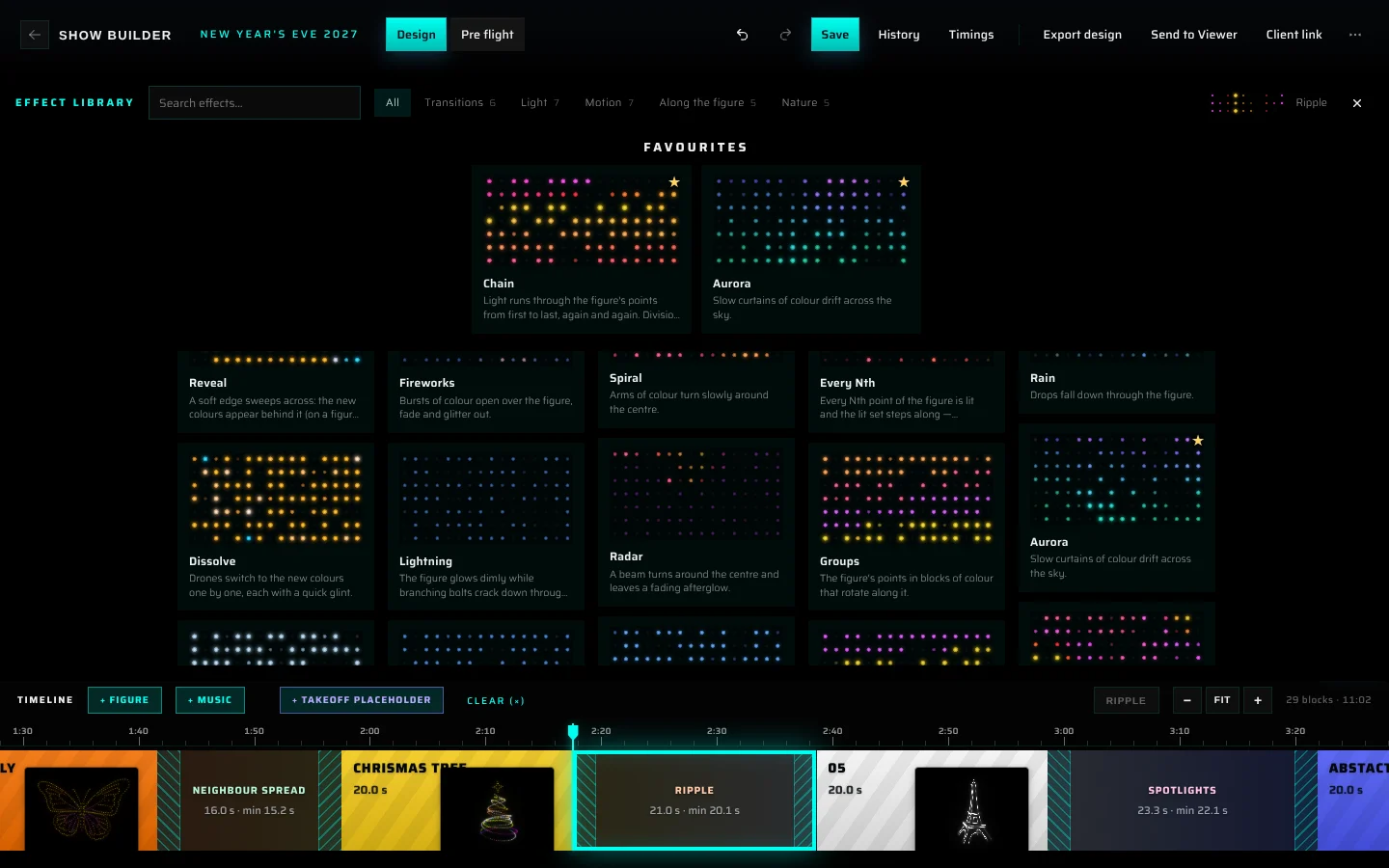
Open and use the library#
- Select a transition or a figure on the timeline.
- In the Inspector, click the Effect tile.
- The library opens over the top part of the screen (viewport, Inspector and chat). The timeline stays visible and live underneath. On the Pre flight tab it floats over the upper part of the view.
- Click a card. The effect is applied at once and the library closes, and the Inspector shows the new effect's settings.
To close without changes, click × (Close (Esc)) or press Esc. Clicking the effect that's already applied also just closes the library. The library also closes when you deselect the block or switch tabs.
What's on screen:
- Search effects… searches effect names and descriptions. If nothing matches, the library says No effect matches "…".
- The tabs are All and the five families, each with the number of effects in it. On All, the families sit side by side as columns; a family tab shows just that column. In a narrow window, the columns scroll sideways.
- Opened from a figure, the library is called Figure effects. Its first card is No effect (the figure's own colours), and it leaves out the effects that need a next figure (Smooth blend, Hold, then snap, Dissolve, Lights off); the first family is called Accents there.
- Each card shows a live preview, the effect's name and a short description. Hover a card for the full description. The current effect has a ✓, and its name and preview also appear at the right of the toolbar.
- Hover a card and click ☆ (Add to favourites) to pin it to a Favourites shelf at the top of the All tab. The shelf is hidden while you search. Click ★ (Remove from favourites) to take it off. Favourites are remembered in this browser.
- With the keyboard, Tab moves between cards and Enter or Space applies the focused one.
The previews run the same light engine as the show, with each effect's starting settings, in the block's own palette. They play on a small grid of dots that stands in for a figure; its points are numbered like a drawn line, so Chain, Flow, Every Nth, Groups and Neon run along it the way they run along an outline. Transition previews go from a blue figure to an orange one; effects that use the figure's colours play on a blue figure.
Effect reference#
The library groups its effects into five families. "Palette" in the tables means the effect also has the palette controls. Every pattern is laid out on the figure as the audience sees it (across and up) and sized to the figure, so the same settings look the same on a small figure and a large one.
Transitions#
How the colour gets from one figure to the next. On a figure, this family is called Accents and has Reveal and White flash.
| Effect | What it looks like | Settings |
|---|---|---|
| Smooth blend | The colours flow evenly from the first figure into the next. | None |
| Hold, then snap | Keeps the old colours, then cuts to the new ones. | Snap at (0–100 % of each drone's flight) |
| Reveal | A soft edge sweeps across the figure. On a transition, the new colours appear behind it; on a figure, the figure lights up behind it. | Direction (↑ ↓ ← →), and on a figure Duration (0.5–10 s for the edge to cross) |
| Dissolve | The drones switch to the new colours one by one, each at its own moment of the move, with a quick glint as it changes. | Palette (the glint colour) |
| White flash | One white flash in the middle of the block. | None |
| Lights off | Dark for the whole move. It needs Fade through… switched on; without it, the colours simply blend from one figure to the next. | None |
Light#
Sparks, stars, beats and strikes over the figure.
| Effect | What it looks like | Settings |
|---|---|---|
| Sparkle | Confetti: every drone pops in a random palette colour on its own beat, dark in between. | Rate (0.1–3 Hz, pops per second), Dark share (0–90 % of the time each drone is dark), palette |
| Twinkle | A few drones at a time glint like stars over the figure's own colours. | Stars (1–40 % of the drones at once), Rate (0.2–4 Hz), palette (the star colour) |
| Fireworks | Bursts of colour open over the figure, each at a new place and in one palette colour: a bright ring spreads out, fades and glitters away. Between bursts the figure glows faintly in its own colours. | Interval (0.4–6 s between bursts), palette |
| Lightning | The figure glows dimly in its own colours while branching bolts crack down through it, each strike a different bolt. | Interval (0.6–8 s between strikes), palette (the bolt colours) |
| Breathing | The figure slowly dims and brightens, keeping its colours. | Rate (0.05–1 Hz) |
| Heartbeat | The figure beats in its own colours, lub-dub, each beat spreading from the centre outward. | Rate (30–180 bpm) |
| Colour cycle | The whole figure holds one palette colour, then fades into the next, round the palette. On a figure, its brighter parts stay brighter. | Per colour (0.5–20 s on each colour, the fade included), palette |
Motion#
Colour that travels across the figure.
| Effect | What it looks like | Settings |
|---|---|---|
| Colour wave | The palette flows across the figure as a gradient. With one colour, a band of light travels. | Direction (↑ ↓ ← →), Speed (0–1 Hz, palette cycles per second; 0 = a still gradient), palette |
| Ripple | Rings of colour spread from a point of the figure, like a drop in water. | From (center, bottom, top, left, right), Speed (0–1 Hz, rings per second), palette |
| Spiral | Arms of colour turn slowly around the centre, like a pinwheel facing the audience. | Arms (1–8), Speed (−0.4–0.4 turns per second; negative turns the other way), palette |
| Radar | A beam turns around the centre and leaves a fading afterglow. The beam is in the first palette colour and the glow fades through the others; the rest of the figure stays dimly lit. | Speed (−0.5–0.5 turns per second; negative turns the other way), palette |
| Glint | Now and again a shine sweeps across the figure on a slight slant, like light over polished metal. The figure keeps its own colours and rests a little dimmer, so the shine stands out. | Direction (↑ ↓ ← →), Interval (1–12 s from one glint to the next), palette (the shine colour) |
| Spotlights | Two soft spots wander over the figure's own colours; the rest stays dim. | Speed (0.02–0.5) |
| Equalizer | Bars across the figure rise and fall like a music equalizer, coloured by height from the first palette colour at the bottom to the last at the top, the top of each bar brightest. The bars move on their own; they don't follow the show's music. | Bars (3–32), Speed (0.1–2: how lively the bars are), palette |
Along the figure#
These follow the figure's own point order: the order its points were drawn, which for an outline figure runs along its lines. They don't depend on drone numbers, which change from transition to transition. On a transition they follow the figure the drones leave.
| Effect | What it looks like | Settings |
|---|---|---|
| Chain | Light runs through the figure's points from the first to the last, pass after pass. | Division (1–32: the points split into that many equal parts that run at once, so 2 draws from two places), Duration (0.5–30 s for one pass), Trail (0–100 %), palette |
| Flow | The palette streams along the figure's lines as a smooth gradient, in the order they were drawn. | Speed (−0.5–0.5 Hz, palette cycles per second past each point; negative flows from the last point back to the first), Repeats (1–8: how many times the palette fits along the figure), palette |
| Every Nth | Every Nth point of the figure is lit and the lit set steps along it, like marquee lights. | Every Nth (2–16), Step rate (0–4 Hz; 0 = still), palette |
| Groups | The figure's points in consecutive blocks, each in its own palette colour; the colours move on to the next block. | Groups (2–16), Step rate (0–2 Hz; 0 = still), palette |
| Neon | The figure's lines become neon tubes, each in a palette colour. They hum softly, and now and then one stutters. On a figure, the tubes strike on one by one at the start. | Flicker (0–100 %: how often a tube stutters; 0 % is steady neon), palette (the tube colours) |
Trail decides what each pass of a Chain leaves lit behind its head. At 100 % everything it has drawn stays lit until the next pass begins, so the figure draws itself again and again; the finished drawing fades out as the new pass starts. Below 100 % the chain is a comet: a tail of that share of the figure follows the head, fading toward its end, and goes round without a break. The colours of a chain run through the palette from its first point to its last.
Nature#
Organic textures that keep moving.
| Effect | What it looks like | Settings |
|---|---|---|
| Fire | Flames lick up from the bottom of the figure: hot colours at the bottom, embers on top. | Speed (0.05–1.5), palette |
| Candles | Every drone is a small flame in one of the warm colours, wavering on its own; as it dips, it leans toward the first, deepest colour. | Flicker (0–100 %: how deep the flames waver; 0 % is still light), palette |
| Rain | Drops fall down through the figure, which stays dimly lit in the rain's colours. | Speed (0.05–1.5 figure heights per second), Density (10–100 % of the columns), palette |
| Aurora | Slow curtains of colour drift across, the palette running from the bottom of the figure to the top. | Drift (0.02–0.5), palette |
| Shimmer | Soft clouds of the palette colours drift and blend, with no clear direction. | Drift (0.02–0.6), palette |
Settings shared by several effects#
- Rate, Speed and Step rate are per second, not per block. A longer block shows more cycles of the effect, not slower ones.
- Dark drones works the same way with every effect on a transition, takeoff or landing: see Color effect.
- Effects that play the figure's own colours (Twinkle, Fireworks, Lightning, Breathing, Heartbeat, Glint, Spotlights) blend from one figure's colours to the next during a transition.
- During a transition, every effect is laid out over both figures at once, so the drones fly through one steady pattern.
Older effects#
Shows made before the current set of effects may use Neighbour spread, Running fire, Meteors, Number run or a Layered combo. They keep working: the first four play as Ripple, Chain, Rain and Chain. The Inspector says so under the effect tile, and Convert turns the effect into its current version so its settings show. A Layered combo (several effects blended together) keeps its layer tabs and Blend list in the Inspector; it isn't offered in the library any more, but the AI assistant can still build one.
Takeoff and landing lights#
The Pre flight tab has a Takeoff & Landing lights section with the same effect tile, effect library, palette controls and Dark drones as a transition:
- The takeoff effect plays from dark toward the first figure's colours, and the landing effect from the show's last colours toward dark. The effect rises out of the starting colours and settles into the final ones, so the show starts and ends without a jump.
- Both start as Sparkle. When the palette is empty, the effect takes the colours of the first figure (takeoff) or the last figure (landing).
- For a fully dark takeoff or landing, pick Lights off.
The section also has the masks and the blackout bridges for takeoff and landing. See Lights for takeoff and landing.
Add music to a show#
Music is a layer on top of the show. The Builder analyses each track so you can see its structure on the timeline and snap blocks to it.
- Open the show on the Design tab.
- In the timeline header, click + Music. The Music window opens.
- Drop an audio file on the box, or click the box and choose one. To reuse a track you added before, click it under Uploaded before — it isn't uploaded again.
- The box reads Analyzing… while the Builder finds the track's tempo, beats, bar starts, strong hits and section changes, and the window closes when it's done.
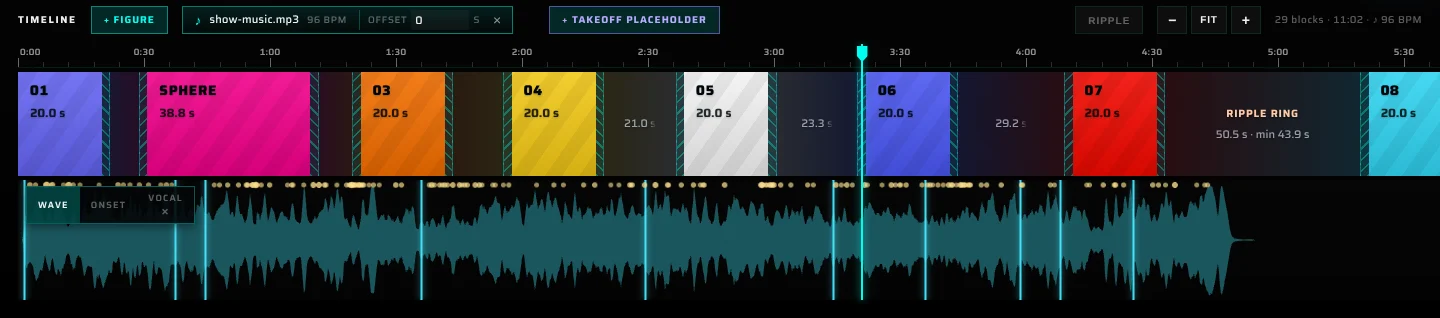
- The timeline header then shows ♪, the track name, its tempo in BPM, an Offset box and a ×. The music lane appears under the blocks, and the summary at the right of the timeline header adds the tempo (♪ and the BPM).
| File types | MP3, WAV, M4A, AAC, OGG, FLAC, Opus |
| Maximum size | 96 MB |
| Tracks per show | One |
A show has one track. To use a different one, click × (Detach this music track), then add the new file. Adding and detaching are both undo steps. Every track you add with + Music is also saved to your tracks.
If something goes wrong, the reason appears in red in the Music window, for example a file that is too large, and you can try another file. A track under Uploaded before that the server no longer has says so: add the file again.
The music can be longer than the show. The timeline only shows the part that plays during the show; if you lengthen the show, more of the track appears.
The music lane#
The music lane sits under the blocks and shares their time scale, so you can line blocks up with the music by eye.
Wave, Onset and Vocal#
The buttons at the top left of the lane switch between three views:
- Wave shows the loudness of the whole track.
- Onset shows where each frequency band hits, one curve per band: warm colours for low frequencies, cool colours for high ones. A legend lists the band frequencies. Use it to find kicks, snares and hi-hats.
- Vocal shows where the vocals are, in pink: the curve rises where someone sings. It's a rough estimate, so solos and fills can show up in it too. Playback is always the whole track.
The Builder finds the vocals in the background after you add a track, which takes a few seconds to a minute. You can switch to Vocal right away: until it's ready, the middle of the lane shows Computing vocals… with a percentage. If it can't be done for the track, the button reads Vocal ✕. Wave and Onset work right away.
Markers#
- Bright cyan vertical lines mark section changes, such as verse to chorus or the drop.
- Yellow dots along the top mark strong hits. The brighter the dot, the stronger the hit.
Beats and bar starts aren't drawn, but the Builder uses them for snapping (see below). Bar starts are found on the assumption that the music is in 4/4.
Working in the lane#
- Click or drag on the lane to move the playhead. Playback pauses. This also clears the selected block; to scrub without losing your selection, drag on the time ruler above the blocks instead.
- Drag the top edge of the lane to make it taller or shorter.
- Alt+drag on the lane slides the music against the show. This changes the Offset.
Line up the music: Offset#
Offset shifts the music against the show, in seconds:
- A positive value starts the music later than the show.
- A negative value starts the show partway into the music.
Type a value in the Offset box in the timeline header. The lane and markers move as you type, and the change becomes one undo step when you leave the box. You can also Alt+drag the music lane. The offset can be up to 300 seconds either way.
Hearing the music#
- Music plays only at 1× playback speed. At 2× and 5×, and while you scrub, it's silent.
- If the playhead is before the music starts or after the track ends, you hear nothing.
- The Pre flight tab plays without music.
Sync blocks to the music#
Snapping when you drag a block edge#
When a track is attached, dragging the edge of a block on the timeline snaps it to the nearest musical moment within a quarter of a second: a beat, a bar start, a section change or a strong hit. A readout on the edge shows the exact time (minutes:seconds.tenths). Edges always land on whole frames.
By default, dragging an edge trades time with the neighbouring block, so everything after it keeps its timing. Hold Shift, or switch on Ripple in the timeline header, to push the rest of the show instead. See Changing durations.
Fit the whole show to the beat#
There's no button for this: ask the AI assistant, for example "fit the show to the beat". The assistant moves every block boundary to the most obvious musical moment nearby, so each figure and transition tends to start and end on the music:
- Section changes win first, then strong hits, then bar starts. Single beats are ignored, because locking to every beat looks random.
- A figure hold can move up to 5 seconds either way, and is never made shorter than 2 seconds.
- A transition can only get longer, by up to 5 seconds, so it never drops below the time the drones need.
- A boundary with no musical moment within reach stays where it is.
The total length of the show may change slightly. To keep tighter control, ask for smaller limits, for example "fit to the beat but don't move any hold by more than 2 seconds". If you don't like the result, undo it.
To hand the running order with the start time of every figure to a client or the crew, use Timings in the header (see Show timings). With music, its times are shown to a tenth of a second.
Your tracks#
The Tracks page in the menu on the left lists every track you've added in the Builder with + Music, newest first. It appears on accounts with Builder access. The list belongs to your account, so it's the same on every device you sign in from.
Each track shows its name, its length, the date it was added, a player to listen to it, and Remove.
- To use a track in a show, open the show, click + Music and pick it under Uploaded before. You can't attach a track from this page.
- Remove asks Remove track? and takes the track off your list. Shows that already use it keep their copy.
- With no tracks yet, the page shows No tracks yet and an Open the builder button.
The Tracks page is separate from the Saved tracks you pick music from on a project page (see Music): a track you add in one doesn't appear in the other.
Music in the 3D viewer#
When you use Send to Viewer, the show's music file goes along with it. The Offset you set in the Builder isn't carried over, so set it again in the viewer (see Music and sync offset). See Sending a show to the viewer for the rest of the send.
Troubleshooting#
| Problem | What to do |
|---|---|
| A red error in the Music window, or a red music error label next to + Music | Read the reason in the window, or hover the label. Check that the file is one of the supported types and no larger than 96 MB. If the analysis fails, try exporting the track to MP3 or WAV. |
| No sound during playback | Set the playback speed to 1×. Check that the playhead is within the music (see Offset). If Vocal is selected, you hear only the vocals. |
| Vocal shows Separating vocals… | Vocal separation is still running and can take several minutes. Wave and Onset work meanwhile. |
| The button reads Vocal ✕ | Vocal separation isn't available for this track. Everything else works. |
| An effect shows white instead of your colours | Its palette is empty (Auto · figure colours). Pick a Gamut or add swatches. |
| A transition's colours changed when you swapped a figure | The palette was still automatic. Change any setting in Color effect and the colours will stay as you set them. |
| Blocks don't snap to the music | Snapping needs a track on the show, and it only catches moments within a quarter of a second of the edge. |
Something missing or unclear? Write to contact@droneshow.store.