Troubleshooting
What the app's error messages mean and how to fix the most common problems.
This chapter collects the problems people run into most often and how to solve them. Most sections start with the exact message the app shows, so you can search for it. If your problem isn't here, see Still stuck at the end.
Signing in and emails#
The setup or reset email didn't arrive#
- Wait a few minutes. Emails can take a little while to arrive.
- Check your spam or junk folder. Look for Set your droneshow.store password or Reset your droneshow.store password, sent by droneshow.store.
- Check that you typed your email address correctly. For your privacy, the app shows the same confirmation whether or not an address is registered, so a typo doesn't produce an error.
- Request a new link:
- If you haven't set a password yet (a new account, or a team invitation), go to Sign up and submit the same email address again. You get a fresh setup link.
- If you have set a password before, use Forgot password? on the Log in page.
- If nothing arrives, write to contact@droneshow.store.
"This link is invalid or has expired. Request a new one."#
Setup and reset links are valid for one hour and work only once. If you see this message, request a new link as described above. If you requested several links, use the newest one: as soon as one link has been used, the others stop working.
If the Set your password page says "Missing token. Check the link in your email.", the page was opened without the code from the link: the link was cut off (some email apps break long links across lines), or the page was reloaded after it opened. Open the link from the email again, or copy the full link into your browser's address bar.
Password rules#
A password must be at least 8 characters long and contain both letters and digits, and the New password and Confirm fields must be identical. Until both are true, the Save & log in button stays grey. Click the eye icon to check what you typed.
"Invalid email or password."#
The email and password don't match an active account. For security, the message doesn't say which of the two is wrong.
- Check for typing mistakes, extra spaces or Caps Lock.
- If you signed up but never finished setting a password, you can't log in yet. Request a fresh setup link (see above).
- If you signed up with Google, use Sign in with Google.
- Otherwise, use Forgot password?
"Too many login attempts. Try again in a minute."#
You tried to sign in too often in a short time. Wait a minute and try again. Similar messages appear on the other forms: "Too many requests. Try again in a minute." and, for Google sign-in, "Too many attempts. Try again in a minute."
The bot check doesn't appear or the button stays grey#
When the form shows Quick check that you're not a bot:, the button stays disabled until the check is complete. If the check doesn't load:
- Turn off ad blockers and privacy extensions for this page and reload.
- Try another browser, or a private window.
If you see "Please complete the CAPTCHA challenge and try again.", the check is required now. Complete it and submit again.
Sign in with Google#
| Message | What to do |
|---|---|
| "To create an account, sign up and accept the Terms of Service and Privacy Policy." | There's no account for this Google email yet. Go to Sign up and use Sign up with Google there. |
| "droneshow.store is in private alpha. Request access first, then sign in with Google." | New accounts are being reviewed by hand. Request access on the Sign up page first. |
| "Your Google account's email isn't verified, so we can't sign you in with it." | Verify the address in your Google account, or sign up with email instead. |
| "Google sign-in failed. Please try again." | Try again. If it keeps failing, reload the page. |
If the Google button doesn't show up, Google sign-in can't load at the moment, often because a browser extension blocks Google's sign-in service. If your account has a password, you can always sign in with email and password instead.
You were signed out#
Your session ends after a period of inactivity, when you set a new password (which signs you out on all your other devices), or when you log out. When that happens, the app takes you to Log in; after you sign in, you return to the page you were on. On some pages you first see "Your session has expired. Please sign in again." or Please sign in again.
In the Show Builder, a Session expired dialog explains that changes can't be saved to the server while you're signed out. Your show is kept in this browser: click Go to login (or wait a few seconds) and sign in, and your work syncs automatically.
"Account disabled."#
Your account has been switched off. Write to contact@droneshow.store.
"CSRF token missing or invalid."#
A security check on your browser session failed, usually in a tab left open for a long time, or after Safari on an iPhone or iPad cleared the site's data. Reload the page and repeat the action. If it keeps happening, sign out and back in.
Uploading shows#
Upload failed: you've reached a limit#
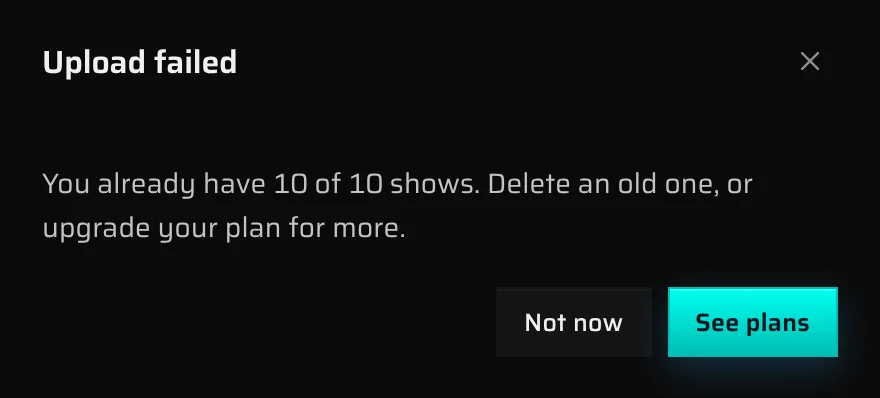
Your plan's limits are checked when you upload. If an upload would go over one of them, you see Upload failed with a message like:
- "You already have 10 of 10 shows. Delete an old one, or upgrade your plan for more."
- "You're using 1.00 GB of 1.00 GB. Free up space by deleting an old project or show, or upgrade your plan for more."
Creating a project can fail the same way: "You already have 5 of 5 projects. …" On Free and Core the window has a See plans button; on Premium and custom plans the message asks you to write to contact@droneshow.store instead.
To fix it:
- Delete shows or projects you no longer need. Failed shows still hold their uploaded file, so delete those first.
- Upgrade your plan on the Pricing page, or write to us.
Your existing projects keep working while you're at a limit. See When you reach a limit or your plan ends.
Upload failed: the file is too large#
"That file is too large to complete the request" means the upload is over the size limit. A single upload, including all the files of a multi-file upload together, can be up to 8 GB. Music files can be up to 256 MB.
- Pack per-drone files (PATH3, CSV) into a
.zipor.tar.gzarchive. Blender files often shrink a lot in a.zip. - For very large Blender scenes, export per-drone CSV files (for example with Skybrush Studio) and upload those as an archive instead.
- If your shows are regularly bigger, write to contact@droneshow.store.
The file type isn't accepted#
- "expected a show file (…)" lists the extensions the viewer accepts. The upload window's file picker offers only these; the message usually appears when you drag in a different kind of file.
- "Multi-file upload only supports per-drone bundles (.path3 or .csv) of a single type." You can select several files at once only for per-drone PATH3 or CSV files, and all of them must have the same extension. To upload several different shows, upload them one at a time.
- For music: "unsupported audio format; expected one of .aac, .flac, .m4a, .mp3, .oga, .ogg, .wav".
The upload stops or fails with a network error#
Uploads run in your browser, so the window has to stay open until the upload finishes ("Keep this window open until it finishes").
- If you try to close the browser tab during an upload, the browser asks you to confirm. If you go to another page inside the app, the upload is cancelled.
- Cancel upload asks "Cancel the upload?". Choose Keep uploading to continue, or Cancel upload to stop. Nothing is added to the project.
- If your connection drops, upload the file again. For big files, use a wired or stable connection and pack the files into an archive.
- When the progress shows "Finishing on the server…", the file is already uploaded and is being stored. Wait a moment.
If a banner says "You appear to be offline. Attempting to connect...", your device has lost its connection, or our servers can't be reached at the moment. The banner disappears by itself when the connection is back.
A show takes a long time to convert#
After the upload, each show is converted on our servers. The progress bar on its card shows how far it has got. You can close the tab: the conversion continues without you.
- The bar stays empty: only a few shows are converted at the same time, so your show waits in the queue for its turn. It starts automatically.
- The bar starts again from the beginning: the conversion was interrupted by maintenance and has been put back in the queue. You don't need to do anything.
- Long conversions: small shows usually take a minute or less. Large Blender scenes take much longer, because the whole scene has to be computed. Per-drone CSV files exported from Blender convert much faster.
If a show seems stuck for a very long time without any progress, use Report a problem in the footer and include the project's address.
A show failed to convert#
A failed show has a red card with an error message and a Try again button.
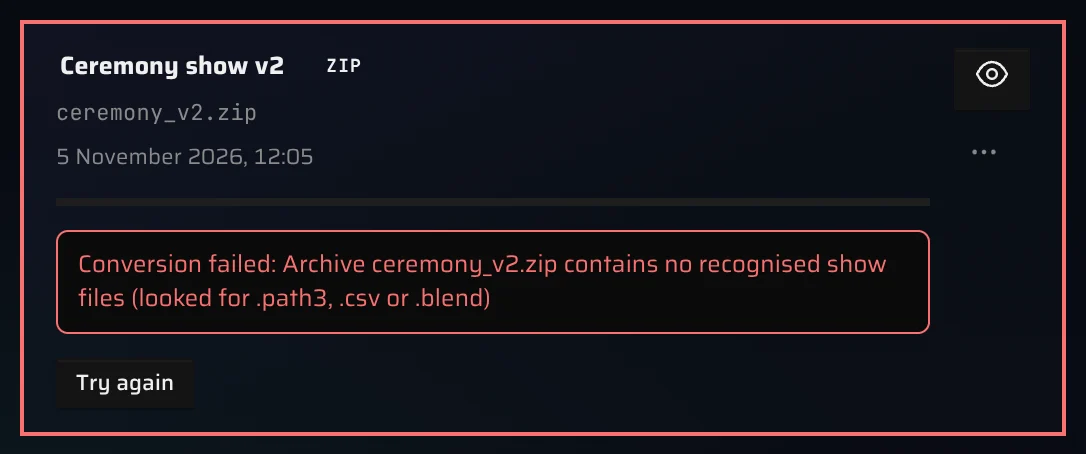
Try again asks "Re-queue this show?" and sends the show through the conversion again, without uploading it again. This often fixes temporary problems. If the same error comes back, the file itself needs fixing:
| Message | What it means and what to do |
|---|---|
| "The show's first frame has no drones — …" | The geometry is empty on frame 0, or the show starts later than frame 0. Make sure the drones exist on the very first frame of the export, then upload again. |
| "No drone geometry was found in this file. …" | The file has no point cloud, and no mesh whose vertices are the drones. Check what you exported. |
| "This file couldn't be read — it may be corrupt or an unsupported variant of the format." | Export the file again. If it still fails, send us a sample. |
| "Conversion failed: Archive … contains no recognised show files …" | The archive doesn't contain show files the viewer understands. Pack only the per-drone .path3 or .csv files (or one .blend or .jsdm), without other files or nested archives. |
| "The archive holds more than … files. Pack only the show files." | Remove everything except the show files from the archive. |
| "The archive unpacks to …, more than the … limit." | The unpacked content is too big. Split the show, or contact us. |
| "Not enough free space on the server to unpack the archive …" | A problem on our side. Try again later, or contact us. |
| "The show file is no longer on the server - please upload it again." | Try again can't help here. Delete the show and upload the file again. |
| "The conversion process was killed - most likely the server ran out of memory on this show. …" | Click Try again later. If it keeps happening, contact us. |
| "The conversion ran for more than … and was stopped. …" | Click Try again. For very long Blender scenes, upload per-drone CSV files instead. |
| "The conversion was cut off by a server restart … times. …" | Click Try again. Contact us if it keeps happening. |
| "The conversion could not be started. …" or "The conversion process stopped unexpectedly …" | Click Try again. |
Other messages that start with "Conversion failed:" come straight from the file reader. For PATH3 and CSV archives, check that the archive contains only the per-drone files, with consistent file names.
Watching shows#
There's no sound#
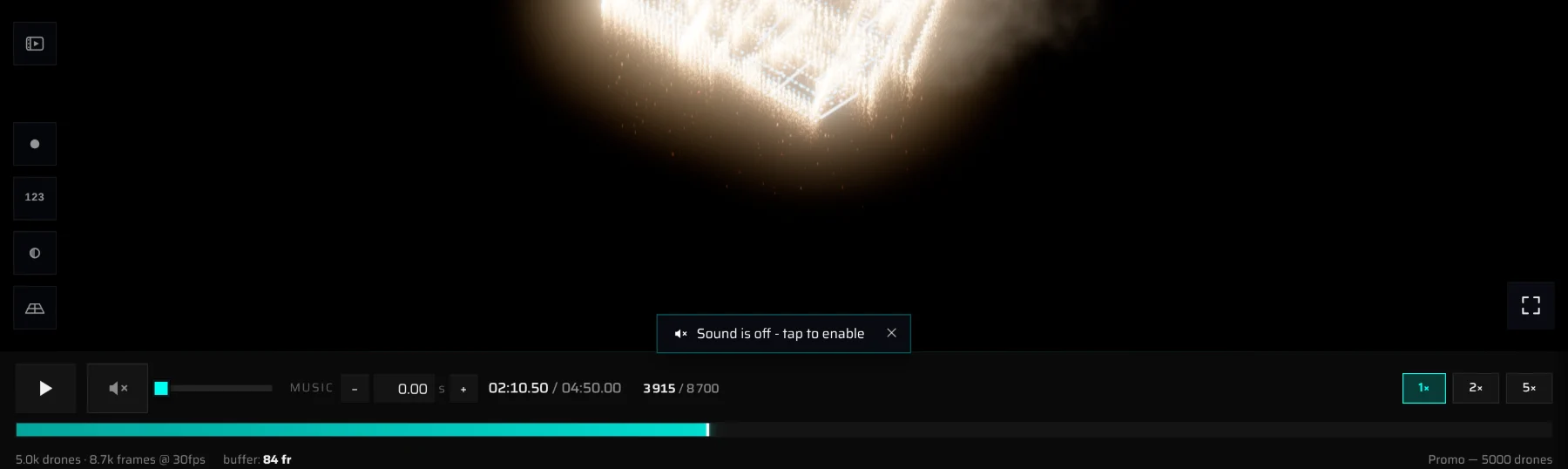
- The viewer always starts muted, because browsers block sound until you interact with the page. Click the Sound is off - tap to enable pill, or the speaker button in the viewer.
- The pill disappears after a few seconds and doesn't come back during the session. Use the speaker button instead.
- Check that the project has music: on the project page, the Music section shows the track, or a + Add music button if there's none.
- Check your device's volume and that the browser tab isn't muted.
The music is out of sync#
Each project has one music track, and each show has its own start offset. On the project page, every show card has an offset field in seconds:
- A positive value delays the music. For example,
2.5starts the music 2.5 s after the show. - A negative value starts the music early. For example,
-1.2means the music is already 1.2 s in when the show begins.
Values can be up to 300 s either way. Press Enter or click outside the field to save. Visitors of your share link hear the saved value. See Set the music offset, or set it by ear in the viewer: Adjust the sync offset.
The 3D view is slow, blank or crashes#
The viewer draws the show with your device's graphics chip (WebGL), so it depends on your browser and hardware.
- Use an up-to-date desktop browser such as Chrome, Edge, Firefox or Safari.
- Turn on hardware acceleration in your browser's settings. Without it, the graphics chip isn't used and the 3D view is very slow or stays blank.
- Close other heavy tabs and apps, especially other 3D pages.
- On laptops, plug in the power: battery-saving modes slow the graphics chip down.
- On phones, playback runs at a lower frame rate to save power and some effects are simplified. Large shows play more smoothly on a computer.
On slower devices, the viewer automatically lowers its drawing resolution to keep playback smooth, so the picture may look slightly softer. It sharpens again when the device can keep up.
If the page shows "Something went wrong while rendering the viewer.", click Reload page. If it happens again, copy the message shown under it and send it to us with Report a problem or by email.
"Project unavailable"#
The project has been deleted, it belongs to another account, or you were removed from the team it's shared with. Go back to your projects. Other messages on the same screen:
- Please sign in again: your session has expired. Sign in to continue.
- Service is having a moment or Can't load this project right now: a temporary problem on our side or with your connection. Wait a moment and reload.
If the Projects page shows Can't load right now, click Retry. This usually clears up within a minute.
Share links#
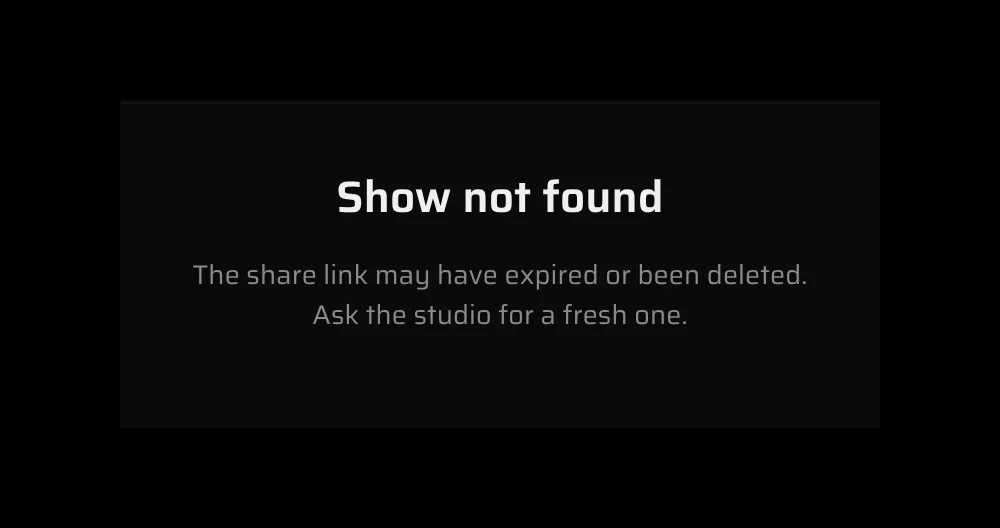
Your client sees "Show not found"#
"The share link may have expired or been deleted. Ask the studio for a fresh one."
- Check that the full link arrived. Chat apps sometimes cut long links or add punctuation at the end. Copy it again from the project page with Share link, or with Copy share link in the project's ⋯ menu on the Projects page.
- Renaming a project doesn't break its link. Deleting the project does.
- If you deleted a project and created it again, the new project has a new link.
"The show didn't load"#
A temporary problem, for example a dropped connection or a short server restart. The page tries again by itself after a few seconds (after a minute if there were too many requests), or your client can click Try again.
The link opens but there's nothing to play#
If the project has no public shows, the share page has nothing to play, and its settings drawer reads No shows yet: "The studio hasn't published anything to this link yet." Either the project has no shows yet, or all of them are hidden. On the project page, make sure the eye button on each show you want to share is open, not crossed out. See Hide a show from the link.
Payments and plans#
The payment form doesn't open#
When you click Subscribe and the form doesn't open, you see Couldn't open the checkout with one of these messages:
| Message | What to do |
|---|---|
| "The payment form couldn't load. Check the connection — or an ad / script blocker on this page — and try again." | Turn off ad and script blockers for this page and try again. |
| "The payment form didn't start. Reload the page and try again." | Reload the page and try again. |
| "You already have the … plan. Switch plans or manage billing on your Account page." | Your account already has a subscription. Change the plan from your Account page instead. |
| "Online payments aren't switched on yet. Write to contact@droneshow.store and we'll set up your plan." | Email us, and we set up the plan for you. |
You paid but your plan didn't change#
It can take a moment for the payment to reach your account. The Account page shows "Payment received. Switching your plan on - this can take a minute." and checks again by itself. If your plan hasn't changed after a few minutes, reload the Account page. If it still hasn't changed, write to contact@droneshow.store with the email address on your Paddle receipt.
A payment failed or a card was declined#
- Renewal failed: the Plan & billing section shows Payment failed. Your plan keeps working while Paddle retries. Click Update payment method and enter a new card. See Failed payments.
- Upgrade declined: "Changing the plan didn't go through:" followed by Paddle's reason. Your plan stays as it was. Check the card, or update it under Manage billing, then try again.
Other billing messages#
| Message | What it means |
|---|---|
| "Your last payment didn't go through. Update the payment method in Manage billing first, then change the plan." | Fix the failed payment before switching plans. |
| "Your subscription is set to end at the close of this billing period. Resume it first, then change the plan." | Click Resume subscription, then switch. |
| "… didn't go through - the payment service didn't answer. Nothing was changed; try again in a minute." | Paddle didn't respond. Wait a minute and try again. |
| "Too many billing requests. Try again in a minute." | Wait a minute. |
| "Couldn't load the billing details - reload the page to try again." | Reload the Account page. |
For refunds, see Receipts and refunds.
Show Builder#
"… drones is over your limit"#
"Your account allows … drones per show. Core allows 500 and Premium 5,000 drones per show."
You asked for more drones than your account allows. The Builder sets the number to your limit and tells you so. The limit comes with your account: 300 drones per show on Free, 500 on Core and 5000 on Premium. See plans in the dialog opens the Pricing page; above Premium, write to contact@droneshow.store.
- If the message says the limit couldn't be checked, the Builder couldn't reach the server and used a default limit. Reload the page once you're back online.
- "… drones is over the maximum" means you asked for more than 10,000 drones per show. That's the system maximum, not an account limit, and it can't be raised.
The show is read-only#
A bar reads "🔒 read-only — editing: name". A teammate is editing the show, and your changes aren't being saved. Wait until they're done, or click Take over. See Editing a show together.
The simulation failed#
The simulation runs on our servers. If it doesn't finish, the simulation panel shows one of these messages:
| Message | What to do |
|---|---|
| "The simulation was interrupted. Please run it again." | Run the simulation again. |
| "The simulation took too long and was stopped. Try running it again." | Run it again. If it keeps happening, contact us with the show's name. |
| "Couldn’t reach the server. Check your connection and try again." | Check your connection and run it again. |
| "The simulation couldn’t finish. Please try again." | Run it again. If it keeps failing, contact us. |
See Run the collision simulation for how the simulation works.
Teams#
A teammate can't see the team or its projects#
- Check that they're listed under Members on the team page. If their row is greyed out and says "Invited — joins once they accept", they haven't accepted yet: they need to click Accept in the banner on their Projects page. See Accept an invitation.
- If they had no account, they first need to set a password with the link in their invitation email. The link is valid for one hour. If it has expired, they can go to Sign up and enter the same email address to get a fresh link.
- Team projects appear on their Projects page with a team chip. Shared Builder shows are under Show Builder.
- A project only becomes visible to the team once its owner chooses the team under shared with on the project page.
"cannot remove the last member with 'manage'"#
A team always needs at least one member with the manage permission. Give it to someone else first, then leave or remove the member. Taking the permission away from the last manager shows "a team must keep at least one member with 'manage'".
"Team not found"#
The team has been deleted, or you're no longer a member. Click Back to your projects.
Common error messages#
Many actions show a short message when something goes wrong. The … stands for what you were doing, for example "save the show".
| Message | What it means |
|---|---|
| "Couldn't … — the server didn't respond. Check your connection and try again." | Your device couldn't reach us. Check your internet connection. |
| "Your session has expired. Please sign in again." | Sign in again. You return to where you were. |
| "You don't have permission to … Ask the owner or an admin for access." | In a team, your permissions don't allow this. Ask a member with the manage permission. |
| "'edit' capability required", "'invite' capability required" or "'manage' capability required" | Your team permissions don't include edit, invite or manage. Ask a member with the manage permission to tick it for you. See Permissions. |
| "only the owner can share/unshare a project" | Only a project's owner can move it into or out of a team. |
| "Couldn't … — it may have been moved or deleted." | The project, show or team no longer exists, or you lost access to it. |
| "Couldn't … — someone else changed this at the same time. Reload and try again." | A teammate changed the same thing. Reload the page, then repeat your change. |
| "Couldn't … — this show is locked by another editor." | A teammate is editing the show. See Editing a show together. |
| "Couldn't … — the server took too long. Try again in a moment." | Try again shortly. |
| "Too many requests at once. Wait a few seconds and try again." | Wait a few seconds. |
| "The server is busy or restarting. Give it a few seconds and try again." | We're updating or under heavy load. Try again shortly. |
| "Something went wrong on our side while trying to … Try again in a minute — we're on it." | An error on our side. If it persists, report it. |
| "Couldn't … — the server rejected the request. If this keeps happening, let us know at contact@droneshow.store." | Report it if it happens again. |
Still stuck#
- Use Report a problem in the page footer, for example on your Projects page or a project page. Describe what you did and what happened. We see which page you were on.
- Or email contact@droneshow.store. We answer within one business day. Include what you were trying to do, the address of the project or show from your browser's address bar, and a screenshot if possible.
Something missing or unclear? Write to contact@droneshow.store.